> ## Documentation Index
> Fetch the complete documentation index at: https://docs.getprimo.com/llms.txt
> Use this file to discover all available pages before exploring further.
# AI dashboards
> Add dashboards that Primo composes from your company's data, pin the one the Dashboard page opens on, and keep each one up to date.
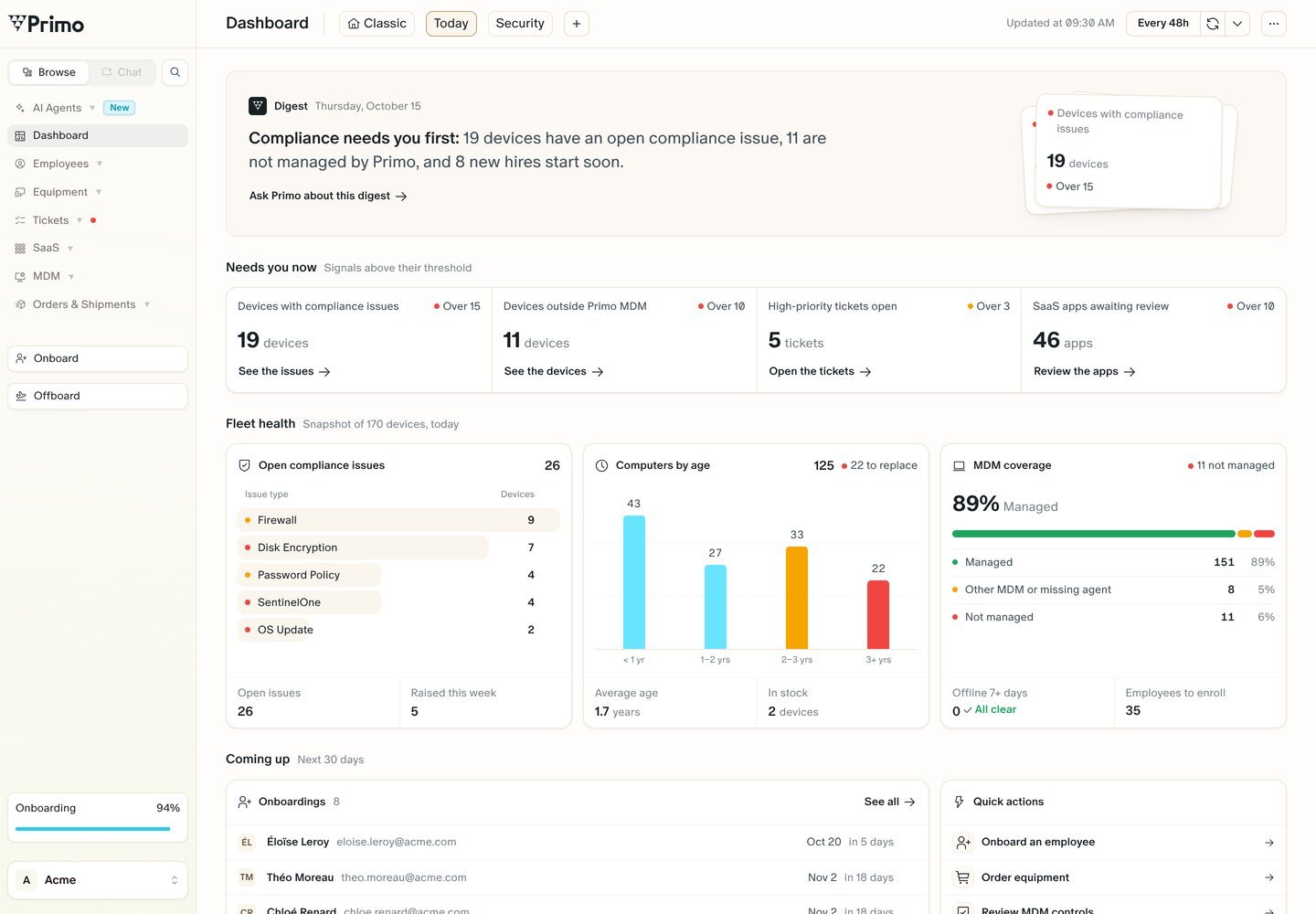
The **Dashboard** page shows your dashboards as tabs. **Classic** is the historical dashboard. Next to it are AI dashboards: views that Primo composes from your company's data and keeps up to date.
 ## Prerequisites
* Admin access to the cockpit.
## How AI dashboards work
* **Classic** always stays. You can't rename or delete it.
* The first AI dashboard is **Today**, a generalist view of what needs your attention.
* A company can have up to 10 AI dashboards.
* Dashboards are shared by the whole company. Every admin sees the same views, and a change one admin makes applies to everyone.
* Numbers are loaded live each time the page opens.
## Read an AI dashboard
Every AI dashboard opens on a **Digest**: one sentence on what needs attention first, for example "Compliance needs you first: 19 devices have an open compliance issue, 11 are not managed by Primo, and 8 new hires start soon."
Click **Ask Primo about this digest** to open the [Primo AI](/ai/primo-ai) chat on it.
Below the digest, the sections depend on the dashboard. **Today** shows:
| Section | What it shows |
| - | - |
| **Needs you now** | Signals above their threshold. Each one links to the devices, tickets or apps concerned. |
| **Fleet health** | A snapshot of your devices: open compliance issues, computers by age, MDM coverage. |
| **Coming up** | Onboardings in the next 30 days, and quick actions. |
## Create a dashboard
The **New dashboard** modal opens.
Enter a **Name**. It becomes the tab label.
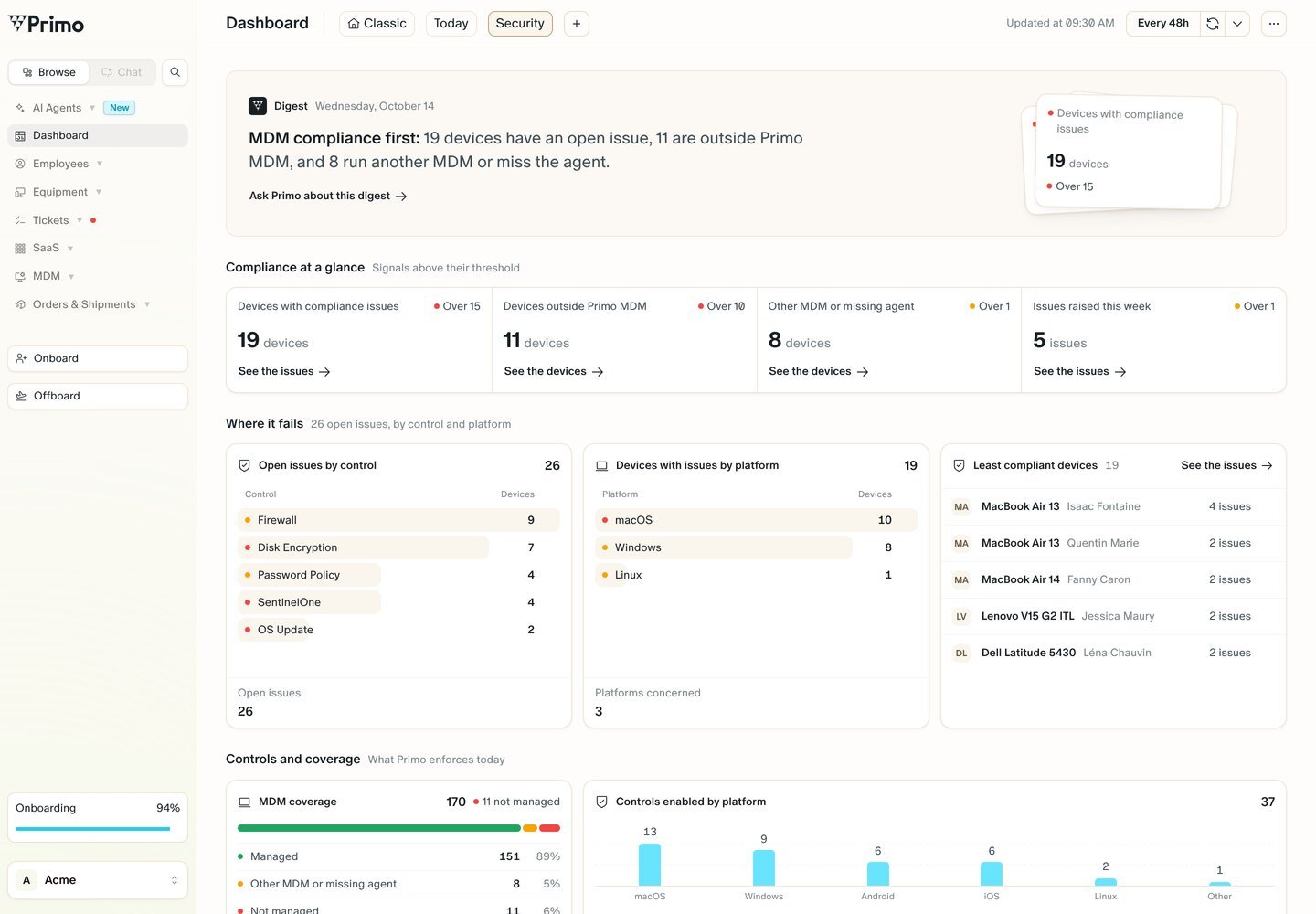
In **Say a few words about the dashboard of your dreams.**, describe what the dashboard is for, for example "Security first: compliance issues, unencrypted devices and late updates."
## Prerequisites
* Admin access to the cockpit.
## How AI dashboards work
* **Classic** always stays. You can't rename or delete it.
* The first AI dashboard is **Today**, a generalist view of what needs your attention.
* A company can have up to 10 AI dashboards.
* Dashboards are shared by the whole company. Every admin sees the same views, and a change one admin makes applies to everyone.
* Numbers are loaded live each time the page opens.
## Read an AI dashboard
Every AI dashboard opens on a **Digest**: one sentence on what needs attention first, for example "Compliance needs you first: 19 devices have an open compliance issue, 11 are not managed by Primo, and 8 new hires start soon."
Click **Ask Primo about this digest** to open the [Primo AI](/ai/primo-ai) chat on it.
Below the digest, the sections depend on the dashboard. **Today** shows:
| Section | What it shows |
| - | - |
| **Needs you now** | Signals above their threshold. Each one links to the devices, tickets or apps concerned. |
| **Fleet health** | A snapshot of your devices: open compliance issues, computers by age, MDM coverage. |
| **Coming up** | Onboardings in the next 30 days, and quick actions. |
## Create a dashboard
The **New dashboard** modal opens.
Enter a **Name**. It becomes the tab label.
In **Say a few words about the dashboard of your dreams.**, describe what the dashboard is for, for example "Security first: compliance issues, unencrypted devices and late updates."
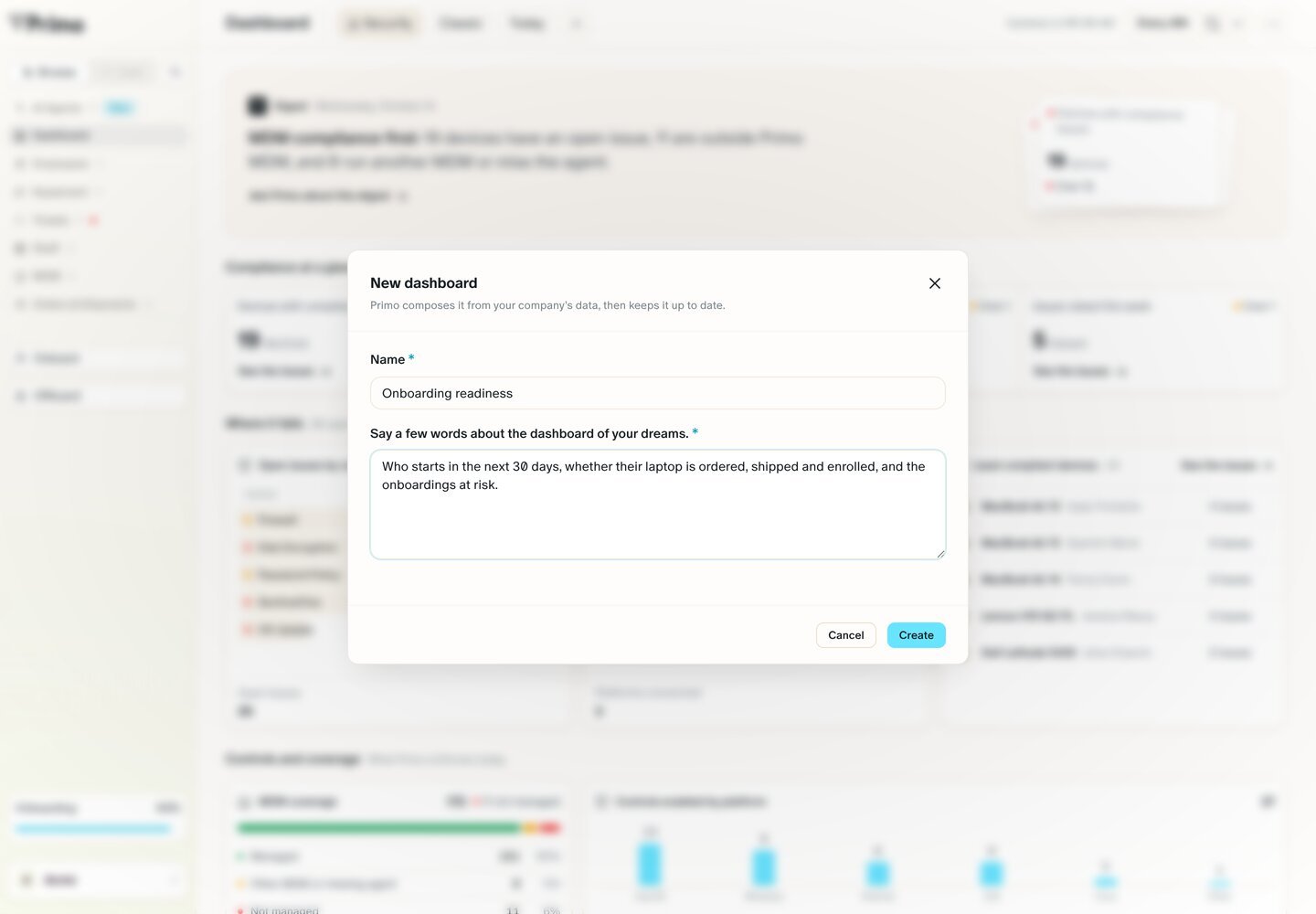 Primo composes the new view from your company's data, then keeps it up to date.
 ## Manage a dashboard
Open the dashboard, then click **…** at the top right of the page:
| Action | What it does |
| - | - |
| **Pin** | Makes the Dashboard page open on this view for everyone in your company. See [Pin a dashboard](#pin-a-dashboard). |
| **Rename** | Changes the tab label. |
| **Delete** | Removes the view with its instructions. This can't be undone. |
### Pin a dashboard
The pinned view moves to the leftmost tab, and the **Dashboard** page opens on it for everyone in your company. Only one view is pinned at a time. **Classic** is pinned by default.
When you click **Pin**, a message confirms: "The Dashboard page now opens on this view for everyone in your company."
## Manage a dashboard
Open the dashboard, then click **…** at the top right of the page:
| Action | What it does |
| - | - |
| **Pin** | Makes the Dashboard page open on this view for everyone in your company. See [Pin a dashboard](#pin-a-dashboard). |
| **Rename** | Changes the tab label. |
| **Delete** | Removes the view with its instructions. This can't be undone. |
### Pin a dashboard
The pinned view moves to the leftmost tab, and the **Dashboard** page opens on it for everyone in your company. Only one view is pinned at a time. **Classic** is pinned by default.
When you click **Pin**, a message confirms: "The Dashboard page now opens on this view for everyone in your company."
 To open the Dashboard page on **Classic** again, pin **Classic**. Other pages with table views work the same way. See [Pin a view](/get-started/pin-a-view).
## Keep a dashboard up to date
Primo recomposes each AI dashboard on a schedule. The time of the last update shows as **Updated at …** at the top right. The recompose options next to it let you:
* **Set the frequency** — recompose automatically every 48 hours (the default), every 24, 6 or 3 hours, or turn it **Off**.
* **Recompose now** — recompose the dashboard on demand.
* **Improve with Primo AI** — tell Primo AI what to change. Primo updates the dashboard's instructions, then recomposes it.
This documentation is built and hosted on [Mintlify](https://mintlify.com), a developer documentation platform.
To open the Dashboard page on **Classic** again, pin **Classic**. Other pages with table views work the same way. See [Pin a view](/get-started/pin-a-view).
## Keep a dashboard up to date
Primo recomposes each AI dashboard on a schedule. The time of the last update shows as **Updated at …** at the top right. The recompose options next to it let you:
* **Set the frequency** — recompose automatically every 48 hours (the default), every 24, 6 or 3 hours, or turn it **Off**.
* **Recompose now** — recompose the dashboard on demand.
* **Improve with Primo AI** — tell Primo AI what to change. Primo updates the dashboard's instructions, then recomposes it.
This documentation is built and hosted on [Mintlify](https://mintlify.com), a developer documentation platform.