> ## Documentation Index
> Fetch the complete documentation index at: https://docs.getprimo.com/llms.txt
> Use this file to discover all available pages before exploring further.
# Onboarding Agent
> Let Primo AI run every new onboarding from instructions you write: it builds the ticket and its tasks, works with the new hire by email, and hands your team what it can't do.
The Onboarding Agent is Primo AI running your onboardings end to end. You describe how your company onboards, in your own words or with Primo AI writing them with you: the steps, who owns each one, the timing, the reminders. For every new hire, the agent opens one onboarding ticket, creates the tasks your instructions call for, does the work it has the tools for, and gives a task to a named person for everything else.
This article covers the agent. Onboardings that run without it follow the settings described in [Understand onboarding settings](/employees/onboarding-settings).
**Availability:** Primo opens the Onboarding Agent company by company. If you don't see the **Onboarding Agent** card at the top of **Employees > Settings > Onboarding**, it isn't open for your company yet. Contact your Primo representative to ask for it.
## Check what you need
**Permissions**
| Action | Permission |
| - | - |
| Set up the agent from the Onboarding settings card | **Manage employee settings** and **Manage AI agents** |
| Edit the instructions, enable or disable the agent | **Manage AI agents** |
| See the agent and its runs | **View AI agents** |
| Add a new hire with the **Add an employee** form | **Manage all employees** |
**What the agent works with**
* **[Equipment policy](/procurement/equipment-policy)** and **[Purchasing policy](/procurement/purchasing-policy)**, published. The agent orders only within both. Without them, it orders nothing and gives the IT owner a task instead.
* **A connected email provider** to create professional mailboxes. See [Connect your email provider](/saas/get-started/connect-email-provider).
* **[Provisioning rules](/saas/rules)** for the SaaS accounts it creates.
* **Your HR system**, synced, so new hires reach Primo with a start date and a personal email. See [Set up HR sync](/employees/set-up-hr-sync).
None of these blocks the setup. A step the agent can't run becomes a task for a person.
## Set up the agent
Go to **Employees > Settings** and open the **Onboarding** tab. The **Onboarding Agent** card sits at the top of the page.
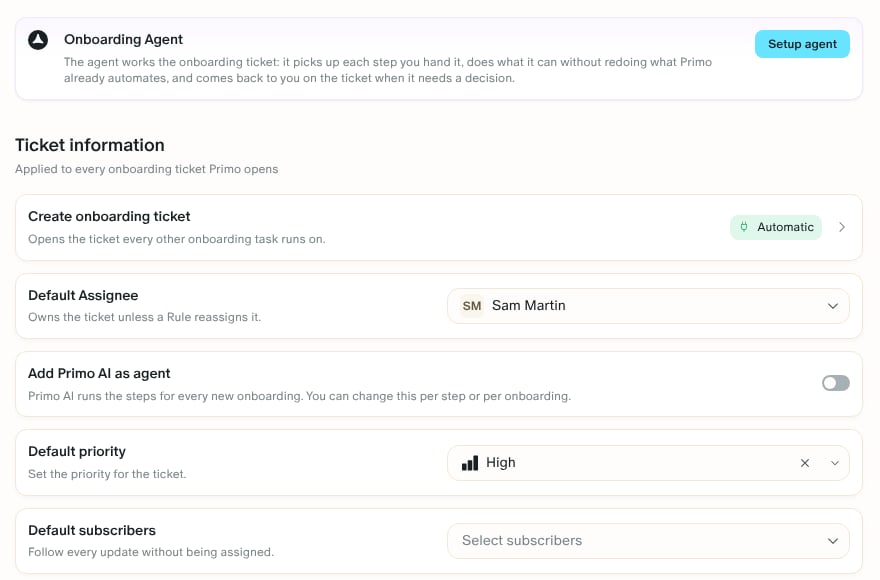 The agent's creation page opens, filled in by Primo:
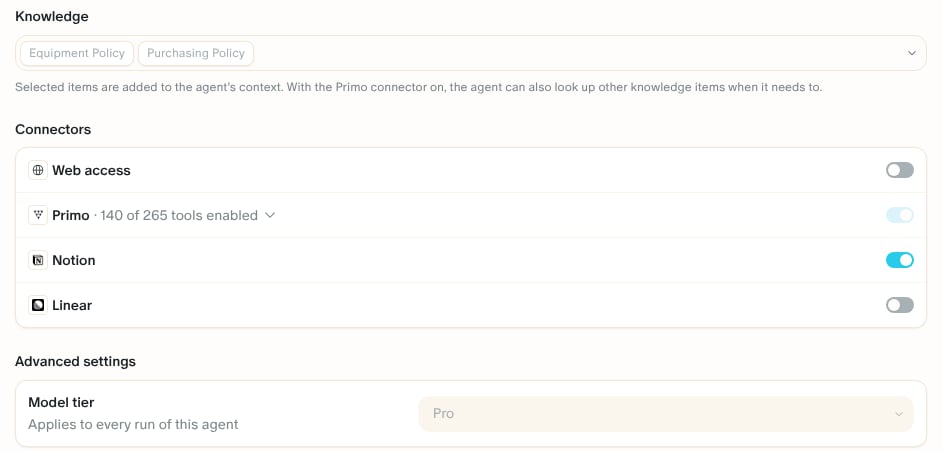
* **Locked**, set by Primo: the name, the description, the **Model tier**, the trigger **Employee onboarding created**, the Primo tools the agent needs, and the Equipment and Purchasing policies in **Knowledge**. They show greyed out.
* **Editable**: the **Instructions**, prefilled with Primo's template in your cockpit language (English or French), **Web access**, and the other **Connectors** you want the agent to use.
When a policy is not published, a callout under **Knowledge** names it, for example *No Purchasing policy yet.*
The agent's creation page opens, filled in by Primo:
* **Locked**, set by Primo: the name, the description, the **Model tier**, the trigger **Employee onboarding created**, the Primo tools the agent needs, and the Equipment and Purchasing policies in **Knowledge**. They show greyed out.
* **Editable**: the **Instructions**, prefilled with Primo's template in your cockpit language (English or French), **Web access**, and the other **Connectors** you want the agent to use.
When a policy is not published, a callout under **Knowledge** names it, for example *No Purchasing policy yet.*
 Replace the bracketed names and adjust the steps to your process, or let Primo AI write them with you from your current onboarding settings. See [Write or rework the instructions with Primo AI](#write-or-rework-the-instructions-with-primo-ai).
The agent is created and enabled: *Agent created and enabled.* The agent page opens.
Once the agent is enabled:
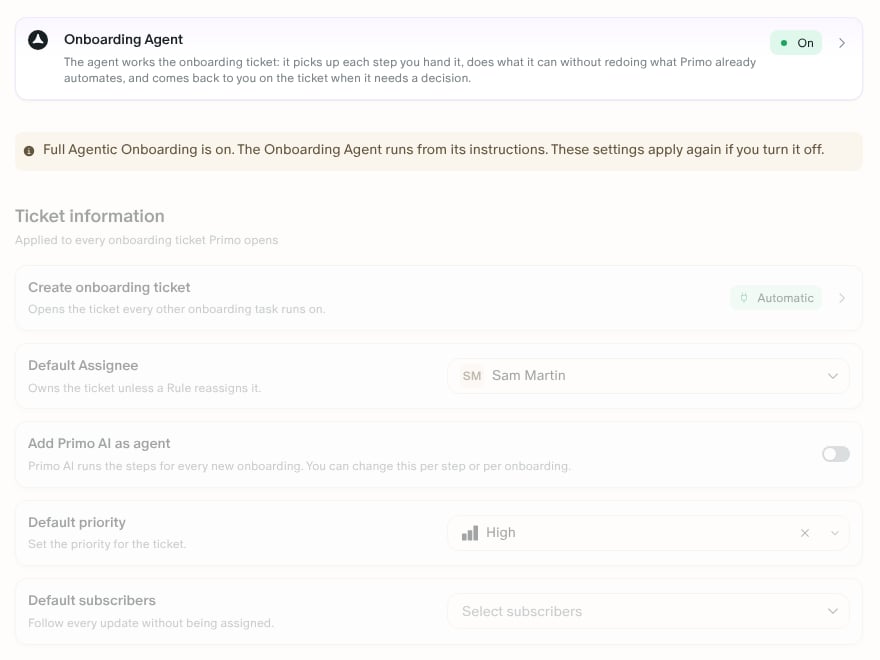
* The card reads **On**. Click it to open the agent page.
* A banner reads *Full Agentic Onboarding is on.* The **Ticket information** and **Onboarding tasks** sections below are greyed out: the agent's instructions replace them.
* Every onboarding created from then on is run by the agent: from your HR system, from the **Add an employee** form, or from the public API.
* An onboarding created before you enabled the agent stays on the classic settings until it ends.
Replace the bracketed names and adjust the steps to your process, or let Primo AI write them with you from your current onboarding settings. See [Write or rework the instructions with Primo AI](#write-or-rework-the-instructions-with-primo-ai).
The agent is created and enabled: *Agent created and enabled.* The agent page opens.
Once the agent is enabled:
* The card reads **On**. Click it to open the agent page.
* A banner reads *Full Agentic Onboarding is on.* The **Ticket information** and **Onboarding tasks** sections below are greyed out: the agent's instructions replace them.
* Every onboarding created from then on is run by the agent: from your HR system, from the **Add an employee** form, or from the public API.
* An onboarding created before you enabled the agent stays on the classic settings until it ends.
 The agent also appears in **AI Agents > Agents**, with the type **Primo agent**.
## Edit the instructions
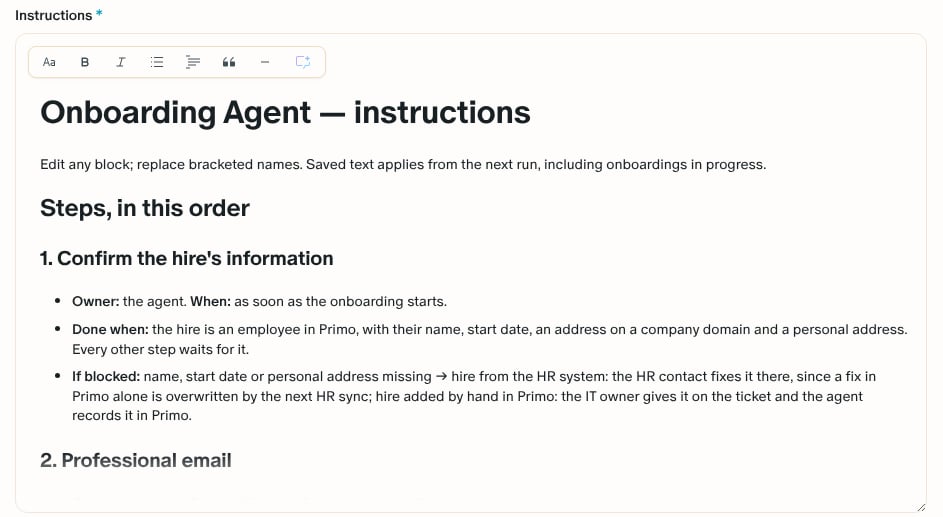
Open the agent page from the **Onboarding Agent** card, or from **AI Agents > Agents**. Edit the **Instructions** field, then click **Save**.
Saved text applies from the agent's next run, including the onboardings already in progress.
The agent also appears in **AI Agents > Agents**, with the type **Primo agent**.
## Edit the instructions
Open the agent page from the **Onboarding Agent** card, or from **AI Agents > Agents**. Edit the **Instructions** field, then click **Save**.
Saved text applies from the agent's next run, including the onboardings already in progress.
 ### Write or rework the instructions with Primo AI
Primo AI writes the instructions with you, from an empty field or from the text you already have. Click the Primo AI button at the end of the **Instructions** toolbar: the chat opens next to the form and offers two ways in.
| The field is | Primo AI offers to |
| - | - |
| Empty | Ask you questions and write the instructions from your answers, or draft a first version right away from the agent's setup |
| Already filled | Review your text and propose an improved version, or start over from your answers |
Along the way, Primo AI:
* Starts from your current onboarding settings. Each question proposes the answer your settings give, such as when the ticket opens, the steps you run, their owners, and their dates, and says where it comes from.
* Asks one question at a time, with choices and a recommended option, in English or French.
* Checks your data before it writes a rule: that each owner is an employee in Primo, that both policies are published, which SaaS rules are enabled, and whether an email provider is connected.
* Reviews the text you already have against what the instructions need, such as Primo's eight sections and an owner and a date for every step, and lists what is missing.
* Tells you when a request is outside what the agent can do, such as configuring the device through MDM, and offers the closest rule that works.
You can also ask in your own words: add a step, change an owner, simplify the text, or translate it.
Primo AI only writes into the field. Before it replaces text that is already there, it asks whether to replace it or keep yours. Nothing reaches the agent until you click **Save**, or **Create** on the creation page.
### Know the sections of the template
Primo's template has these sections. Keep the headings, change the content:
| Section | What you set |
| - | - |
| **Steps, in this order** | The four default steps (confirm the hire's information, professional email, SaaS accounts, equipment), each with its owner, when it runs, when it is done, and what happens if it is blocked |
| **Who owns what** | The IT owner, the HR contact, and the owner of each application |
| **Timing** | When the onboarding starts (30 days before the start date by default) and what happens without a start date or for a late hire |
| **Reminders and escalation** | How often the agent reminds people, and when a step becomes a task for the IT owner |
| **People already in post** | What the agent does when the start date has already passed |
| **Policies** | Ordering within your published policies, and which SaaS accounts to create |
| **How to talk to the hire** | The language, the tone, and the signature of the emails to the new hire |
| **Anything else your company does** | Any other rule, one per line |
### Add a step of your own
Copy a step under **Steps, in this order** and fill in its lines. For example, for a badge and a desk handled by your office manager:
```markdown theme={null}
### 5. Badge & desk
- **Owner:** Sam Martin. **When:** 2 days before the start date.
- **Done when:** the badge is ready and the desk is assigned.
```
The agent creates a task for Sam on each onboarding ticket. A step the agent has no tool for is always a task for its owner: the agent never does it itself. A step you delete is no longer created.
### Set owners and timing
* Name one employee in Primo per role. A role left empty falls back to the IT owner.
* The IT owner is required: it is the ticket's assignee and receives every hand-over. Without one, the agent asks for it and hands every step to the hire's manager.
* Every date counts from the start date. The onboarding is due on the start date.
* By default, the agent sends two reminders 48 hours apart on the same request, then gives the IT owner a task. Three days before the start date, it stops asking the new hire.
## Understand what the agent does
### The onboarding ticket
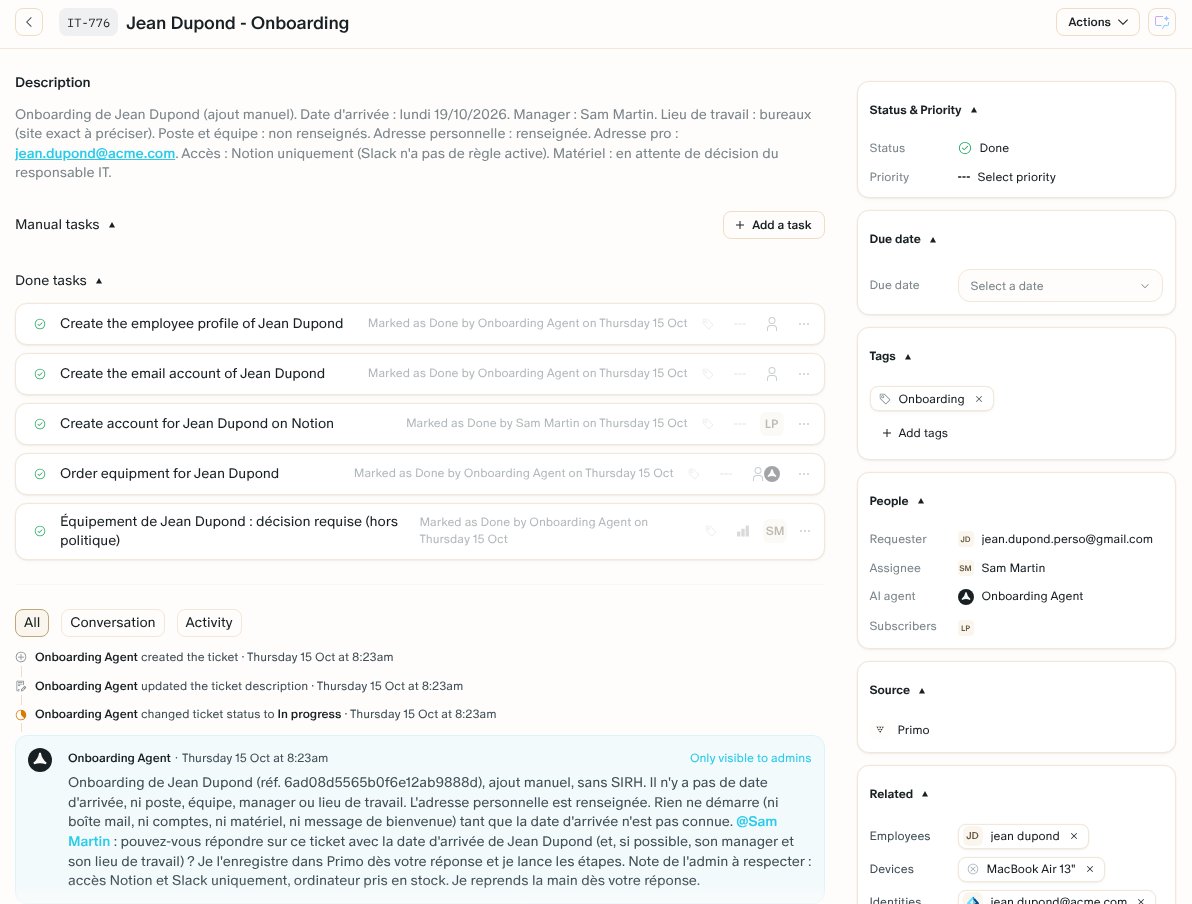
For each onboarding, the agent opens one ticket, *First Last - Onboarding*, with the **Onboarding** tag. It is assigned to the IT owner, due on the start date, with the new hire as requester and the agent on it.
On the ticket, the agent:
* Fills in the ticket description: start date, role, workplace, and what is missing.
* Creates one task per step of your instructions, assigned to itself for what it executes and to the named person otherwise.
* Moves the ticket to **In progress** on its first run.
* Ends each run with one internal comment: what it did, what is waiting and on whom, each person who has to act mentioned, and when it comes back.
* Closes the onboarding with a short summary once the last task is done.
The agent never opens a second ticket for the same onboarding.
### Write or rework the instructions with Primo AI
Primo AI writes the instructions with you, from an empty field or from the text you already have. Click the Primo AI button at the end of the **Instructions** toolbar: the chat opens next to the form and offers two ways in.
| The field is | Primo AI offers to |
| - | - |
| Empty | Ask you questions and write the instructions from your answers, or draft a first version right away from the agent's setup |
| Already filled | Review your text and propose an improved version, or start over from your answers |
Along the way, Primo AI:
* Starts from your current onboarding settings. Each question proposes the answer your settings give, such as when the ticket opens, the steps you run, their owners, and their dates, and says where it comes from.
* Asks one question at a time, with choices and a recommended option, in English or French.
* Checks your data before it writes a rule: that each owner is an employee in Primo, that both policies are published, which SaaS rules are enabled, and whether an email provider is connected.
* Reviews the text you already have against what the instructions need, such as Primo's eight sections and an owner and a date for every step, and lists what is missing.
* Tells you when a request is outside what the agent can do, such as configuring the device through MDM, and offers the closest rule that works.
You can also ask in your own words: add a step, change an owner, simplify the text, or translate it.
Primo AI only writes into the field. Before it replaces text that is already there, it asks whether to replace it or keep yours. Nothing reaches the agent until you click **Save**, or **Create** on the creation page.
### Know the sections of the template
Primo's template has these sections. Keep the headings, change the content:
| Section | What you set |
| - | - |
| **Steps, in this order** | The four default steps (confirm the hire's information, professional email, SaaS accounts, equipment), each with its owner, when it runs, when it is done, and what happens if it is blocked |
| **Who owns what** | The IT owner, the HR contact, and the owner of each application |
| **Timing** | When the onboarding starts (30 days before the start date by default) and what happens without a start date or for a late hire |
| **Reminders and escalation** | How often the agent reminds people, and when a step becomes a task for the IT owner |
| **People already in post** | What the agent does when the start date has already passed |
| **Policies** | Ordering within your published policies, and which SaaS accounts to create |
| **How to talk to the hire** | The language, the tone, and the signature of the emails to the new hire |
| **Anything else your company does** | Any other rule, one per line |
### Add a step of your own
Copy a step under **Steps, in this order** and fill in its lines. For example, for a badge and a desk handled by your office manager:
```markdown theme={null}
### 5. Badge & desk
- **Owner:** Sam Martin. **When:** 2 days before the start date.
- **Done when:** the badge is ready and the desk is assigned.
```
The agent creates a task for Sam on each onboarding ticket. A step the agent has no tool for is always a task for its owner: the agent never does it itself. A step you delete is no longer created.
### Set owners and timing
* Name one employee in Primo per role. A role left empty falls back to the IT owner.
* The IT owner is required: it is the ticket's assignee and receives every hand-over. Without one, the agent asks for it and hands every step to the hire's manager.
* Every date counts from the start date. The onboarding is due on the start date.
* By default, the agent sends two reminders 48 hours apart on the same request, then gives the IT owner a task. Three days before the start date, it stops asking the new hire.
## Understand what the agent does
### The onboarding ticket
For each onboarding, the agent opens one ticket, *First Last - Onboarding*, with the **Onboarding** tag. It is assigned to the IT owner, due on the start date, with the new hire as requester and the agent on it.
On the ticket, the agent:
* Fills in the ticket description: start date, role, workplace, and what is missing.
* Creates one task per step of your instructions, assigned to itself for what it executes and to the named person otherwise.
* Moves the ticket to **In progress** on its first run.
* Ends each run with one internal comment: what it did, what is waiting and on whom, each person who has to act mentioned, and when it comes back.
* Closes the onboarding with a short summary once the last task is done.
The agent never opens a second ticket for the same onboarding.
 ### What the new hire receives
By default, the agent writes to the new hire by email, at the personal address from your HR system or from the **Add an employee** form, to agree their equipment and confirm their delivery address.
* The emails are plain text, sent by Primo AI ([support@getprimo.com](mailto:support@getprimo.com)) and signed by your IT team, for example *Acme IT team*. You set the signature in **How to talk to the hire**.
* The new hire needs no Primo account. The emails hold no prices, no internal notes, and no link that requires an account.
* The new hire's reply lands on the ticket as a comment, and the agent picks it up.
* Without a personal email address, the agent sends nothing and gives the IT owner a task.
### What the agent does on its own, and what it hands over
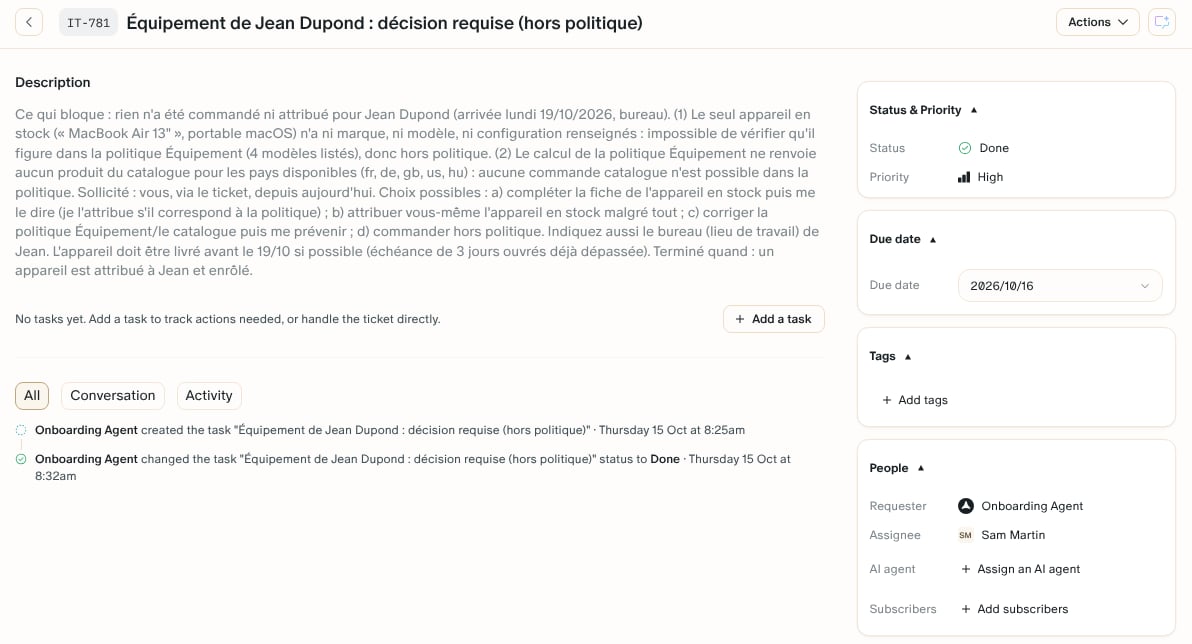
With Primo's template, the agent orders within your published Equipment and Purchasing policies without waiting for anyone's approval, stock first, then the catalog. It creates the mailbox and the SaaS accounts your rules cover.
Anything else becomes a **task for a person**: an order outside a policy, a missing policy, an account with no rule, a new hire who doesn't answer before the deadline. The task says what is blocked, who was asked and since when, and what is needed.
There is no approve button. To unblock the agent, answer in a comment on the ticket or complete the task. The agent picks the ticket back up from there.
### What the new hire receives
By default, the agent writes to the new hire by email, at the personal address from your HR system or from the **Add an employee** form, to agree their equipment and confirm their delivery address.
* The emails are plain text, sent by Primo AI ([support@getprimo.com](mailto:support@getprimo.com)) and signed by your IT team, for example *Acme IT team*. You set the signature in **How to talk to the hire**.
* The new hire needs no Primo account. The emails hold no prices, no internal notes, and no link that requires an account.
* The new hire's reply lands on the ticket as a comment, and the agent picks it up.
* Without a personal email address, the agent sends nothing and gives the IT owner a task.
### What the agent does on its own, and what it hands over
With Primo's template, the agent orders within your published Equipment and Purchasing policies without waiting for anyone's approval, stock first, then the catalog. It creates the mailbox and the SaaS accounts your rules cover.
Anything else becomes a **task for a person**: an order outside a policy, a missing policy, an account with no rule, a new hire who doesn't answer before the deadline. The task says what is blocked, who was asked and since when, and what is needed.
There is no approve button. To unblock the agent, answer in a comment on the ticket or complete the task. The agent picks the ticket back up from there.
 ### Add a new hire by hand
While the agent is enabled, **Onboard** in the left menu, **Add** on the **Employees** and **Onboardings** pages, and **Create onboarding** in the command menu open a short form, **Add an employee**:
* **First name**, **Last name**, and **Personal email**, where the agent writes until the professional mailbox exists.
* **Anything else**: the role, team, manager, start date, remote or on site, in plain words.
Click **Create onboarding**. Primo AI reads the form and creates the onboarding, and the agent takes it from there. What the form doesn't say, the agent asks for. A hire added this way is never sent to your HR system.
## Handle a run the agent could not finish
There is no fallback to the classic settings: an onboarding the agent runs stays with the agent, on its one ticket.
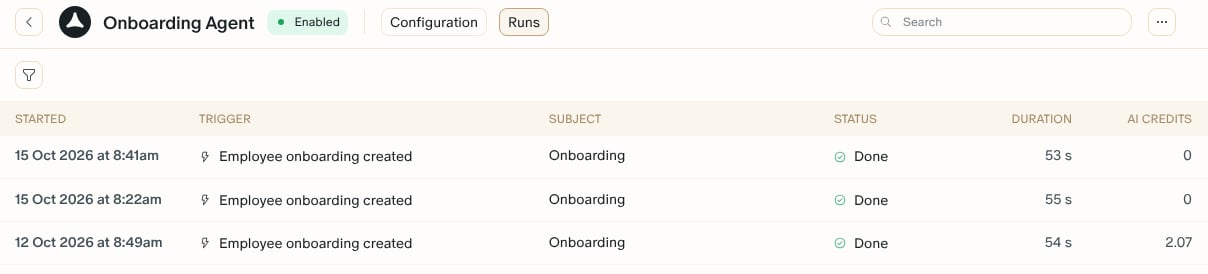
Each new onboarding starts one run, listed in **AI Agents > Runs** and in the agent page's **Runs** tab, where its **Subject** reads **Onboarding**.
### Add a new hire by hand
While the agent is enabled, **Onboard** in the left menu, **Add** on the **Employees** and **Onboardings** pages, and **Create onboarding** in the command menu open a short form, **Add an employee**:
* **First name**, **Last name**, and **Personal email**, where the agent writes until the professional mailbox exists.
* **Anything else**: the role, team, manager, start date, remote or on site, in plain words.
Click **Create onboarding**. Primo AI reads the form and creates the onboarding, and the agent takes it from there. What the form doesn't say, the agent asks for. A hire added this way is never sent to your HR system.
## Handle a run the agent could not finish
There is no fallback to the classic settings: an onboarding the agent runs stays with the agent, on its one ticket.
Each new onboarding starts one run, listed in **AI Agents > Runs** and in the agent page's **Runs** tab, where its **Subject** reads **Onboarding**.
 | Status | What happened | What to do |
| - | - | - |
| **Done** | The agent laid out the onboarding as planned. | Nothing. Follow the ticket. |
| **Not done** | The agent stopped on something it needs from a person. Open the run: the **Needs you** callout says what is missing. | Answer in a comment on the onboarding ticket. The agent picks up from your reply. |
| **Didn't finish** | The run stopped on a technical error. Once the ticket exists, the agent also leaves an internal comment on it: *My run stopped on a technical error before it finished*. | Comment on the onboarding ticket to restart the agent. If there is no ticket, contact Primo Support. |
Runs of the Onboarding Agent have no **Re-run**: the agent always resumes through its ticket.
## Turn the agent off
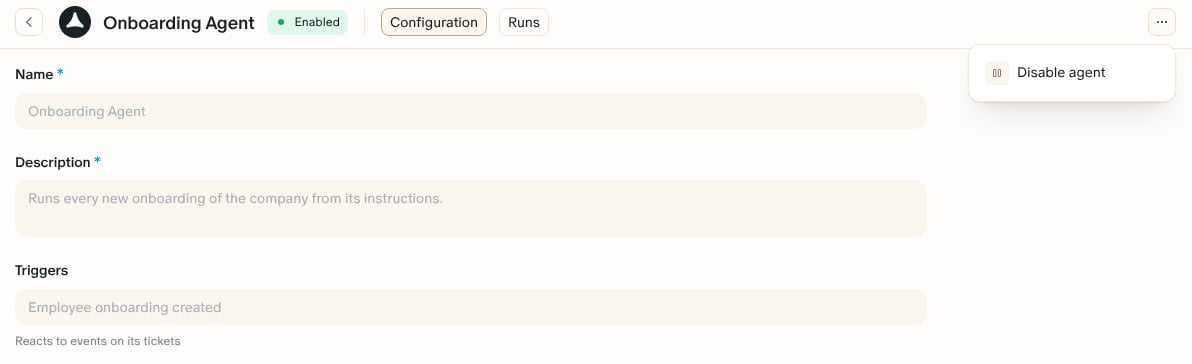
1. Open the agent page from the **Onboarding Agent** card or from **AI Agents > Agents**.
2. Click **⋯** > **Disable agent**.
| Status | What happened | What to do |
| - | - | - |
| **Done** | The agent laid out the onboarding as planned. | Nothing. Follow the ticket. |
| **Not done** | The agent stopped on something it needs from a person. Open the run: the **Needs you** callout says what is missing. | Answer in a comment on the onboarding ticket. The agent picks up from your reply. |
| **Didn't finish** | The run stopped on a technical error. Once the ticket exists, the agent also leaves an internal comment on it: *My run stopped on a technical error before it finished*. | Comment on the onboarding ticket to restart the agent. If there is no ticket, contact Primo Support. |
Runs of the Onboarding Agent have no **Re-run**: the agent always resumes through its ticket.
## Turn the agent off
1. Open the agent page from the **Onboarding Agent** card or from **AI Agents > Agents**.
2. Click **⋯** > **Disable agent**.
 The card reads **Off**, and the Onboarding settings apply again as you left them, for every onboarding created from then on.
The onboardings the agent was already running stay with it, paused: the agent acts on none of them, and their ticket and tasks stay with their owners, who can work them by hand. Click **⋯** > **Enable agent** to turn it back on. Each paused onboarding resumes at the next event on its ticket, such as a comment or a completed task. Reminders that fell due during the pause are not replayed: comment on the ticket to restart the agent right away.
The Onboarding Agent can't be deleted.
## Follow what the agent does
* **The ticket** is the full record: every comment, task, email, and order the agent made, each authored by the agent.
* **The Runs page** (**AI Agents > Runs**, or the agent's **Runs** tab) lists the run each new onboarding started. The work the agent does afterwards, when a reply or a completed task wakes it, shows on the ticket.
* **AI credits**: runs of the Onboarding Agent use no AI credits. The **AI credits** column reads **0**. The Primo AI chat that helps you write the instructions, and reading the **Add an employee** form, use credits like any Primo AI request.
## Limits
* The agent orders the device with automatic enrollment and sends the enrollment invitation. It doesn't configure the device: no MDM controls, no EDR. See [Zero-touch deployment for Mac](/mdm/zero-touch/zero-touch-macs).
* There is no offboarding agent. Offboardings follow their settings. See [Automate your offboardings](/employees/automated-offboardings).
* There is no approval step inside Primo: an escalation is a task for a person.
* The agent can't be started by hand, and its runs can't be re-run.
* The name, description, model tier, trigger, required tools, and policies are set by Primo.
## FAQ
### Does the agent order equipment without my approval?
By default, yes, when the device and the order fit both your published Equipment and Purchasing policies. Anything outside them becomes a task for the IT owner, with the reason and the choices.
### What if my Equipment or Purchasing policy isn't published?
The agent orders nothing and gives the IT owner a task. The agent page shows a callout under **Knowledge** naming the missing policy.
### I changed the instructions. Do onboardings in progress follow the new version?
Yes. Saved text applies from the agent's next run, on every onboarding it runs, including those already in progress.
### Can I go back to the classic onboarding settings?
Yes. Click **⋯** > **Disable agent** on the agent page. New onboardings follow the classic settings again, and the ones the agent was running pause until you enable it again.
### Does the new hire need a Primo account?
No. The agent writes to their personal email, and they answer by replying to the email.
### Why don't I see the onboarding ticket yet?
In **Employees > Onboardings**, the onboarding reads **Ticket being prepared** while the agent opens the ticket, then **Starts on** a date until the onboarding starts: 30 days before the start date by default, set in **Timing**. Nothing happens on the ticket before that date, and it opens from then on.
### What happens to someone who has already started?
By default, when the start date has passed, the agent closes the onboarding without ordering or provisioning, marks the person active, and says so on the ticket. If equipment is still needed, it gives the IT owner a task. You can change this in **People already in post**.
### Does the Onboarding Agent use AI credits?
Its runs don't: they read **0** in the **AI credits** column. The Primo AI chat that helps you write the instructions, and reading the **Add an employee** form, use credits like any Primo AI request.
## Contact
If an onboarding is stuck and a comment on its ticket doesn't restart the agent, or a run **Didn't finish** before any ticket was created, contact [support@getprimo.com](mailto:support@getprimo.com) with:
* The new hire's name and start date
* The link to the onboarding ticket, if there is one
* The link to the run (**Actions** > **Copy link to run** in the run details)
* What you expected the agent to do
## Related articles
* [Understand onboarding settings](/employees/onboarding-settings)
* [Equipment policy](/procurement/equipment-policy)
* [Custom agents](/ai/custom-agents)
This documentation is built and hosted on [Mintlify](https://mintlify.com), a developer documentation platform.
The card reads **Off**, and the Onboarding settings apply again as you left them, for every onboarding created from then on.
The onboardings the agent was already running stay with it, paused: the agent acts on none of them, and their ticket and tasks stay with their owners, who can work them by hand. Click **⋯** > **Enable agent** to turn it back on. Each paused onboarding resumes at the next event on its ticket, such as a comment or a completed task. Reminders that fell due during the pause are not replayed: comment on the ticket to restart the agent right away.
The Onboarding Agent can't be deleted.
## Follow what the agent does
* **The ticket** is the full record: every comment, task, email, and order the agent made, each authored by the agent.
* **The Runs page** (**AI Agents > Runs**, or the agent's **Runs** tab) lists the run each new onboarding started. The work the agent does afterwards, when a reply or a completed task wakes it, shows on the ticket.
* **AI credits**: runs of the Onboarding Agent use no AI credits. The **AI credits** column reads **0**. The Primo AI chat that helps you write the instructions, and reading the **Add an employee** form, use credits like any Primo AI request.
## Limits
* The agent orders the device with automatic enrollment and sends the enrollment invitation. It doesn't configure the device: no MDM controls, no EDR. See [Zero-touch deployment for Mac](/mdm/zero-touch/zero-touch-macs).
* There is no offboarding agent. Offboardings follow their settings. See [Automate your offboardings](/employees/automated-offboardings).
* There is no approval step inside Primo: an escalation is a task for a person.
* The agent can't be started by hand, and its runs can't be re-run.
* The name, description, model tier, trigger, required tools, and policies are set by Primo.
## FAQ
### Does the agent order equipment without my approval?
By default, yes, when the device and the order fit both your published Equipment and Purchasing policies. Anything outside them becomes a task for the IT owner, with the reason and the choices.
### What if my Equipment or Purchasing policy isn't published?
The agent orders nothing and gives the IT owner a task. The agent page shows a callout under **Knowledge** naming the missing policy.
### I changed the instructions. Do onboardings in progress follow the new version?
Yes. Saved text applies from the agent's next run, on every onboarding it runs, including those already in progress.
### Can I go back to the classic onboarding settings?
Yes. Click **⋯** > **Disable agent** on the agent page. New onboardings follow the classic settings again, and the ones the agent was running pause until you enable it again.
### Does the new hire need a Primo account?
No. The agent writes to their personal email, and they answer by replying to the email.
### Why don't I see the onboarding ticket yet?
In **Employees > Onboardings**, the onboarding reads **Ticket being prepared** while the agent opens the ticket, then **Starts on** a date until the onboarding starts: 30 days before the start date by default, set in **Timing**. Nothing happens on the ticket before that date, and it opens from then on.
### What happens to someone who has already started?
By default, when the start date has passed, the agent closes the onboarding without ordering or provisioning, marks the person active, and says so on the ticket. If equipment is still needed, it gives the IT owner a task. You can change this in **People already in post**.
### Does the Onboarding Agent use AI credits?
Its runs don't: they read **0** in the **AI credits** column. The Primo AI chat that helps you write the instructions, and reading the **Add an employee** form, use credits like any Primo AI request.
## Contact
If an onboarding is stuck and a comment on its ticket doesn't restart the agent, or a run **Didn't finish** before any ticket was created, contact [support@getprimo.com](mailto:support@getprimo.com) with:
* The new hire's name and start date
* The link to the onboarding ticket, if there is one
* The link to the run (**Actions** > **Copy link to run** in the run details)
* What you expected the agent to do
## Related articles
* [Understand onboarding settings](/employees/onboarding-settings)
* [Equipment policy](/procurement/equipment-policy)
* [Custom agents](/ai/custom-agents)
This documentation is built and hosted on [Mintlify](https://mintlify.com), a developer documentation platform.