> ## Documentation Index
> Fetch the complete documentation index at: https://docs.getprimo.com/llms.txt
> Use this file to discover all available pages before exploring further.
# Disenroll devices
> Remove device management from a device, from the cockpit when it's online or manually on the device when it's offline.
Disenrolling removes device management from a device. Disenroll from the cockpit when the device is online. When it's offline, mark it as disenrolled and remove management on the device itself.
## Disenroll an online device
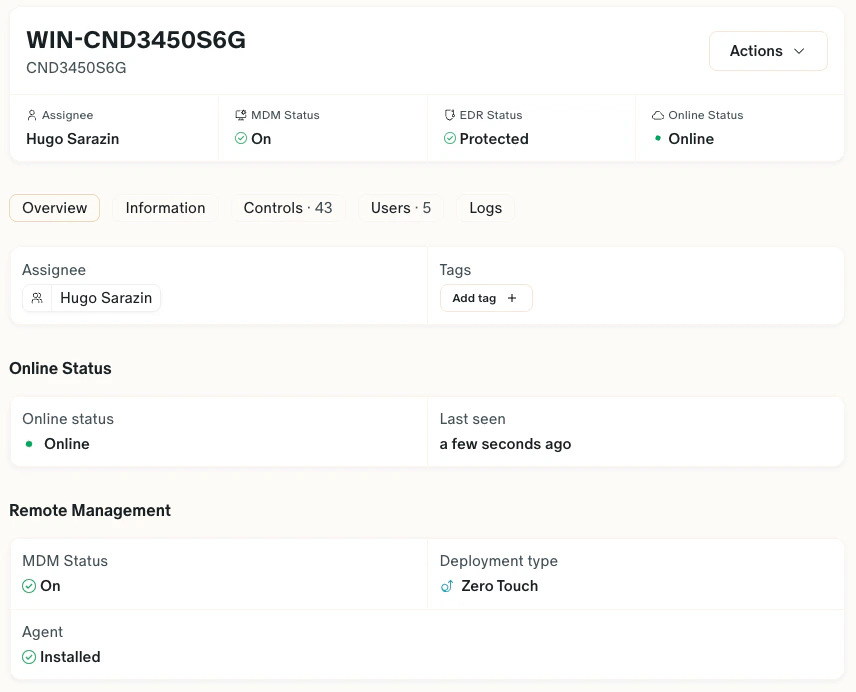
The device must be enrolled and show as **Online**.
Management is removed immediately on macOS, and after a short delay on Windows.
 ## Handle an offline device
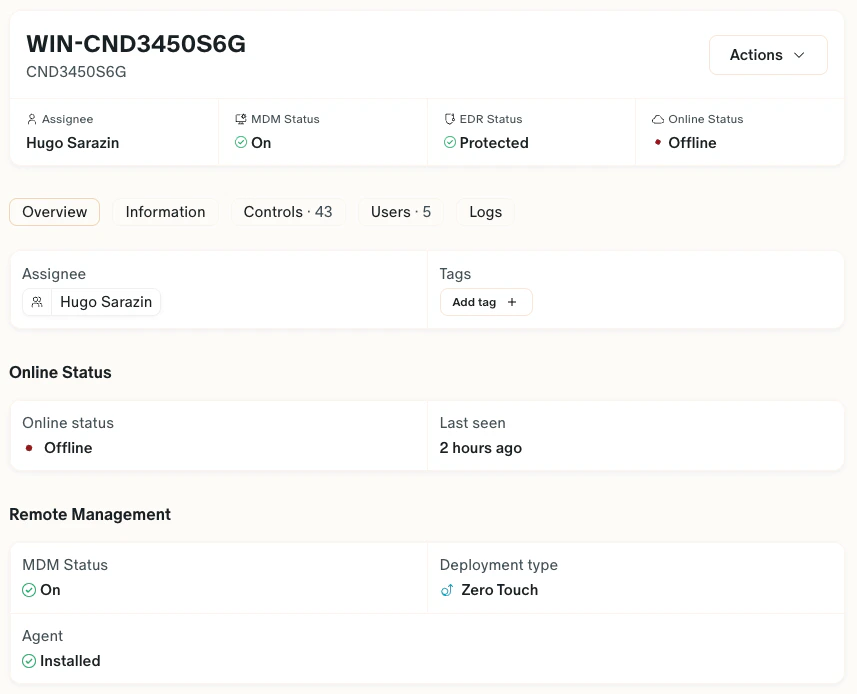
The **Disenroll** action is unavailable while a device is offline. Wait for it to come back online, or use **Mark as disenrolled** when communication is already lost, then remove management on the device itself.
## Remove management manually on the device
## Handle an offline device
The **Disenroll** action is unavailable while a device is offline. Wait for it to come back online, or use **Mark as disenrolled** when communication is already lost, then remove management on the device itself.
## Remove management manually on the device
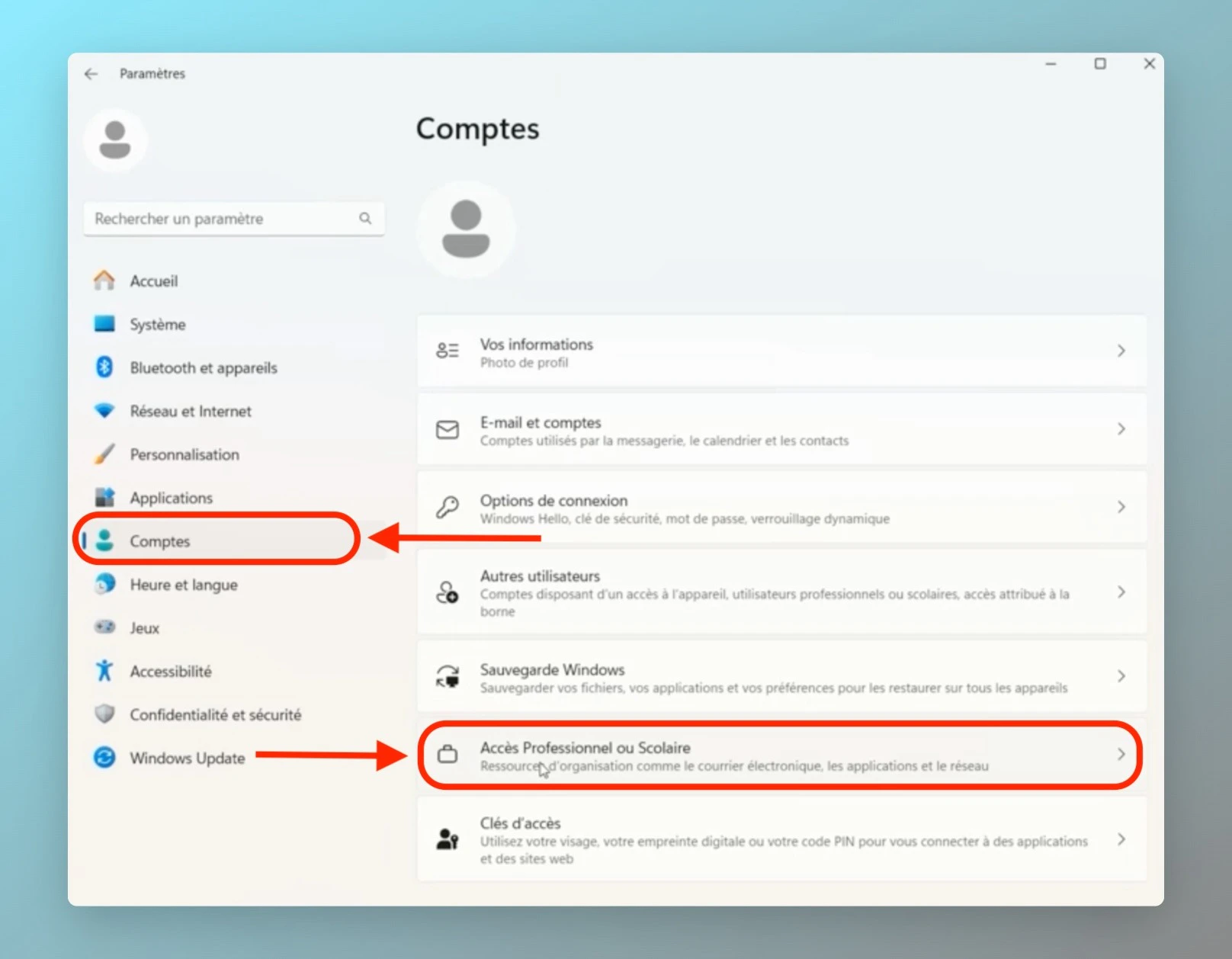
 You need administrator access on the device.
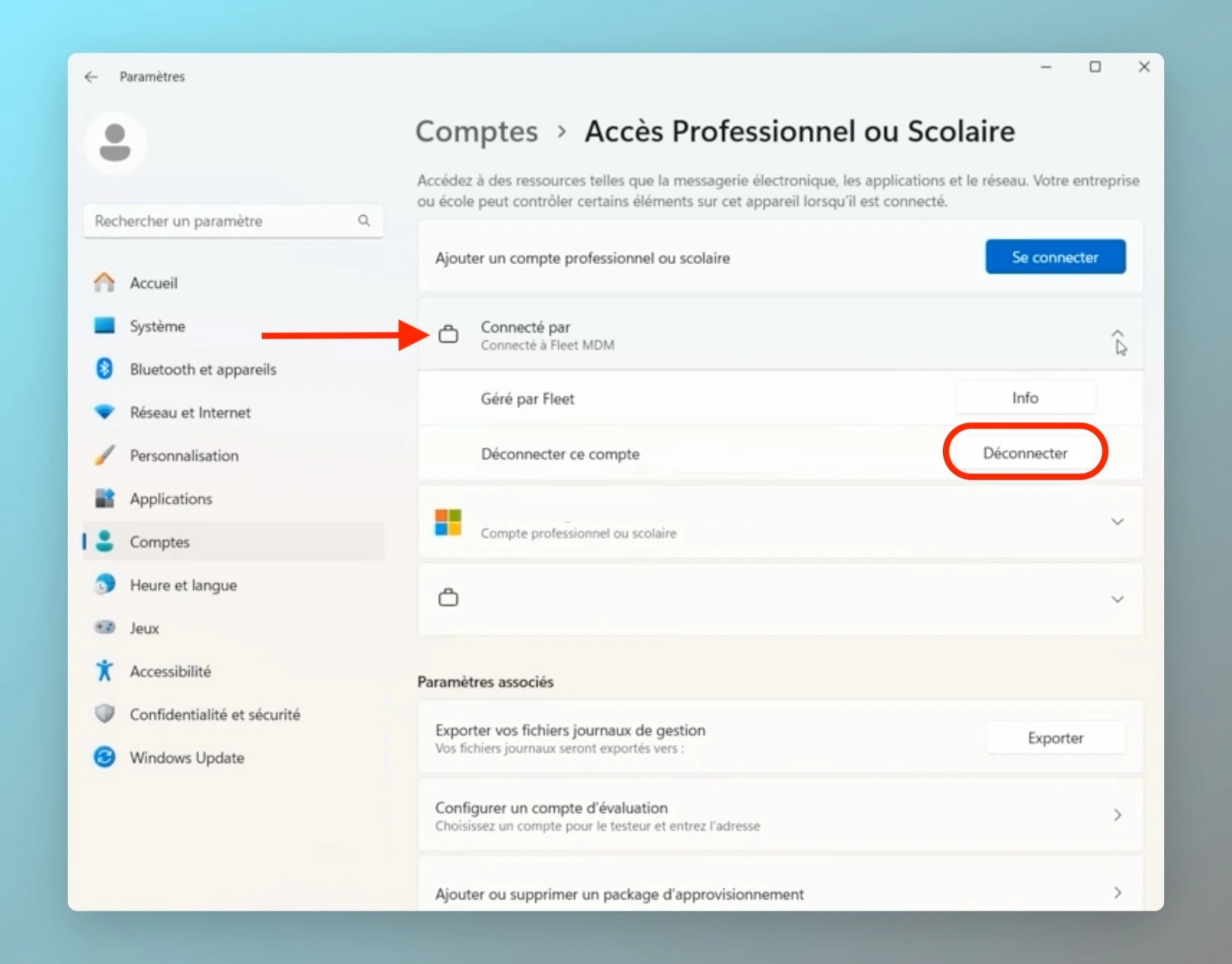
 The entry reads **Managed by Fleet MDM** or similar. Follow the on-screen instructions.
 Open **Control Panel** > **Programs** > **Programs and Features**, right-click **Fleet osquery**, and select **Uninstall**.
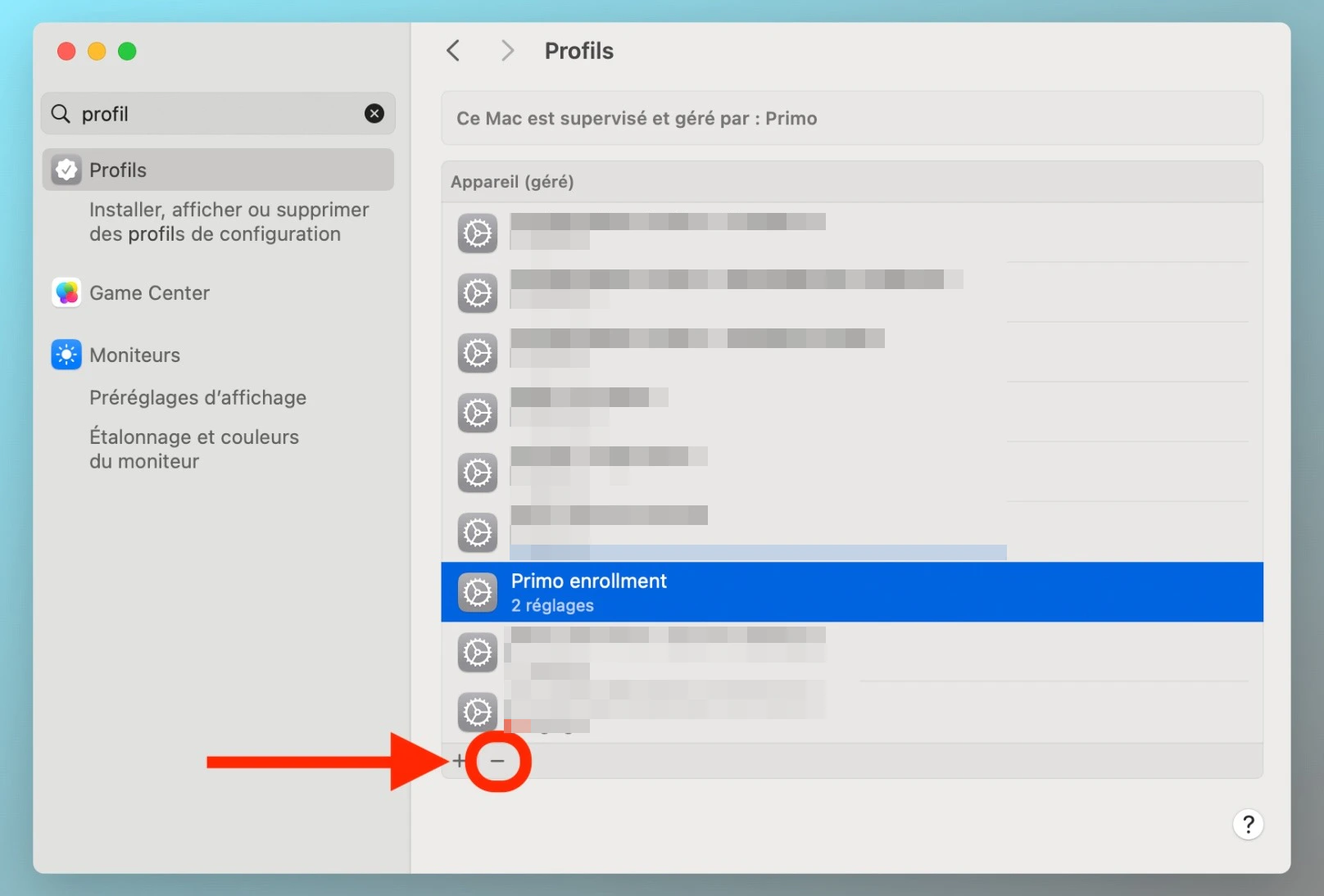
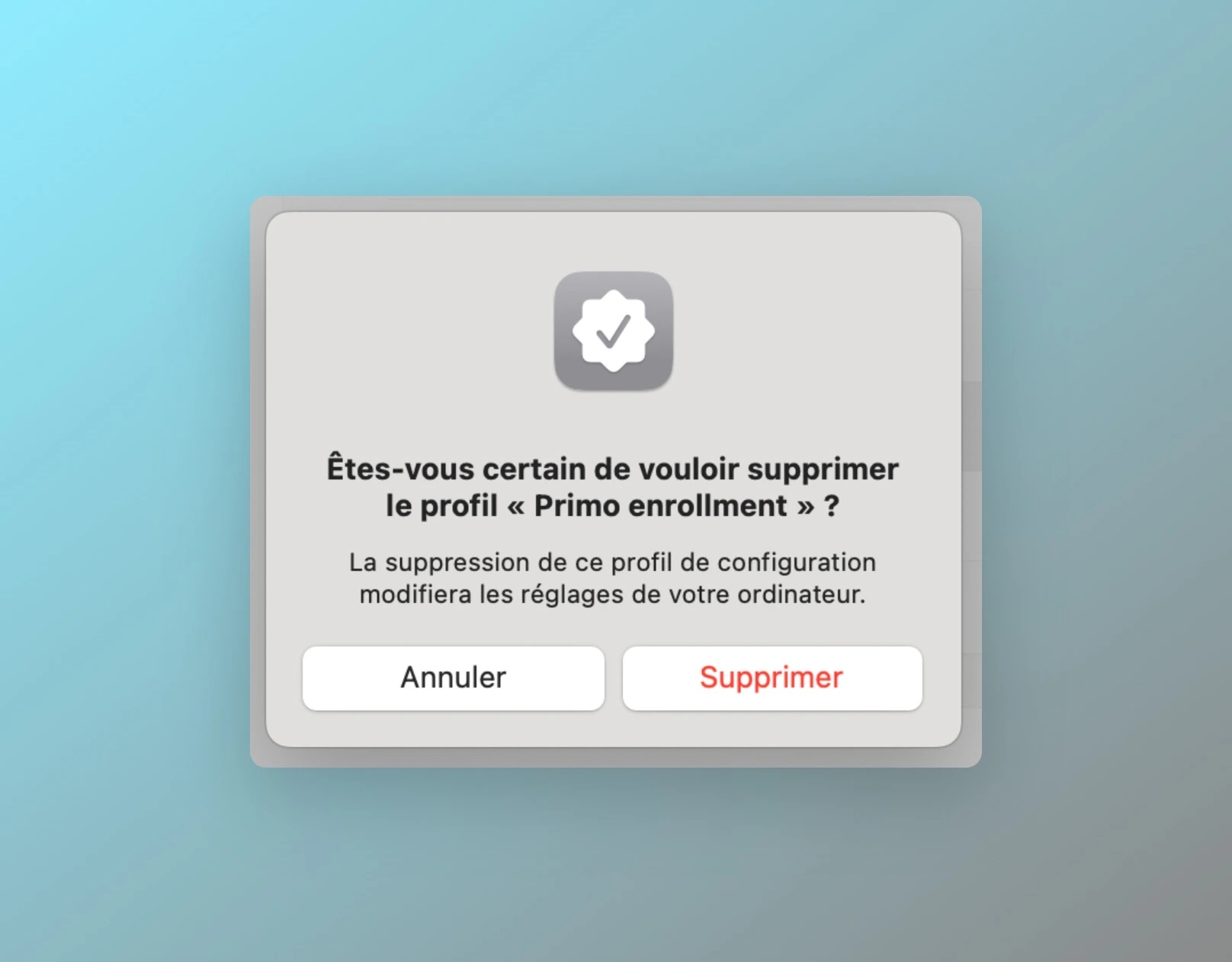
Select the profile named **\[Your Company] enrollment**, click **–**, then click **Remove** and enter the session password.
Open **Control Panel** > **Programs** > **Programs and Features**, right-click **Fleet osquery**, and select **Uninstall**.
Select the profile named **\[Your Company] enrollment**, click **–**, then click **Remove** and enter the session password.
 Download the disenrollment package, then right-click it and open it to remove the agent.
This documentation is built and hosted on [Mintlify](https://mintlify.com), a developer documentation platform.
Download the disenrollment package, then right-click it and open it to remove the agent.
This documentation is built and hosted on [Mintlify](https://mintlify.com), a developer documentation platform.