> ## Documentation Index
> Fetch the complete documentation index at: https://docs.getprimo.com/llms.txt
> Use this file to discover all available pages before exploring further.
# Enforce OS updates
> Require devices to run a minimum operating system version to ensure security patches and app compatibility are maintained across your fleet.
## Platform compatibility
| macOS | Windows | Linux | iOS / iPadOS | Android |
| ----- | ------- | ----- | ------------ | ------- |
| ✅ | ✅ | | ✅ | |
## How to set it up
Select when devices should be forced to update relative to when the OS update becomes available:
* **1 month after** the OS update is available
* **1 week after** the OS update is available
* **1 day after** the OS update is available
Choose the time of day at which the update is enforced on macOS devices. This uses **local device time**.
Configure the number of days employees have to update before the device automatically restarts to apply the update.
Choose which devices to apply the control to: all devices, specific device groups, or a custom target.
## Modify or remove the control
Disable the control from the profile settings. Disabling stops enforcement but does not remove existing configurations from devices.
## How it works
When a minimum version is enforced, employees are prompted to update their OS according to the deadline and notification behavior described below.
The deadline applies from the **update availability date**, not the date the policy was configured. If employees are already on an older version when the policy is enabled, they will be prompted to update immediately.
**macOS 14 and later**
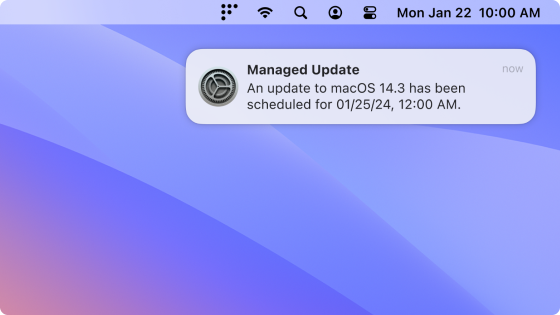 Employees see a native macOS notification (DDM) once per day. They can choose to update ahead of the deadline or schedule it for that night.
* **24 hours before the deadline** — notification appears hourly and ignores Do Not Disturb
* **1 hour before the deadline** — notification appears every 30 minutes, then every 10 minutes
* **If the device was off when the deadline passed** — the update is scheduled for 1 hour after it turns on
For devices using Automated Device Enrollment (ADE) that are below the minimum version, the update is required before device setup and enrollment can proceed.
***
**macOS 13 and earlier**
Employees are prompted via **Nudge**.
Employees see a native macOS notification (DDM) once per day. They can choose to update ahead of the deadline or schedule it for that night.
* **24 hours before the deadline** — notification appears hourly and ignores Do Not Disturb
* **1 hour before the deadline** — notification appears every 30 minutes, then every 10 minutes
* **If the device was off when the deadline passed** — the update is scheduled for 1 hour after it turns on
For devices using Automated Device Enrollment (ADE) that are below the minimum version, the update is required before device setup and enrollment can proceed.
***
**macOS 13 and earlier**
Employees are prompted via **Nudge**.
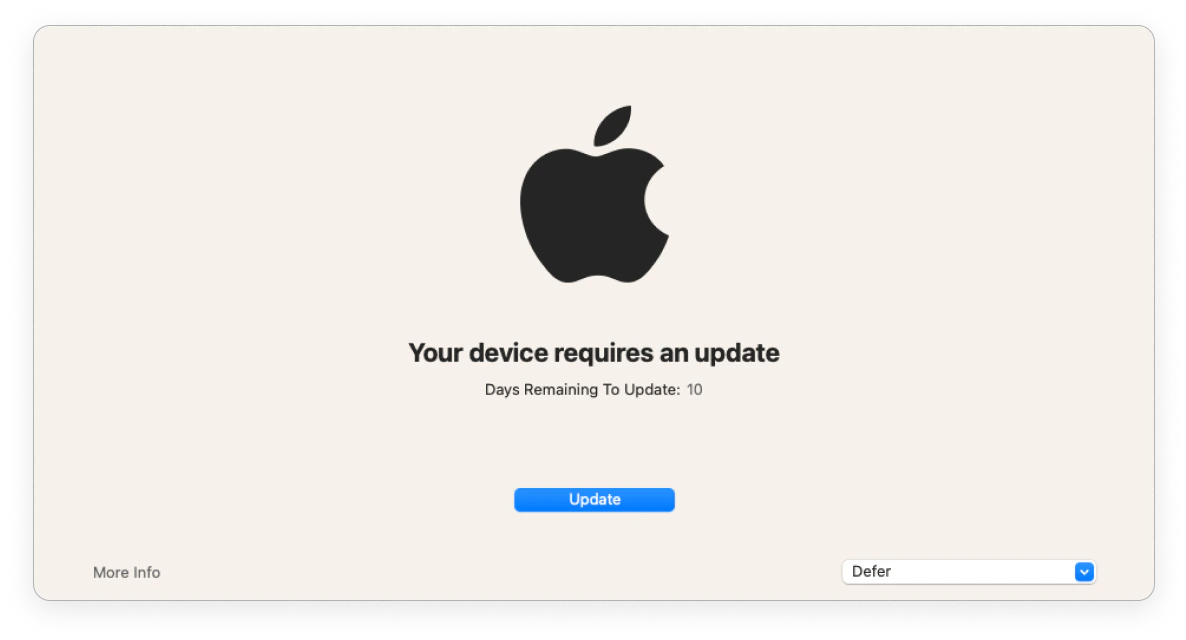 | | **> 1 day before deadline** | **\< 1 day before deadline** | **Past deadline** |
| --------------------------- | --------------------------- | ---------------------------- | -------------------- |
| Nudge window frequency | Once a day at 8pm GMT | Once every 2 hours | Immediately on login |
| End user can defer | ✅ | ✅ | ❌ |
| Nudge window is dismissible | ✅ | ✅ | ❌ |
Employees are prompted via the native Windows update dialog.
| | **> 1 day before deadline** | **\< 1 day before deadline** | **Past deadline** |
| --------------------------- | --------------------------- | ---------------------------- | -------------------- |
| Nudge window frequency | Once a day at 8pm GMT | Once every 2 hours | Immediately on login |
| End user can defer | ✅ | ✅ | ❌ |
| Nudge window is dismissible | ✅ | ✅ | ❌ |
Employees are prompted via the native Windows update dialog.
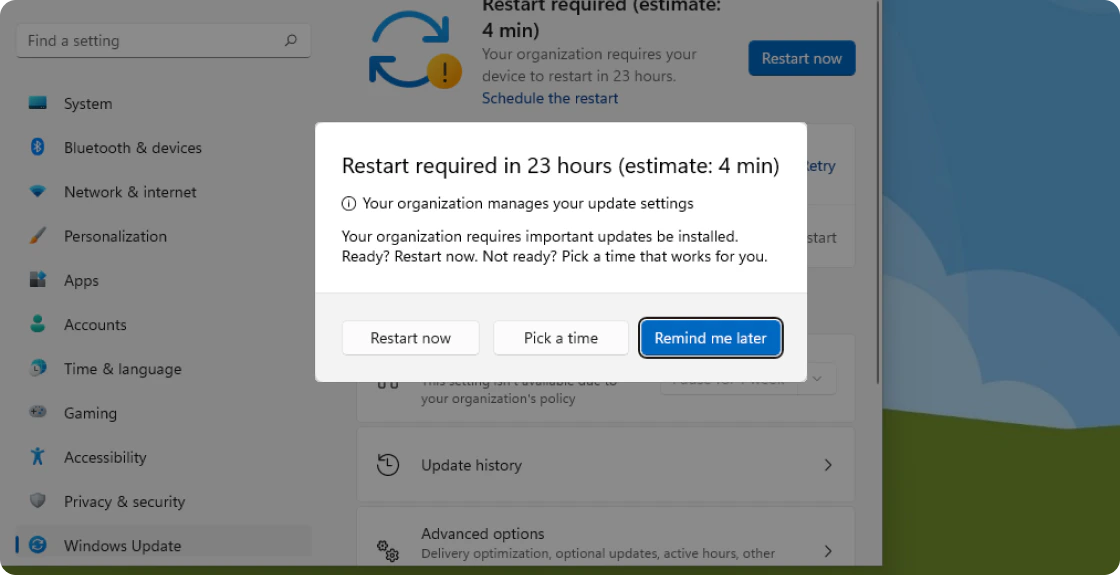 | | **Before deadline** | **Past deadline** |
| ------------------------------------ | ------------------- | ----------------- |
| End user can defer automatic restart | ✅ | ❌ |
If an employee was away when the deadline passed, they are given the configured grace period before the device automatically restarts.
## Troubleshooting
### **Low disk space**
If updates are failing due to low disk space, an administrator may need to intervene. None of the platforms automatically manage disk space to install updates.
* **macOS 14+** — the employee sees a system notification and a warning in System Settings. They must free up space to stop the prompts.
* **macOS 13 and earlier** — the Nudge window appears and directs employees to System Preferences, where the download will fail. The Nudge window cannot be dismissed after the deadline until the update is installed.
* **Windows** — the employee is notified that the update failed and must free up space to proceed.
| | **Before deadline** | **Past deadline** |
| ------------------------------------ | ------------------- | ----------------- |
| End user can defer automatic restart | ✅ | ❌ |
If an employee was away when the deadline passed, they are given the configured grace period before the device automatically restarts.
## Troubleshooting
### **Low disk space**
If updates are failing due to low disk space, an administrator may need to intervene. None of the platforms automatically manage disk space to install updates.
* **macOS 14+** — the employee sees a system notification and a warning in System Settings. They must free up space to stop the prompts.
* **macOS 13 and earlier** — the Nudge window appears and directs employees to System Preferences, where the download will fail. The Nudge window cannot be dismissed after the deadline until the update is installed.
* **Windows** — the employee is notified that the update failed and must free up space to proceed.