> ## Documentation Index
> Fetch the complete documentation index at: https://docs.getprimo.com/llms.txt
> Use this file to discover all available pages before exploring further.
# Connect your apps
> Connect your applications for secure, centralized access management, following the outlined steps to configure Single Sign-On (SSO), SCIM provisioning, or API-based integrations effectively.
The SaaS Management solution enables your organization to manage access to business applications in a secure and centralized way. By connecting your applications, you ensure that users are provisioned automatically, authentication is unified, and access rights are applied consistently across your tools.
This article explains the steps required to connect an application.
## Automated SaaS mapping
If you are using Google Workspace, you can connect it in Identities & Access. It will automatically map all the applications for which your Google Workspace is used as a SSO connector.
![Screenshot: [upcoming] Automated Saas Mapping](https://mintcdn.com/primo/M52jFKL1z91RDxpB/images/notion-import/connect-your-apps__img-086__block-0005__27343d9f.png?fit=max&auto=format&n=M52jFKL1z91RDxpB&q=85&s=68cdeec71977d6e51ed8036b7425254e) Once it's connected you can see all the identities related to each app and define a specific owner.
Once it's connected you can see all the identities related to each app and define a specific owner.
![Screenshot: [upcoming] Automated Saas Mapping](https://mintcdn.com/primo/M52jFKL1z91RDxpB/images/notion-import/connect-your-apps__img-087__block-0007__27343d9f.png?fit=max&auto=format&n=M52jFKL1z91RDxpB&q=85&s=139dc8c1756e6dd0b551a1fdc84a93b2) ## Access the Apps catalog
1. Sign in to the Primo cockpit.
2. From the navigation menu, go to **SaaS**.
3. Select **Identities** and **Add a SaaS**
The [Apps catalog](https://app.getprimo.com/saas-applications/add-app) contains a list of applications that can be directly integrated.
## Select and configure the application
## Access the Apps catalog
1. Sign in to the Primo cockpit.
2. From the navigation menu, go to **SaaS**.
3. Select **Identities** and **Add a SaaS**
The [Apps catalog](https://app.getprimo.com/saas-applications/add-app) contains a list of applications that can be directly integrated.
## Select and configure the application
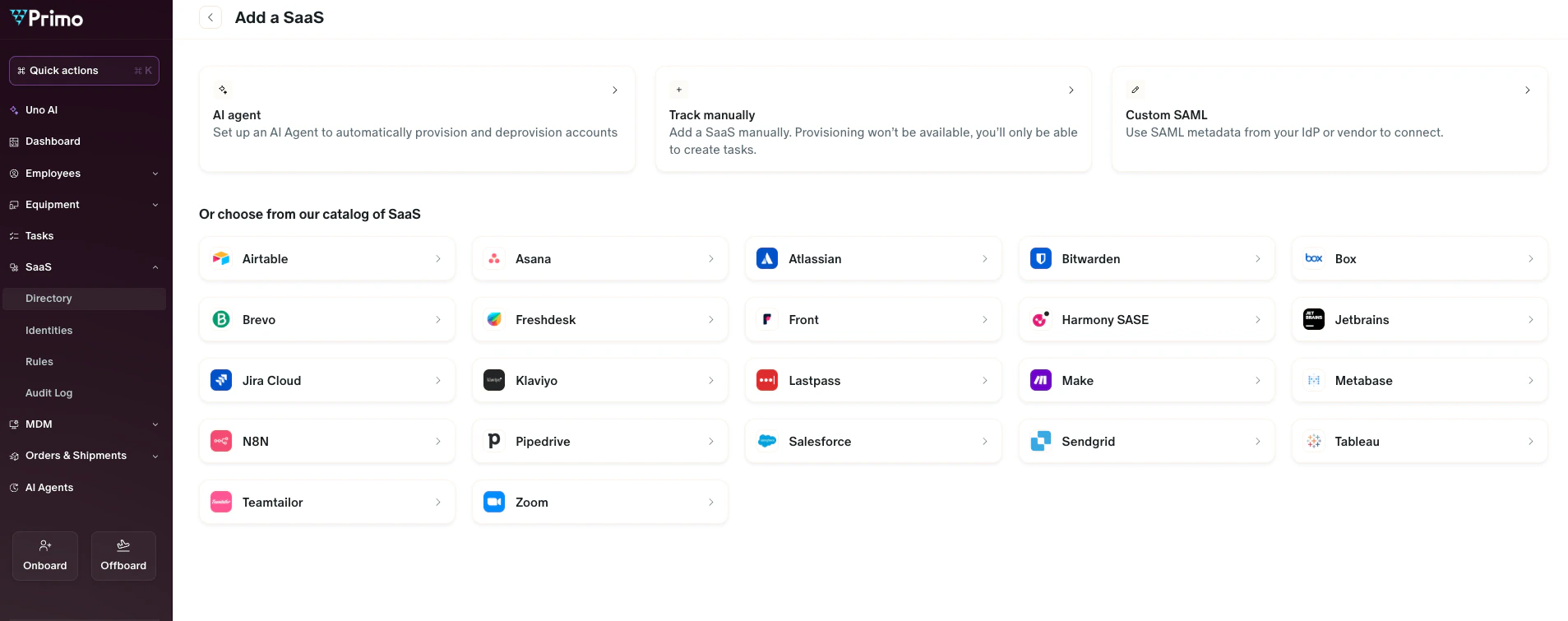 1. Locate the application you want to connect.
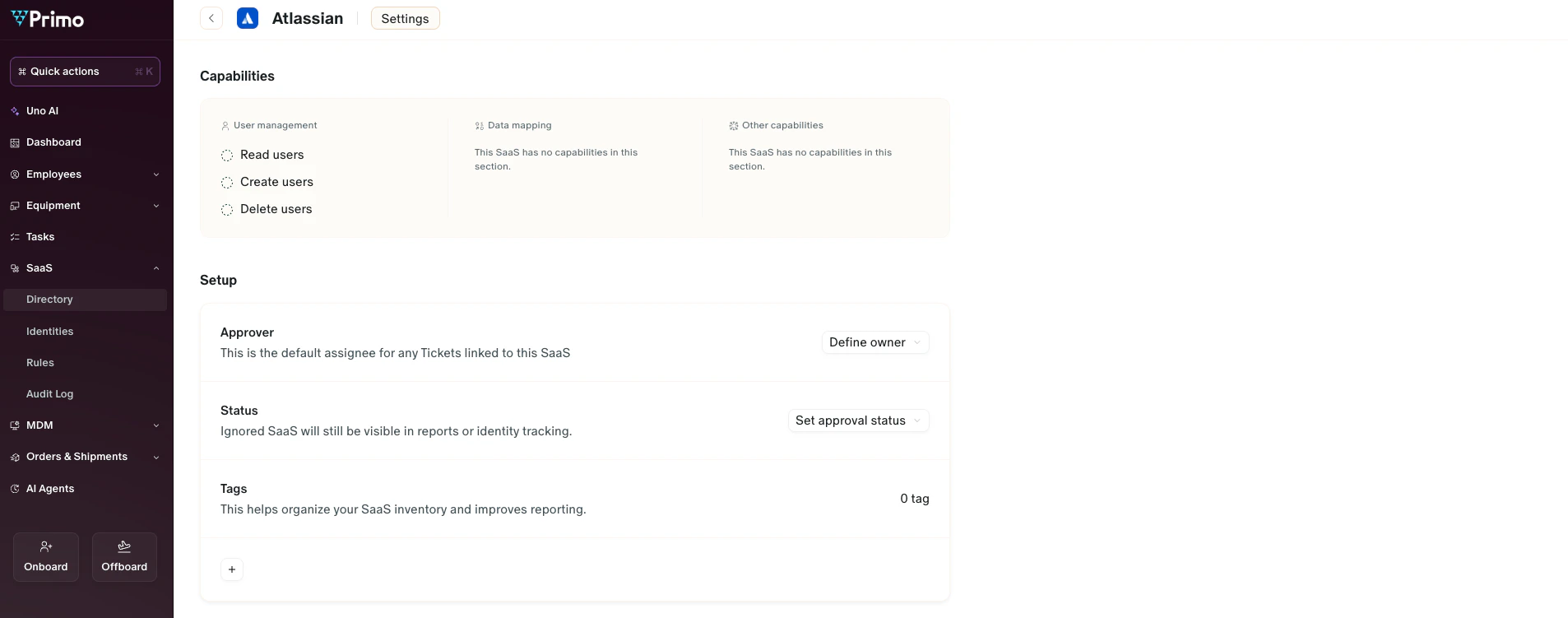
2. Click on the application to open its configuration page.
3. Follow the step-by-step instructions provided.
The configuration steps vary depending on the type of application:
* **Single Sign-On (SSO)**: You may need to provide metadata or certificates to establish trust with the application.
* **SCIM provisioning**: You may need to enter API credentials to allow automatic user account creation and updates.
* **API-based integrations**: Some applications require you to generate and input API keys.
On-screen guidance is provided for each application to complete the setup.
1. Locate the application you want to connect.
2. Click on the application to open its configuration page.
3. Follow the step-by-step instructions provided.
The configuration steps vary depending on the type of application:
* **Single Sign-On (SSO)**: You may need to provide metadata or certificates to establish trust with the application.
* **SCIM provisioning**: You may need to enter API credentials to allow automatic user account creation and updates.
* **API-based integrations**: Some applications require you to generate and input API keys.
On-screen guidance is provided for each application to complete the setup.
 ## Conclusion
You can click on the Logs tab and verify the sync is active.
If you think your plan is insufficient to configure your app, you can use the AI-based connection.
## Conclusion
You can click on the Logs tab and verify the sync is active.
If you think your plan is insufficient to configure your app, you can use the AI-based connection.