

Understand why connecting an HR System is useful
Synchronizing with your HR System automates time-consuming daily tasks like managing arrivals and departures, organizing teams, and tracking equipment assignments. This makes it possible to:- Create and update employee profiles automatically in Primo
- Trigger onboarding and offboarding flows based on contract dates
- Keep team, role, and assignment data consistent
- Reduce manual updates and data inconsistencies
Connect your HR System
Once connected, employees are synced into Primo with their associated metadata (contact details, contract dates, teams, roles).
You can connect multiple HR sources, and manage them independently.
Account for HR System-specific requirements
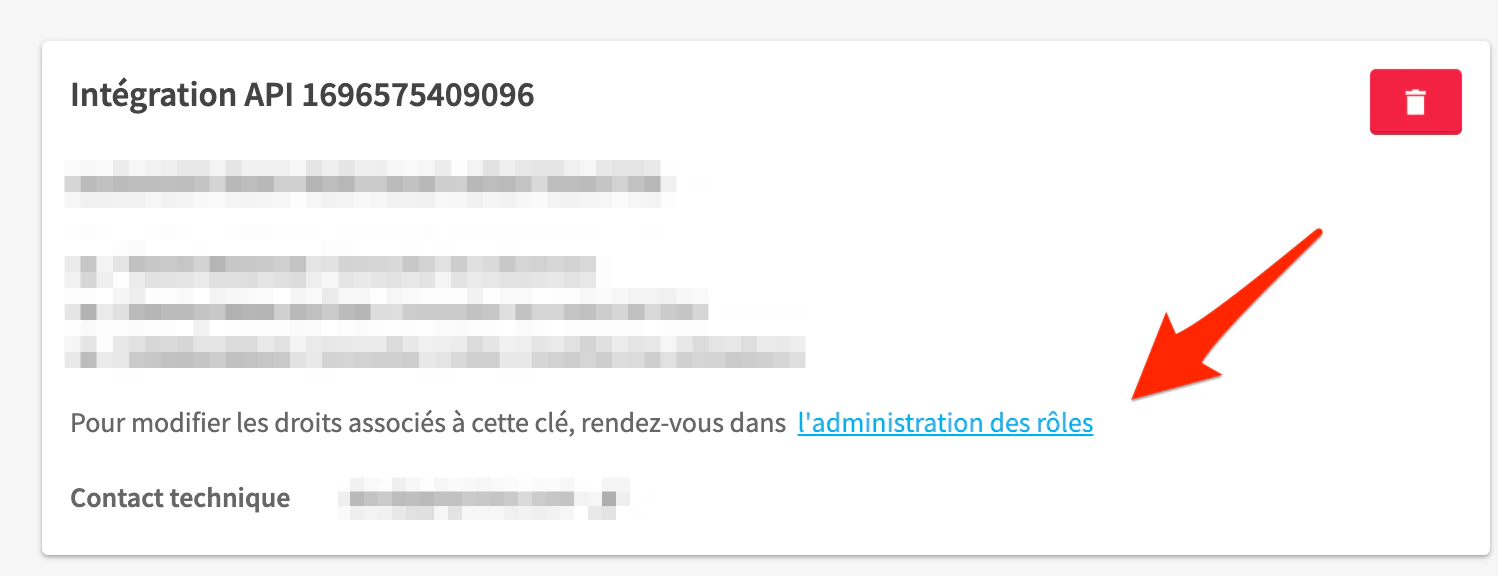
Some HR System providers require additional configuration.Lucca
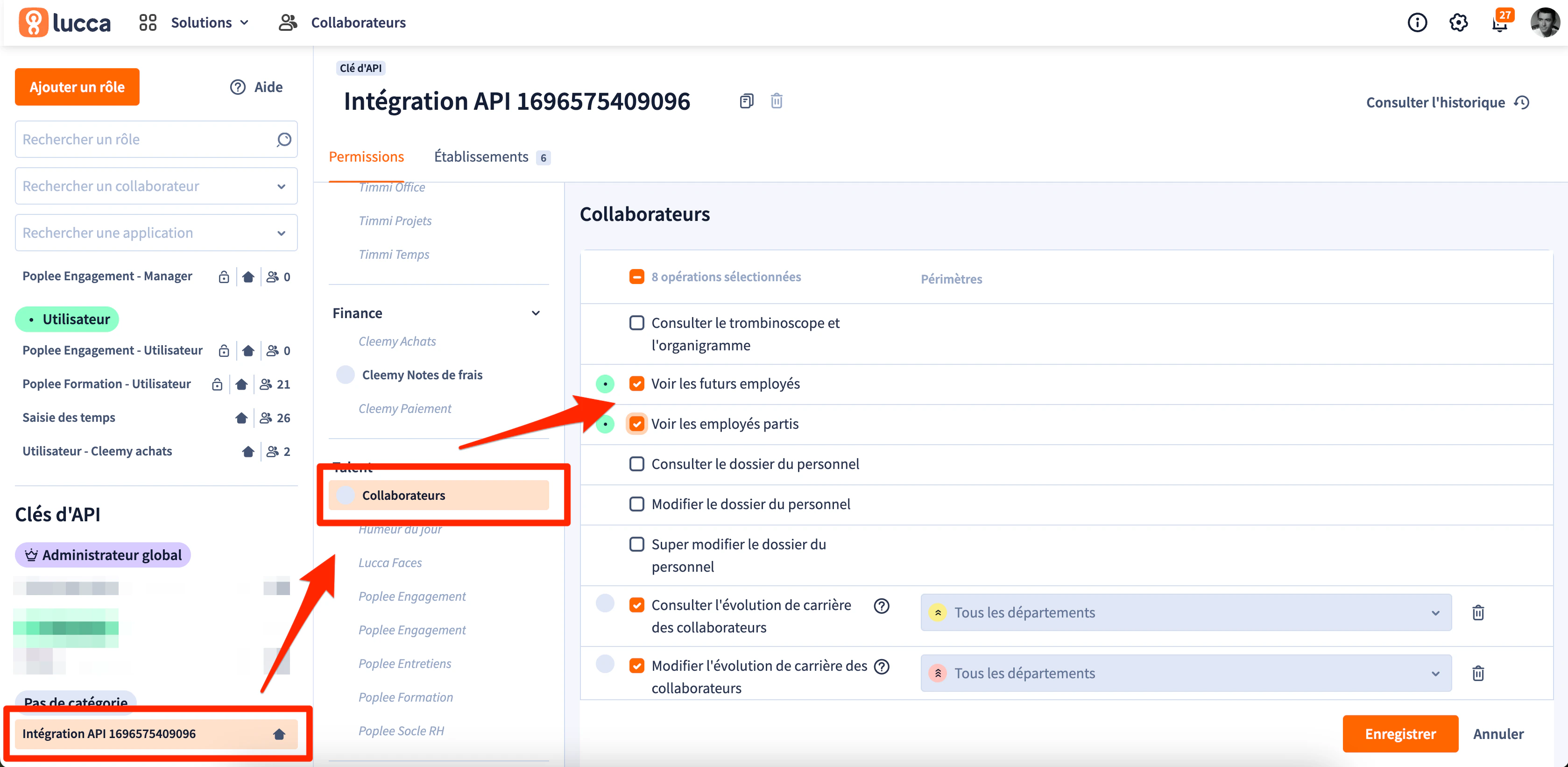
To ensure that upcoming onboardings and offboardings are synchronized, specific permissions must be enabled in Lucca:
Without these permissions, Primo will not receive onboarding and offboarding data from Lucca.
Connecting an HR System is optional. You can also manage employees using alternative import methods, such as CSV import.
Manage HR System synchronization
Synchronization frequency: Once an HR System is connected, data is automatically synchronized every hour. No manual action is required to import new employees or changes.
- Newly created employees
- Updates made to existing employee records
- Upcoming onboardings and offboardings, if supported by the HR System
Apply synchronization filters
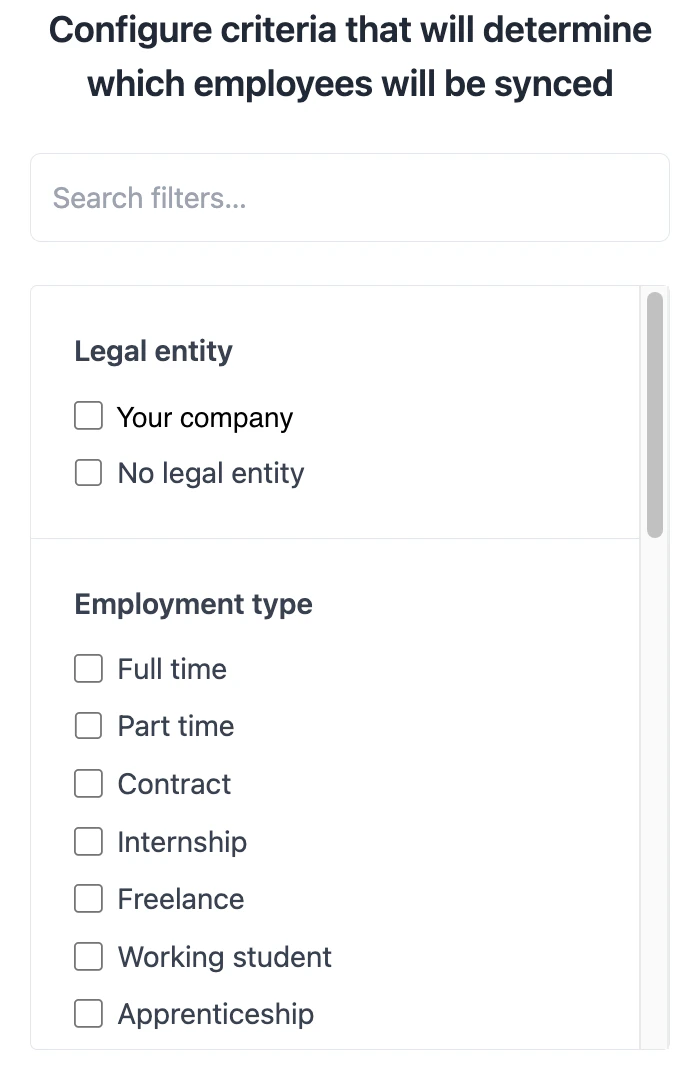
You can restrict which employees are synchronized from your HR System. Filters can be applied to include only specific populations, such as:- Selected legal entities
- Specific contract or employment types
- Selected teams
- …
Define how fields are synchronized
For each field synchronized from the HR System, you can define how updates are handled. Two synchronization modes are available:- Import once: the field is imported during the first synchronization only and can be managed directly.
- Continuous synchronization: the field is automatically updated whenever it is modified in the HR System, and cannot be updated manually.
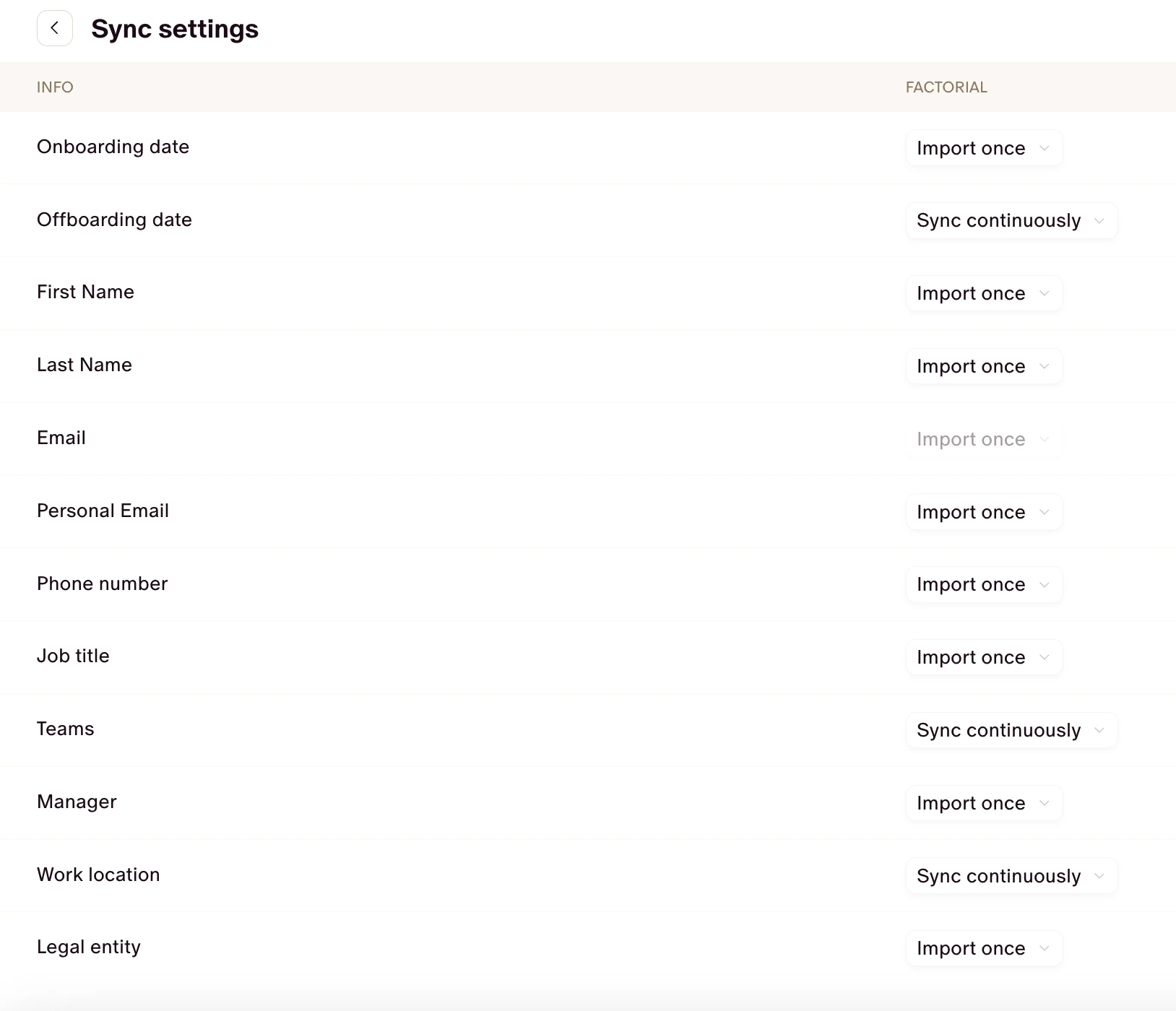
- Contract start and end dates are usually kept in continuous synchronization.
- Job titles or internal roles can be imported once and maintained manually.
Summary of synchronization behavior
- During the first synchronization: all synchronized fields from the HR System overwrite existing employee data.
- When an employee is created via the HR System: the employee profile is automatically created using HR System data.
- During ongoing synchronization:
- Fields set to continuous synchronization are overwritten by HR System updates.
- Fields set to import once remain unchanged.
Handle external employees
Some HR Systems may include individuals who are not part of your operational workforce, such as consultants, external accountants, or HR administrators. If you do not want these profiles to appear in your employee list:- Open the employee profile
- Select Hide
Data security and confidentiality
Understand which data is retrieved
Before connecting an HR System, the list of data that will be accessed via Kombo is displayed. You can review this information before authorizing the connection. Typical data retrieved includes:| Data retrieved | HR System object | Purpose |
|---|---|---|
| First name, last name, email, phone | Employee | Create and manage employee profiles, keep them informed of orders, and register them in the MDM |
| Postal address | Employee | Ship equipment |
| Position, team, manager | Employee / Team | Apply Controls by Device Groups, Apply Saas Rules |
| Start and end dates | Contract | Manage onboardings and offboardings |
Exhaustive list of data retrieved from the HR System
Legal Entities- Name
- Address
- Name
- Address
- Employee number
- First name
- Last name
- Job title
- Work email
- Personal email (optional)
- Mobile phone number (optional)
- Employment status
- Work location ID
- Legal entity ID
- Manager ID
- Home address (optional)
- Start date
- Employee ID
- Employment type
- Effective date
- Name
- Type
If a data field is not listed above, it is not retrieved. Kombo does not access banking details, salary information, or leave balances.
GDPR policy and data processing
For details regarding Kombo’s GDPR compliance and data processing practices, refer to Kombo’s Trust Center.Troubleshoot missing employees
Troubleshoot missing onboardings and offboardings from Lucca
If onboardings or offboardings do not appear when using Lucca, the Lucca–Kombo configuration is likely incomplete. In this case, verify that the Kombo synchronization documentation has been correctly applied and that the required permissions are enabled in Lucca. Refer to Account for HR System-specific requirements > Lucca to confirm that:- Future employees can be retrieved
- Departed employees can be retrieved
Investigate a missing onboarding employee
If an employee who should be onboarded does not appear, follow these steps.- Verify the employee’s presence in the HR System
- Check that the employee exists in your HR System.
- Confirm that a start date is correctly set.
- Check existing employee lists
- The employee may already exist. Verify that they are not present in:
- Active employees (including hidden employees)
- Onboardings (make sure to remove all filters)
- Review data retrieved by Kombo
- If the employee is not visible, you can check whether their data has been retrieved by Kombo:
- Go to Settings > Employee Sync
- Click on the HR System where the employee was added
- Select Update settings
- Open Employee filtering
- Click Preview
- Included: the employee is included in the synchronization and should exist. Search again using the employee’s last name in:
- Active employees
- Onboardings
- Offboardings
- Excluded: Kombo indicates why the employee is excluded (most often due to synchronization filters or excluded categories). Update the filters to include the employee.
Investigate a missing offboarding employee
If an employee does not appear in the Offboardings view, the offboarding date may not be synchronized correctly. In most cases, this is caused by an incorrect field configuration in your HR System synchronization settings. Verify field synchronization settings- Go to Settings > Employee Sync
- Review how the offboarding or contract end date field is synchronized
- Ensure the field is set to Continuous synchronization