

Connect your HR system
You can connect one or several HR system sources to the same account — useful if your organization uses different HR tools by country or legal entity.1
Go to Settings > HR System
2
Click Connect an HRIS
The catalogue of supported HR systems opens. Use Search to find yours.
3
Select your HR system provider
Click its tile to connect it now. If someone else manages your HR system, click the copy icon on the tile instead to copy a setup link and send it to them. They don’t need a Primo account, and the link stays valid for one year.
4
Select which data to sync
Primo needs a few core fields to function: first name, last name, professional email, start and end dates, team, and manager.You can turn off synchronization for the following fields if you prefer not to share personal data:
5
Apply filters
You can restrict which employees are synchronized:
- Selected legal entities
- Specific contract or employment types
- Selected teams
6
Follow the authentication steps
Once you finish, the connection appears under Connections with the First sync in progress status, then Connected when the first synchronization is done.
Manage a connection
Each connection under Connections shows its last sync, its number of employees, and its status. Open its … menu to:- Sync now, or Retry sync after a Sync failed status.
- Edit filters to change which employees are synchronized.
- Rename the connection.
- Disconnect the HR system. Primo stops reading people from it, and the employees, onboardings, and offboardings already created stay.
If someone else manages your HR system, click Copy the reconnection link in the connection’s … menu instead of Reconnect. Send them the link: they don’t need a Primo account to reconnect. After a reconnection, the status updates after the next sync.
To import people from a CSV file instead, click Import from CSV. See Import employees.
Connection guides
Primo uses Kombo to connect to HR systems. If you’re looking for a step-by-step connection guide for your specific provider, Kombo maintains detailed guides for every supported integration at help.kombo.dev.
Lucca
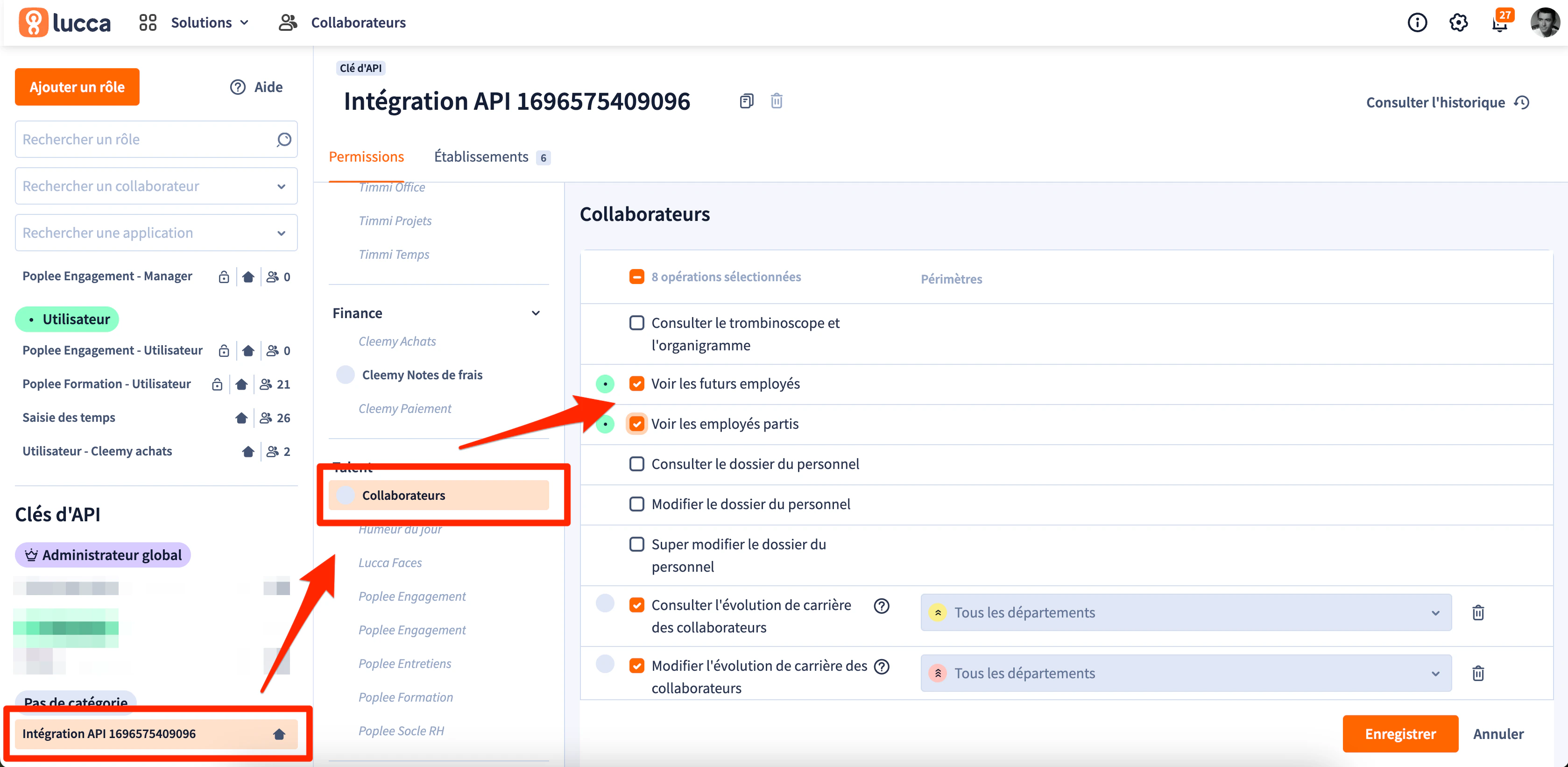
To sync upcoming onboardings and offboardings from Lucca, enable these permissions on the Lucca API key:1
Log in to your Lucca administrator account
2
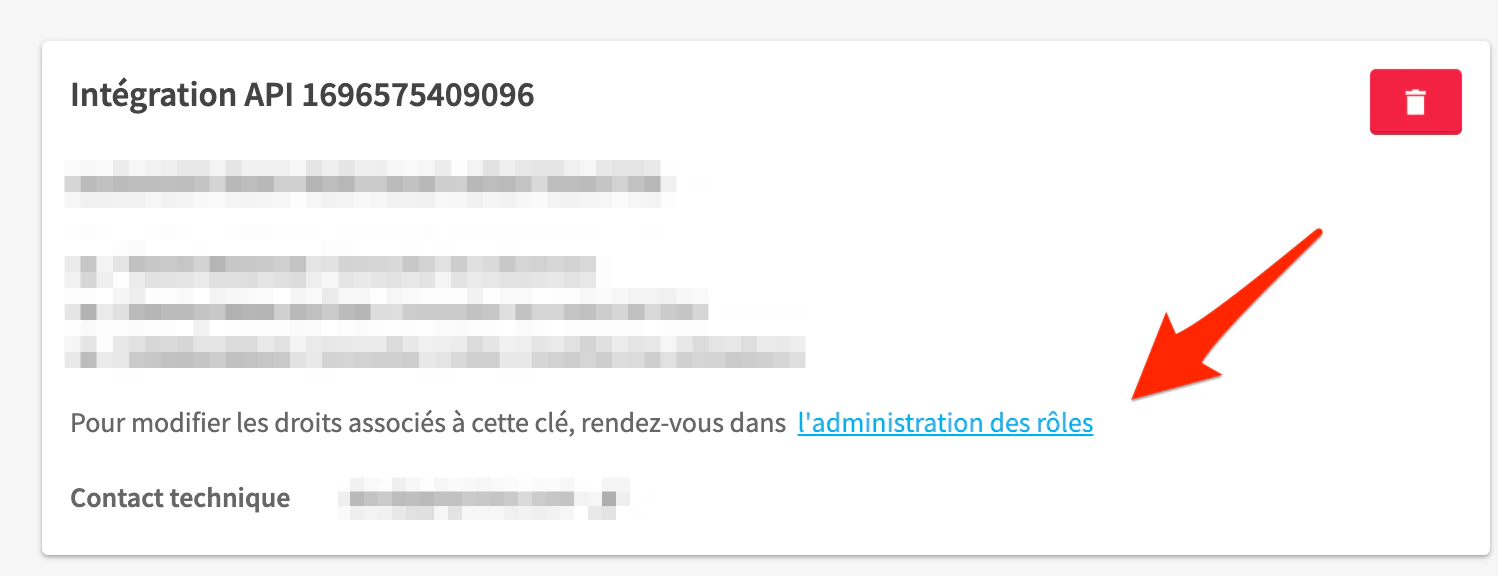
Go to Settings > API Keys
3
Edit the permissions associated with the API key
4
Enable View future employees and View departed employees
Synchronization frequency and modes
Once you connect your HR system, Primo synchronizes its data every hour. You don’t need to do anything. To choose how each field syncs, go to Settings > HR System and click Per-field sync settings under Settings. The section appears once a connection has started its first sync. For each field and each connected HR system, choose:- Import once: the field is set on first sync and can then be managed manually.
- Sync continuously: the field stays in sync with the HR system and cannot be edited manually.
- Contract start and end dates → sync continuously
- Job title → import once, then maintain manually
For automated offboarding to work correctly, the Offboarding date field must be set to Sync continuously.
Handle past start and leave dates
Your HR system can add someone after their start date has passed, or report a departure after the leave date has passed. Two settings under Settings > HR System > Settings decide what Primo does with them. They apply to every connection.
The window counts back from the day of the sync:
- Onboardings for past start dates: Primo creates an onboarding when the start date falls inside the window. Earlier hires are created as active employees, without an onboarding. Changing this setting opens a confirmation; click Save and sync to save it and start a synchronization with your HR system. Onboardings that have not started and have no ticket are removed if they now fall outside the window. Onboardings already started or with a ticket stay as they are.
- Offboardings for past leave dates: Primo creates an offboarding when the leave date falls inside the window. With Never, Primo only offboards employees whose leave date hasn’t passed yet. The setting saves as soon as you pick an option.
Handle external employees
Some HR systems include individuals outside your core workforce (contractors, consultants). To exclude them from your employee directory:1
Hide the employee
Open the employee profile and click Hide.
2
Ignore the onboarding
If they appear in the Onboardings list, you can also Ignore the onboarding. This hides the employee without fully deleting the record.
Understand which data is retrieved
Before you connect an HR system, you see the list of data Primo accesses through Kombo. Review it before you authorize the connection. Typical data retrieved includes:Complete list of data retrieved from the HR system
Legal Entities- Name
- Address
- Name
- Address
- Employee number
- First name
- Last name
- Job title
- Work email
- Personal email (optional)
- Mobile phone number (optional)
- Employment status
- Work location ID
- Legal entity ID
- Manager ID
- Home address (optional)
- Start date
- Employee ID
- Employment type
- Effective date
- Name
- Type
If a data field is not listed above, it is not retrieved. Kombo does not access banking details, salary information, or leave balances.
GDPR and data processing
For details regarding Kombo’s GDPR compliance and data processing practices, refer to Kombo’s Trust Center.Troubleshoot HR sync
Investigate missing onboardings and offboardings from Lucca
The Lucca API key is probably missing the View future employees or View departed employees permission. See Lucca.Investigate a missing onboarding employee
1
Check the start date
Verify the employee exists in your HR system with a start date set.
2
Search the employee lists
Check both active employees (including hidden) and the Onboardings list. Remove all filters.
3
Review what Kombo retrieved
Go to Settings > HR System, open the … menu of your connection, and click Edit filters. Use the filter preview to see which employees are included.
- Included — the employee is in the sync. Search by last name in active employees, onboardings, and offboardings.
- Excluded — Kombo shows the reason (often a filter). Update filters to include the employee.
Investigate a missing offboarding employee
If an employee doesn’t appear in the Offboardings view:1
Open the HR System settings
Go to Settings > HR System.
2
Review the end date field
In Per-field sync settings, check the mode of the Offboarding date field. See Synchronization frequency and modes.
3
Check the past leave dates setting
If the leave date had already passed when the employee synced, check the Offboardings for past leave dates setting. See Handle past start and leave dates.