Prerequisites
- Admin access to the cockpit. Only cockpit admins see Pin.
How pinning works
- Each page has one pinned view. Pinning a view replaces the one pinned before.
- The pinned view moves to the leftmost tab.
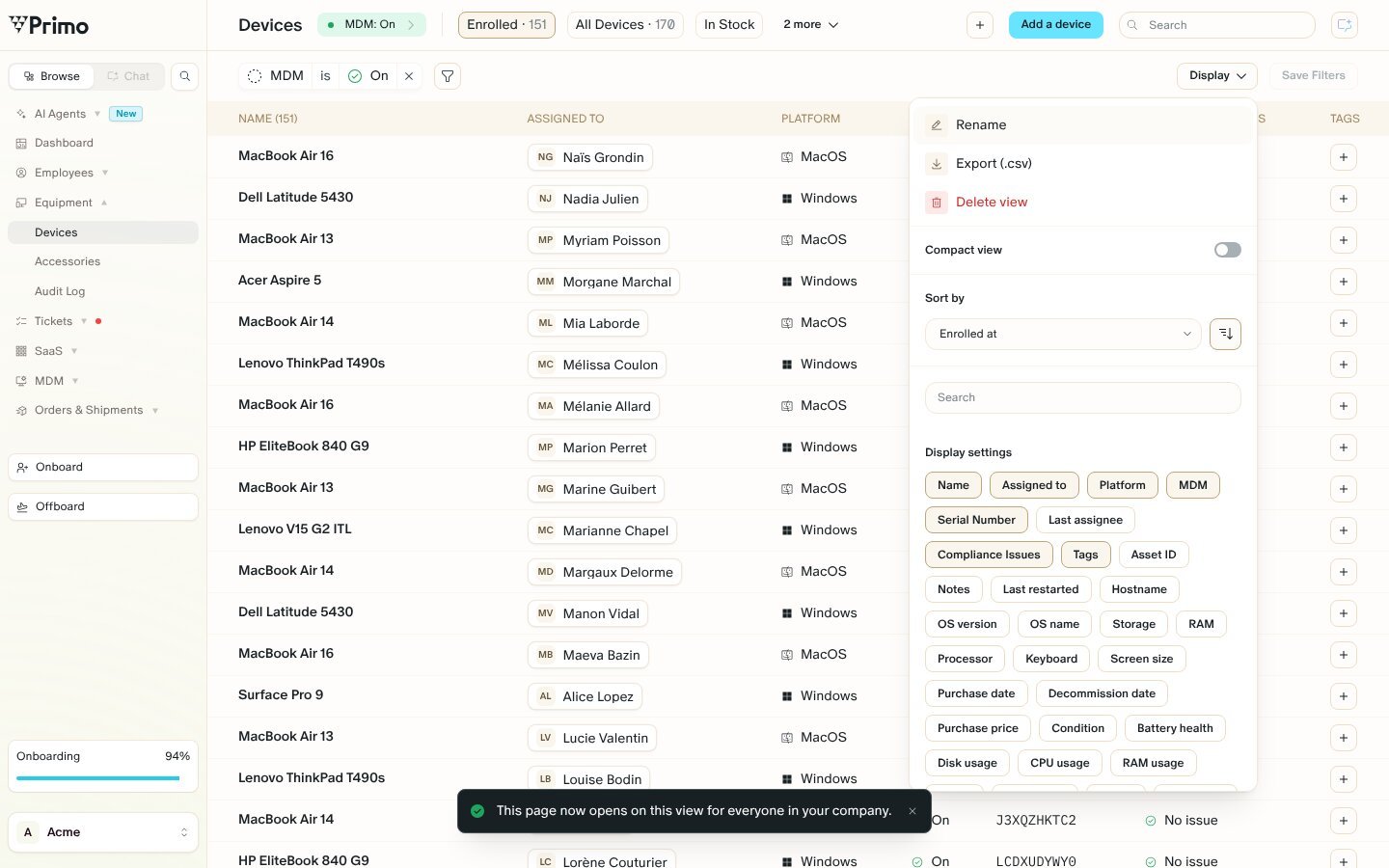
- The page opens on the pinned view for everyone in your company.
- The device and accessory catalog views count as one page, so they share one pinned view.
- If you delete the pinned view, the page opens on its usual first view again.
- Devices
- Employees
- Accessories
- Orders
- SaaS apps, identities and issues
- Tickets
- Tasks
- MDM controls
- Software
- Compliance issues
- Catalog
- AI agents
Pin a view
1
Open the view
Click the view’s tab at the top of the table.
2
Open the view menu
Click Display, or the view options menu, depending on the page.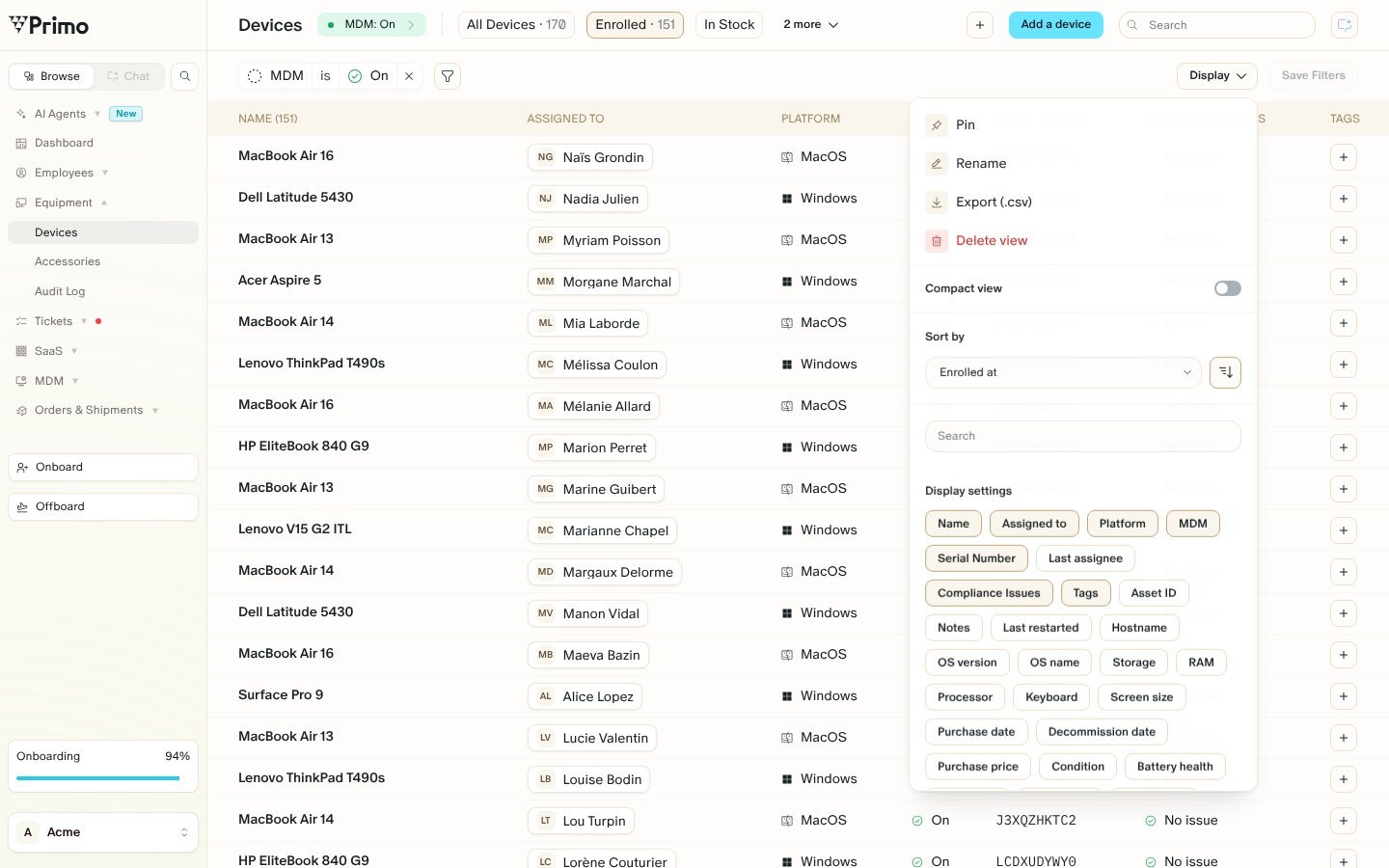
3
Click 'Pin'
The view moves to the leftmost tab. A message confirms: “This page now opens on this view for everyone in your company.”