

Prerequisites
- Admin access to the cockpit.
How AI dashboards work
- Classic always stays. You can’t rename or delete it.
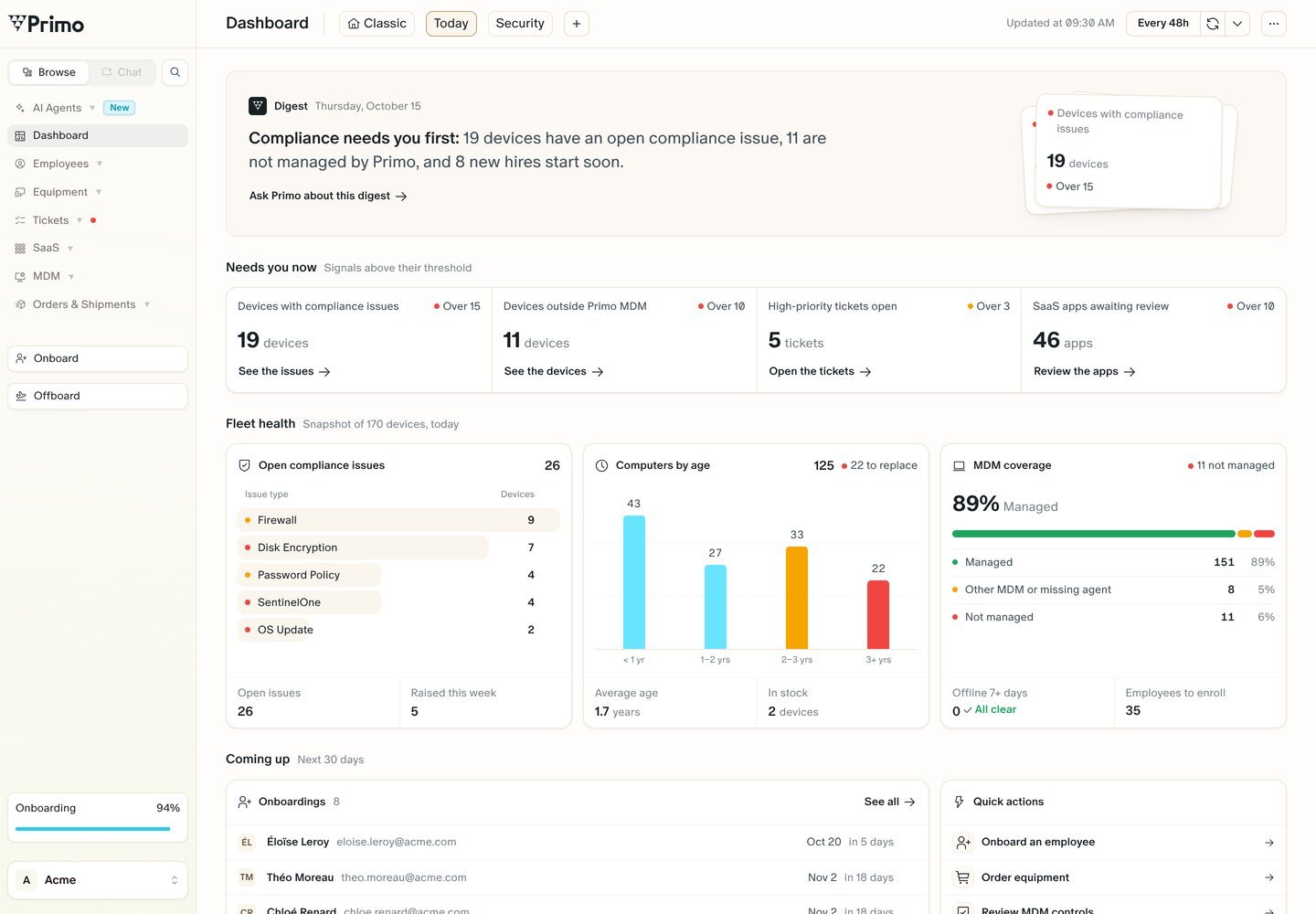
- The first AI dashboard is Today, a generalist view of what needs your attention.
- A company can have up to 10 AI dashboards.
- Dashboards are shared by the whole company. Every admin sees the same views, and a change one admin makes applies to everyone.
- Numbers are loaded live each time the page opens.
Read an AI dashboard
Every AI dashboard opens on a Digest: one sentence on what needs attention first, for example “Compliance needs you first: 19 devices have an open compliance issue, 11 are not managed by Primo, and 8 new hires start soon.” Click Ask Primo about this digest to open the Primo AI chat on it. Below the digest, the sections depend on the dashboard. Today shows:Create a dashboard
1
Click + next to the tabs
The New dashboard modal opens.
2
Name the dashboard
Enter a Name. It becomes the tab label.
3
Describe what it should show
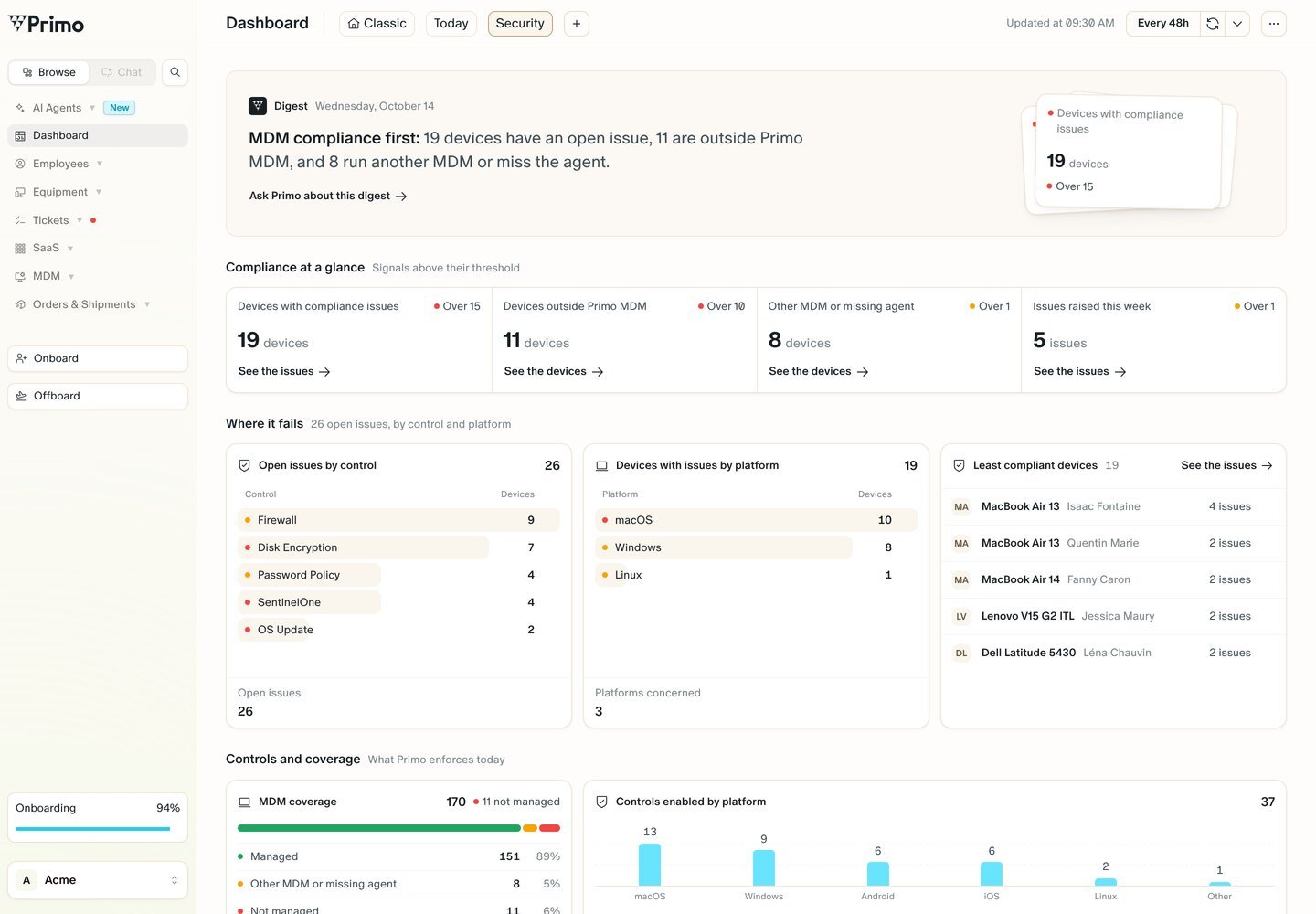
In Say a few words about the dashboard of your dreams., describe what the dashboard is for, for example “Security first: compliance issues, unencrypted devices and late updates.”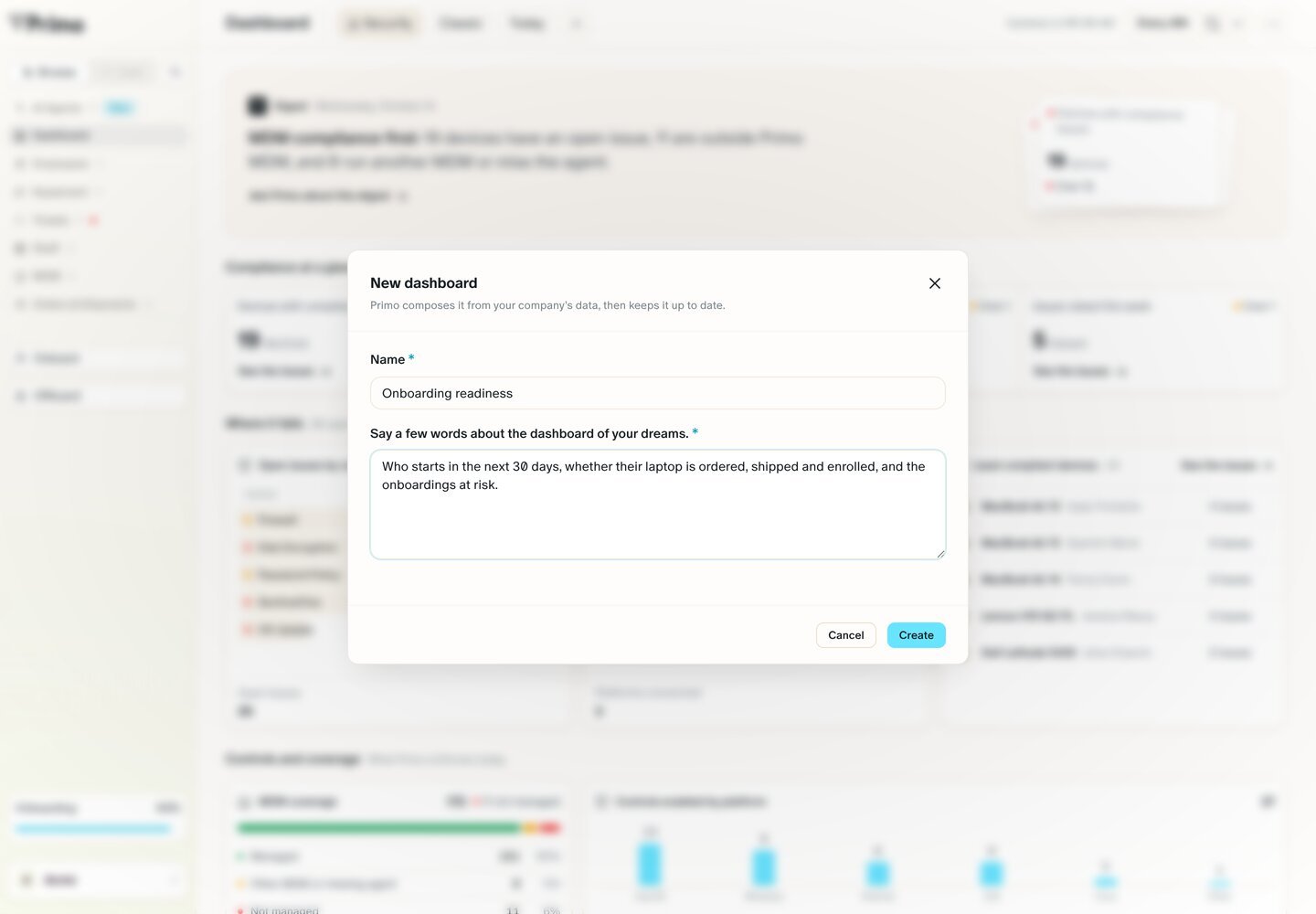
4
Click 'Create'
Primo composes the new view from your company’s data, then keeps it up to date.
Manage a dashboard
Open the dashboard, then click … at the top right of the page:Choose the home view
The home view gets a house icon and moves to the leftmost tab. The Dashboard page opens on it for everyone in your company. Classic is the home view by default.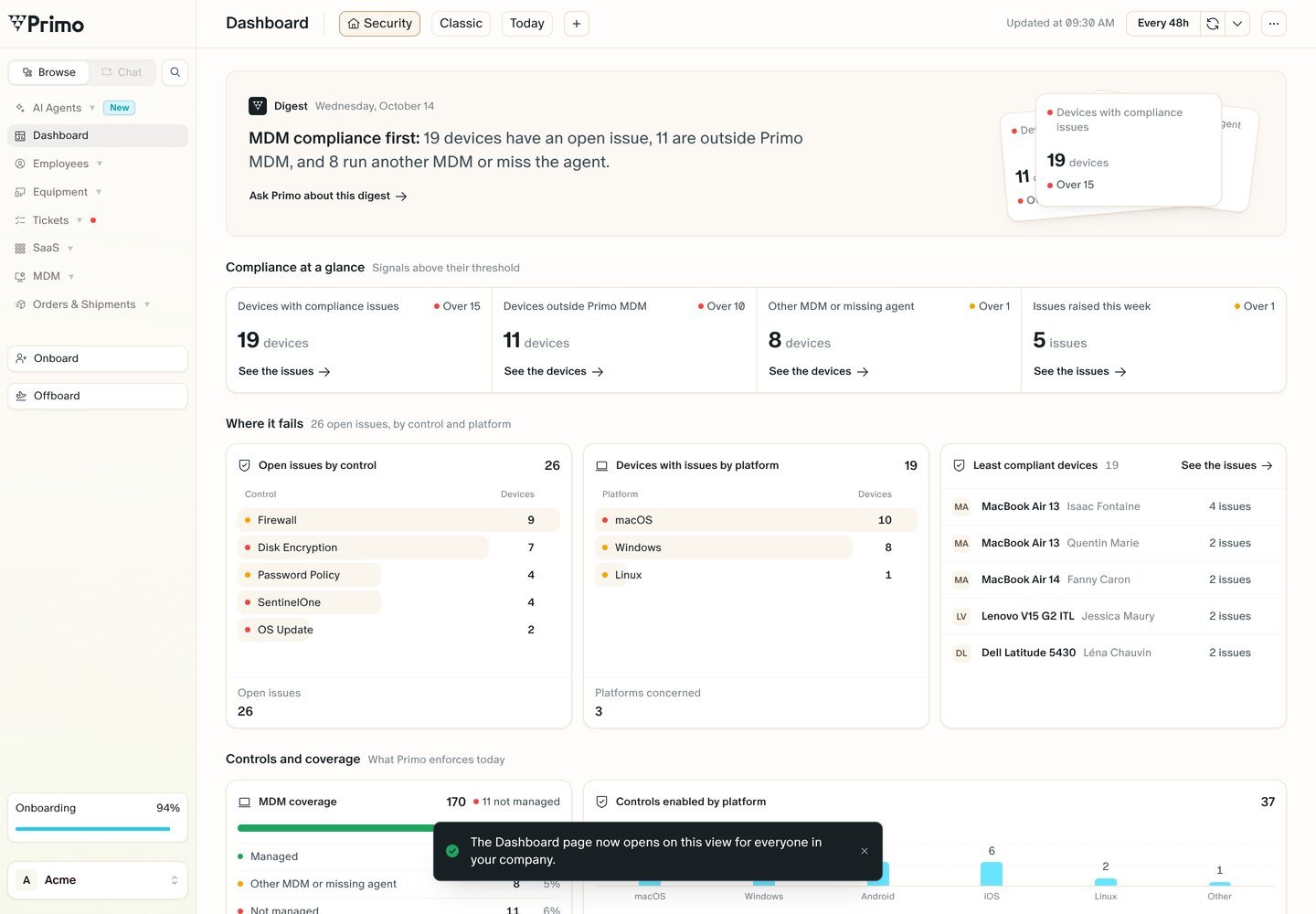
Keep a dashboard up to date
Primo recomposes each AI dashboard on a schedule. The time of the last update shows as Updated at … at the top right. The recompose options next to it let you:- Set the frequency — recompose automatically every 48 hours (the default), every 24, 6 or 3 hours, or turn it Off.
- Recompose now — recompose the dashboard on demand.
- Improve with Primo AI — tell Primo AI what to change. Primo updates the dashboard’s instructions, then recomposes it.