

Prerequisites
- A Microsoft account with the Global Administrator role on your Entra tenant
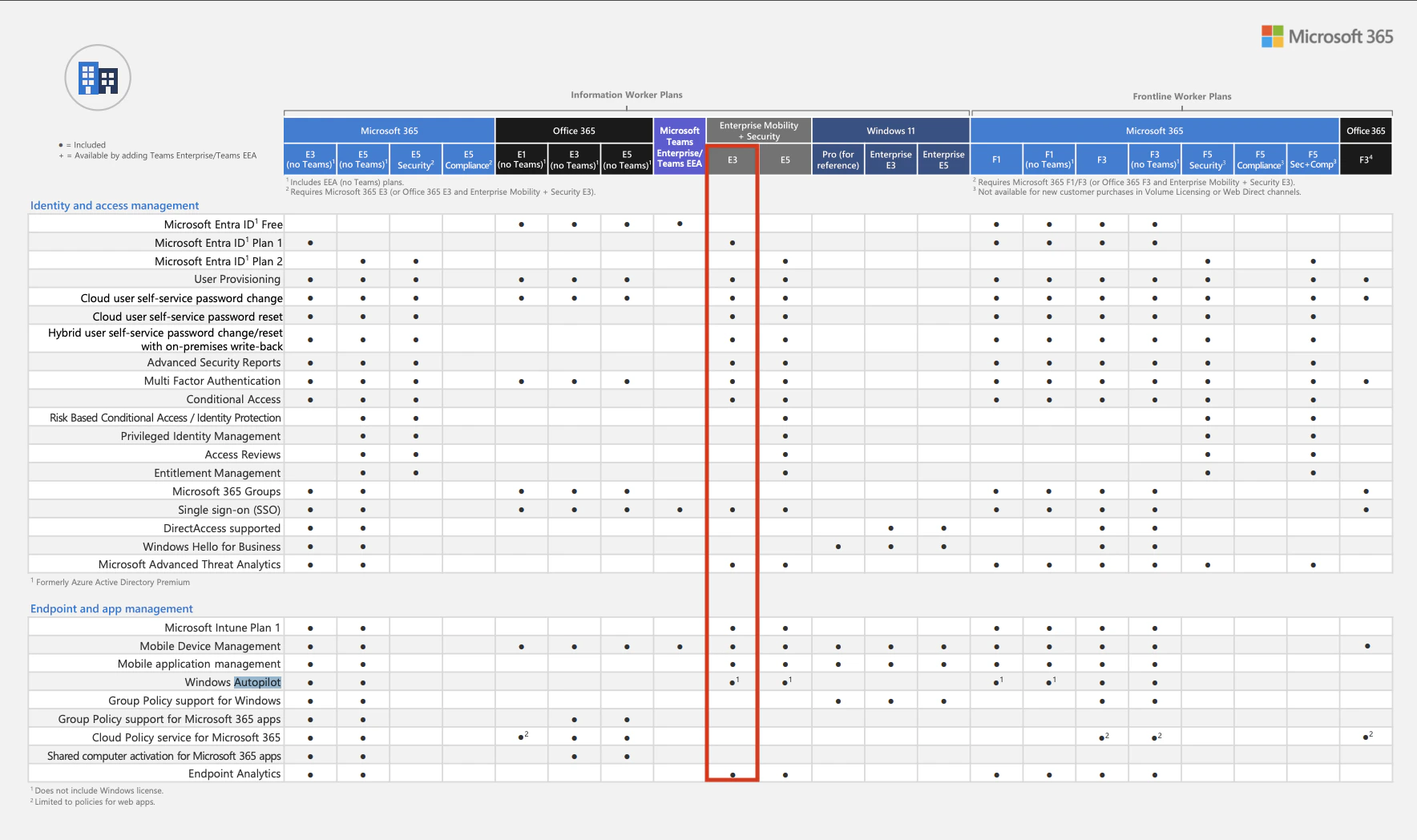
- A licence that includes Microsoft Entra ID Plan 1 (or Plan 2) & Windows Autopilot
- The
{company}subdomain of your MDM address ({company}.mdm.getprimo.com) — contact support if you don’t know it
Show Microsoft licence grid
Show Microsoft licence grid
Restrictions
Autopilot devices use Entra accounts rather than local accounts. Microsoft is progressively deprecating local accounts in favor of Entra accounts. The Entra administrator can configure whether employees have standard or administrator account privileges. Entra users with the Global Administrator role are automatically administrators on all Autopilot devices they sign into. The device needs internet access during the first boot to authenticate with Entra.Set up zero-touch
Steps 1 to 3 below match the three steps of the Add Windows Autopilot window. To open it, go to MDM > Settings, click Windows in the Platforms section, then click Add under Windows Autopilot. To resume an unfinished setup, click Finish setup on it instead. Follow them in order: each one unlocks the next in the cockpit. Steps 4 and 5 have no counterpart in the cockpit — run them afterwards in the Microsoft consoles. Step 3 of the window asks for three values from Entra: your Tenant ID, the Application (client) ID of the Fleet application, and the Primary domain your employees sign in with. You collect them along the way and paste them in the cockpit yourself — nothing to send to Primo support except the domain verification code at step 2.1
Connect Microsoft Entra
This step requires an Entra user with the Global Administrator role, and the permission to manage SaaS in Primo. You have no application to register on your side: you grant access to the Primo application that already exists in Microsoft’s directory.
- Open the Add Windows Autopilot window from MDM > Settings > Windows.
- On step 1, click Connect Microsoft Entra.
- Sign in with your Global Administrator account and accept the permissions Microsoft lists on the consent screen. An account without that role cannot grant them.
- You’re back in the Windows Autopilot setup. Step 1 reads Connected to and the name of your Entra instance, and step 2 is available.
2
Declare the Fleet domain
The Fleet domain is
{company}.mdm.getprimo.com, your MDM address. It is not your company’s email domain, which comes into play at step 3.This step requires Primo support: Microsoft generates a verification code that only we can add to our DNS. Allow up to 2 business days after you send it.
- Sign in to Microsoft Azure with an administrator account.
- Open Domain names and click + Add custom domain.
- Enter
{company}.mdm.getprimo.comand click Add domain. - Send the Destination or routing address (format:
MS=ms12345678) to support@getprimo.com. - Wait for our confirmation, then click Verify.
3
Connect Azure and Fleet
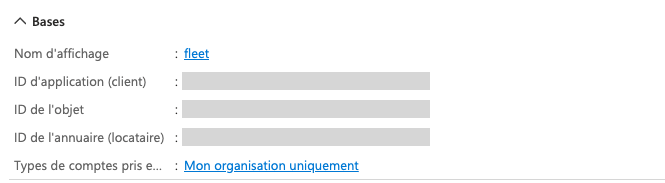
Step 3 of the window asks for three values. Two of them come from the Fleet application you create now in Entra; the third is your employees’ sign-in domain.Create the Fleet applicationEnter the connection values in the cockpitPrimo uses three values from Entra to authenticate to your tenant. You enter them yourself on step 3 of the window, and they are applied automatically — nothing to send to Primo support. Until all three are saved, the cockpit displays a token alert banner and Windows zero-touch deployment is not fully operational, including on tenants set up before this step existed.Back in MDM > Settings > Windows, click Finish setup on your Windows Autopilot setup, fill in the three fields of step 3 and click Save.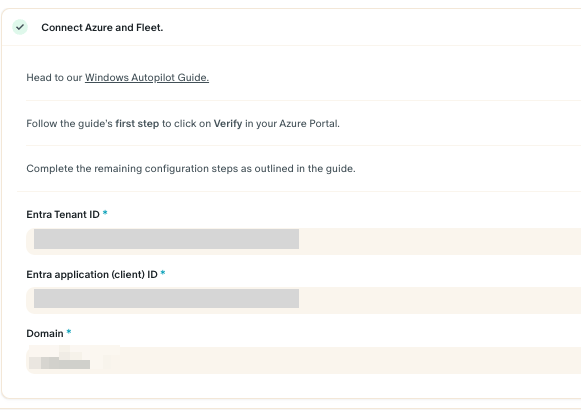
-
Go to Mobility (MDM and WIP) and click + Add application > + Create your own application. Enter
Fleetas the name (the rest of this guide uses that name) and click Create. -
Fill in the two MDM URLs, replacing
{company}with your subdomain, and click Save: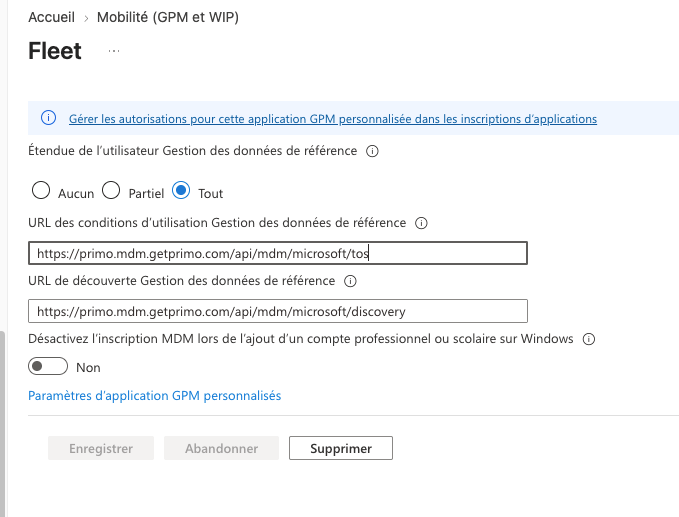
-
Click Custom MDM application settings > the link under Application ID URI > Edit > enter
https://{company}.mdm.getprimo.com> Save.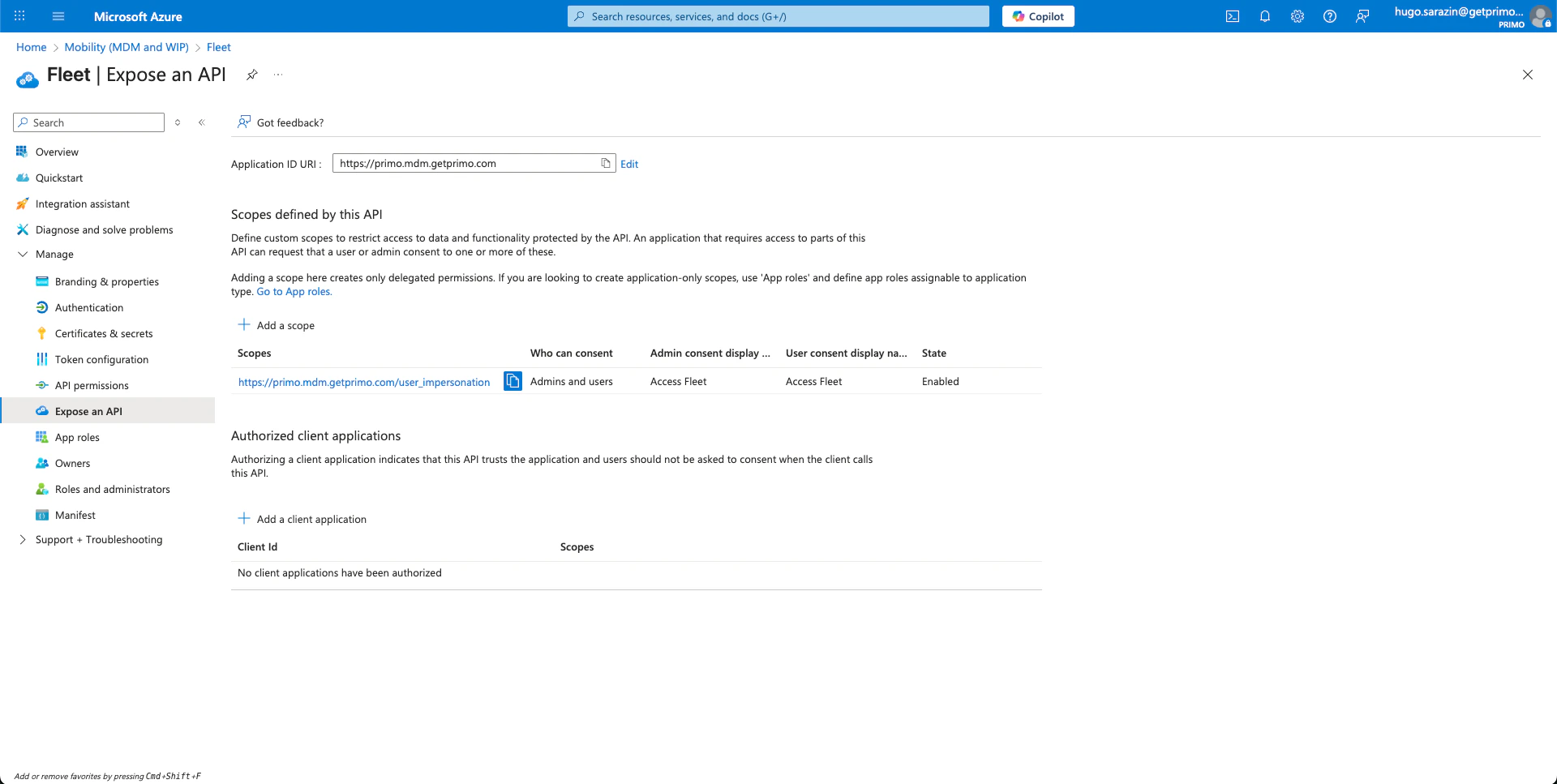
-
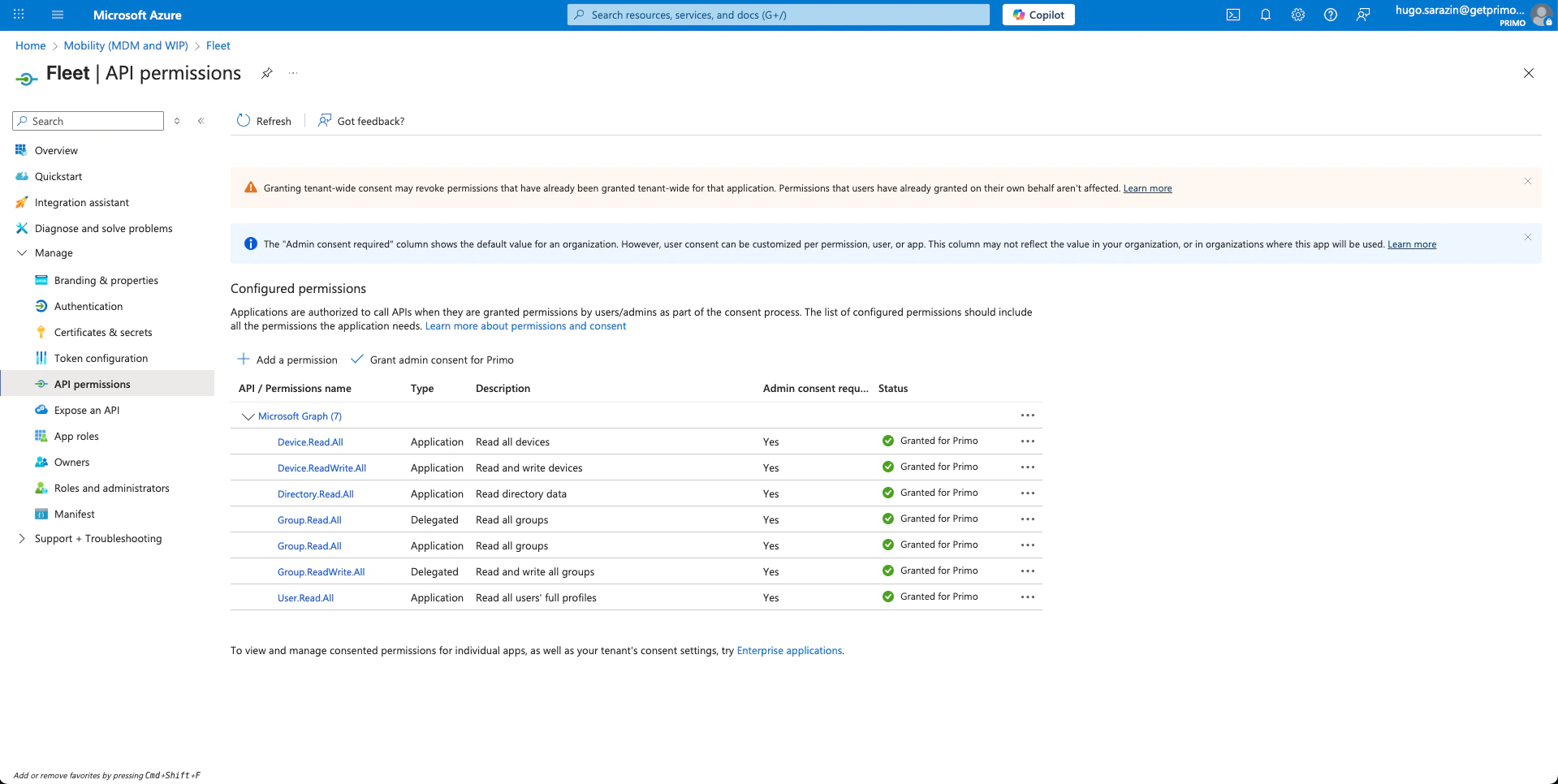
In the left menu, go to API permissions > + Add a permission > Microsoft Graph. Under Delegated permissions, add:
-
Under Application permissions, add:
-
Click Grant admin consent for {Your Company}.
- Go to Mobility (MDM and WIP).
- Click Microsoft Intune > set MDM user scope and WIP user scope to
None> Save. - Click Fleet > set MDM user scope to
All> Save.
If devices are already enrolled through Intune before this change, migrate them yourself — see Migrate from another MDM. Without it, those devices remain in an inconsistent state that degrades the employee experience.
Don’t mix up the values:
- Domain is your employees’ sign-in domain (
company.com), not the{company}.mdm.getprimo.comdomain declared at step 2. - Both IDs are GUIDs of the same shape. Check the label before pasting: the Tenant ID identifies your Entra tenant, the client ID identifies the Fleet application.
4
Create Autopilot deployment profiles
A deployment profile defines the default settings of devices that enroll through Autopilot, such as
- user account type (Administrator or Standard)
- default country and keyboard language
- device naming pattern (e.g.
{company}-%RAND:5%→{company}-23456)
- Create the profile — go to Intune admin center > Devices > Enrollment > Deployment Profiles > + Create profile and complete the three steps: name, deployment mode, assignment.
- Create a dynamic device group — go to portal.azure.com > + Create group, name it (e.g. “Windows Autopilot devices”), select
Dynamic devices, and use the rule: - Create an Enrollment Status Page — go to Intune admin center > Devices > Enrollment > Enrollment Status Page > + Create, name the profile, enable progress display, and assign it to your dynamic group.
5
Add your company branding
The logo uploaded here appears on the Autopilot sign-in screen next to a Welcome to {Your Company}! title. It is also the quickest way to confirm that a device actually goes through Autopilot at first boot.
- Sign in to Microsoft Azure, search for Company branding, then click Configure (or Edit if a default sign-in experience already exists).
- Open the Sign-in form tab and upload your logo in both Square logo (light theme) and Square logo (dark theme).
- Click Review + save, then Save.
Register your devices in Autopilot
A deployment profile only applies to devices registered in Autopilot. Registration is not enrollment. It links a device’s hardware identity to your Entra tenant, so Windows recognizes the device at first boot and launches the Autopilot experience.Our accredited resellers register devices ordered through Primo — nothing to do on your side. See Set up zero-touch deployment on your catalog. The steps below only apply to devices acquired outside Primo.
1
Export the hardware hash
On the device, open PowerShell as administrator and run:This generates a CSV file containing the hardware hash. Microsoft’s documentation covers other export methods.
2
Import the CSV in Intune
- Go to Intune admin center > Devices > Enrollment > Windows Autopilot > Devices.
- Click Import and upload the CSV. The import takes a few minutes — refresh the page until the device shows up.
- Confirm the Profile status column reads
Assigned. If it stays onNot assigned, review the assignment of your deployment profile (step 4 above).
Review the employee experience
When a new employee receives a device registered in Autopilot:1
Turn on the device
2
Select the country, language, and keyboard layout
3
Connect to the internet
4
Sign in with Microsoft credentials
Plus multi-factor authentication, if enabled.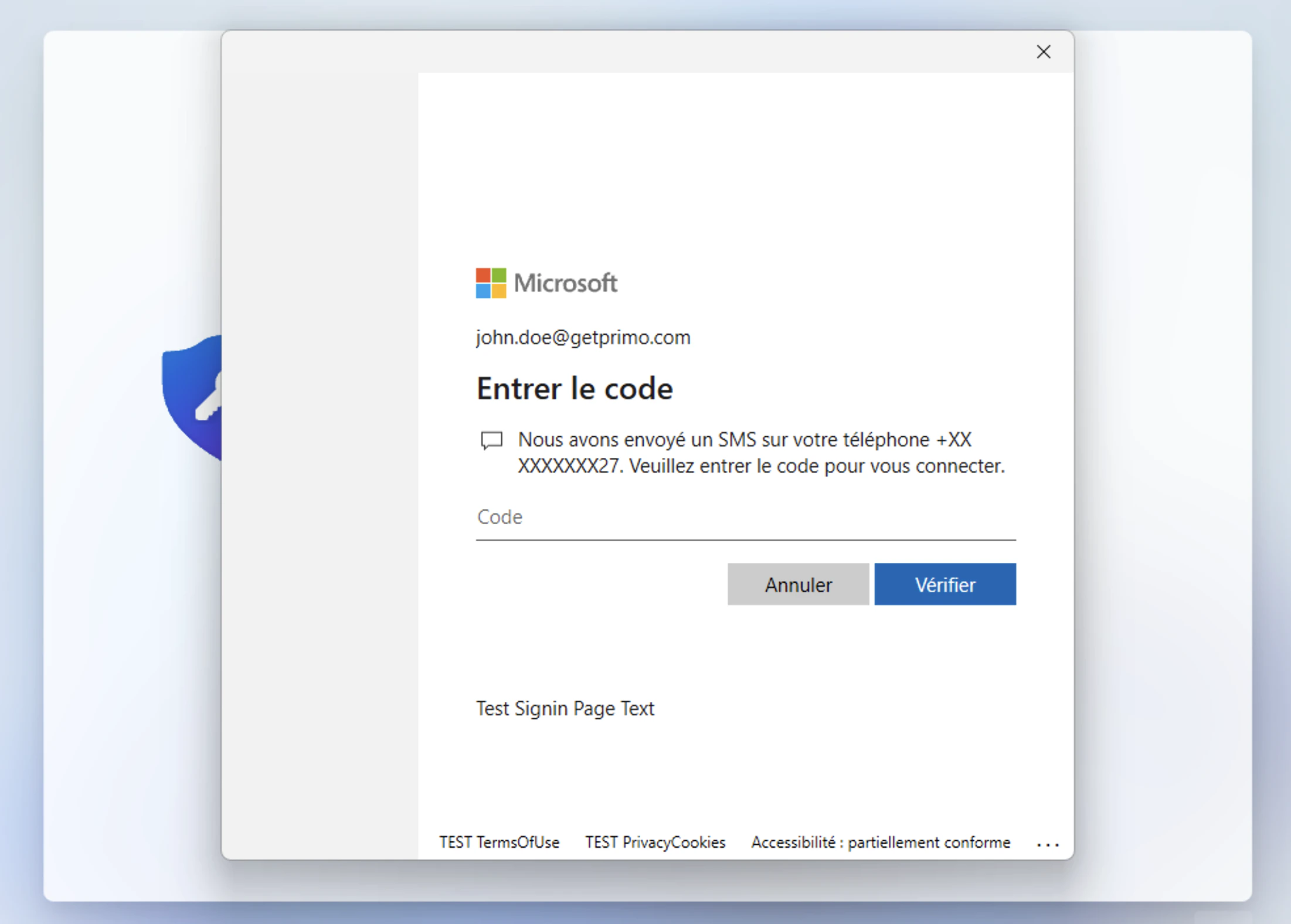
5
Set up a PIN and fingerprint
The fingerprint is offered only if the hardware supports it.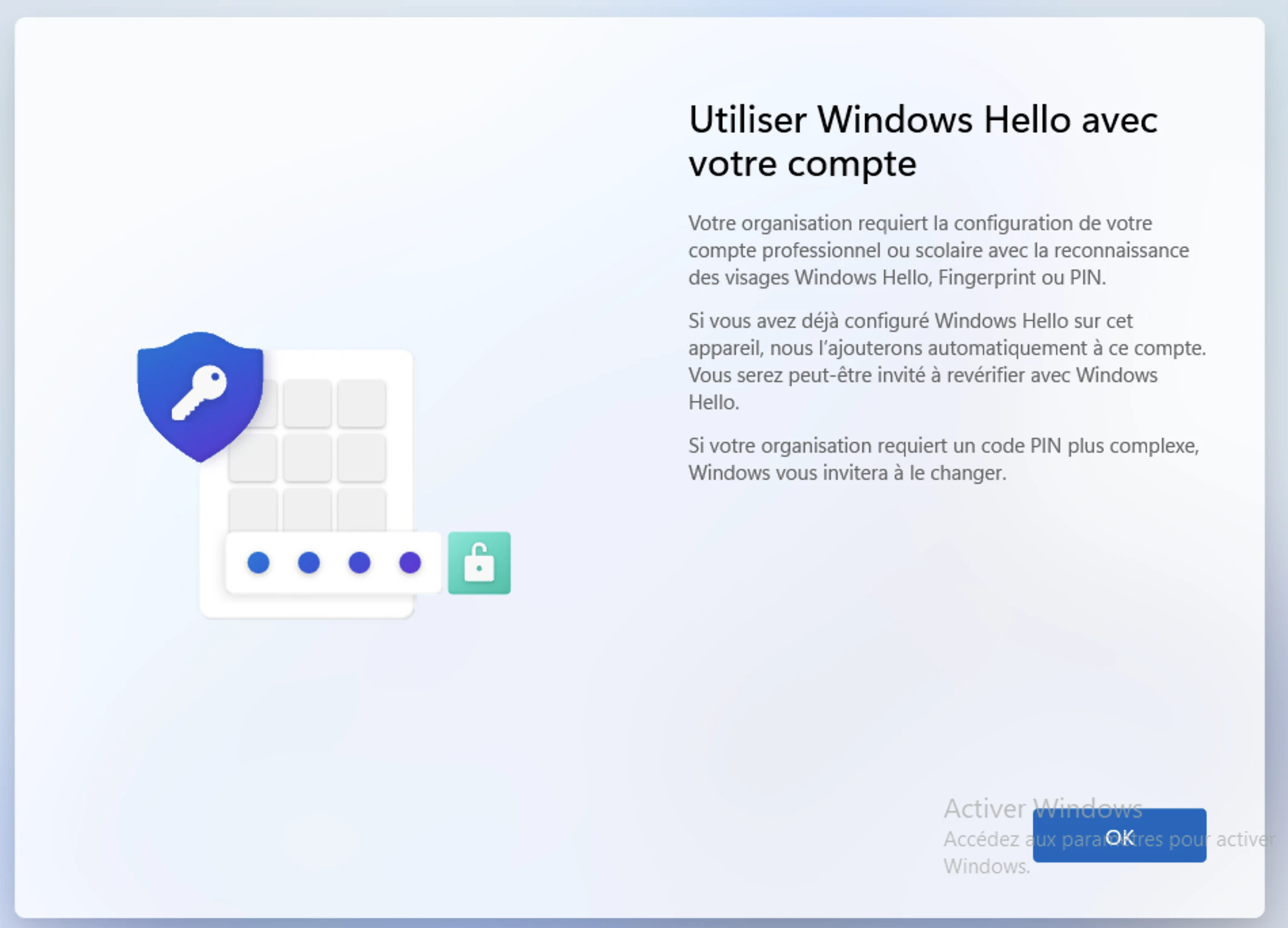
6
Start working
The apps and controls defined in the cockpit apply automatically.
Test the enrollment
Validate the full flow on a single registered device before rolling out company-wide.1
Reset the test device
Reset the test device (Settings > System > Recovery > Reset this PC) or reimage it.
2
Power on and connect
Power it on, select the country and keyboard layout, and connect to the internet.
3
Check the branded sign-in screen
Confirm the sign-in screen shows Welcome to {Your Company}! with your logo — this proves the device went through Autopilot.
4
Sign in as a test employee
Sign in with a test employee’s Entra credentials. Windows then asks to create a PIN (Windows Hello), plus a fingerprint if the hardware supports it.
5
Confirm the device in the cockpit
Once the desktop loads, the device appears in the cockpit and receives the apps and policies defined there.
Devices that are not registered in Autopilot can still enroll automatically: during Windows setup, choose Set up for work or school and sign in with Entra credentials. The device enrolls in Primo, but skips the branded Autopilot experience and the Enrollment Status Page.
Reset or reassign a device
When a device changes hands — offboarding, replacement, repurposing — clean up its old records so it goes through Autopilot again like a brand-new device.1
Wipe the device
Trigger a remote wipe from the cockpit, or reset it locally via Settings > System > Recovery > Reset this PC.
2
Delete the old device record
Enrolled devices can’t be deleted, so unenroll the device first (Actions > Unenroll, or Mark as unenrolled if it’s offline). Then, in the device panel, click Actions > Delete and confirm. The next enrollment starts from a clean record.
3
Clean up Entra
In Microsoft Azure, go to Devices > All devices and delete the stale object of the wiped device.
4
Sync Autopilot
In Intune admin center > Devices > Enrollment > Windows Autopilot > Devices, confirm the device is still registered with a Profile status of
Assigned, then click Sync and wait for the sync to complete.5
Boot the device
The branded welcome screen confirms Autopilot picked the device up. If the device skips Autopilot at first boot, wait a few minutes and restart it — the Autopilot service may still be processing the cleanup.