

Availability: Primo opens the Offboarding Agent company by company. If the Offboarding Agent card doesn’t show at the top of People > Settings > Offboarding, it isn’t open for your company yet. Contact your Primo representative to ask for it.
Check what you need
Permissions
What the agent works with
- A connected email provider to suspend the leaver’s mailbox and hand their files and emails to their manager. See Connect your email provider.
- Access policies, published, for the SaaS accounts it removes.
- Your HR system, synced, so departures reach Primo with a last day. See Set up HR sync.
- Enrolled devices for a lock. The agent puts any company device back in stock, and locks only a device enrolled in Primo’s MDM.
Set up the agent
1
Open the Offboarding settings
Go to People > Settings and open the Offboarding tab. The Offboarding Agent card sits at the top of the page.
2
Click 'Set up'
The agent’s creation page opens, filled in by Primo:
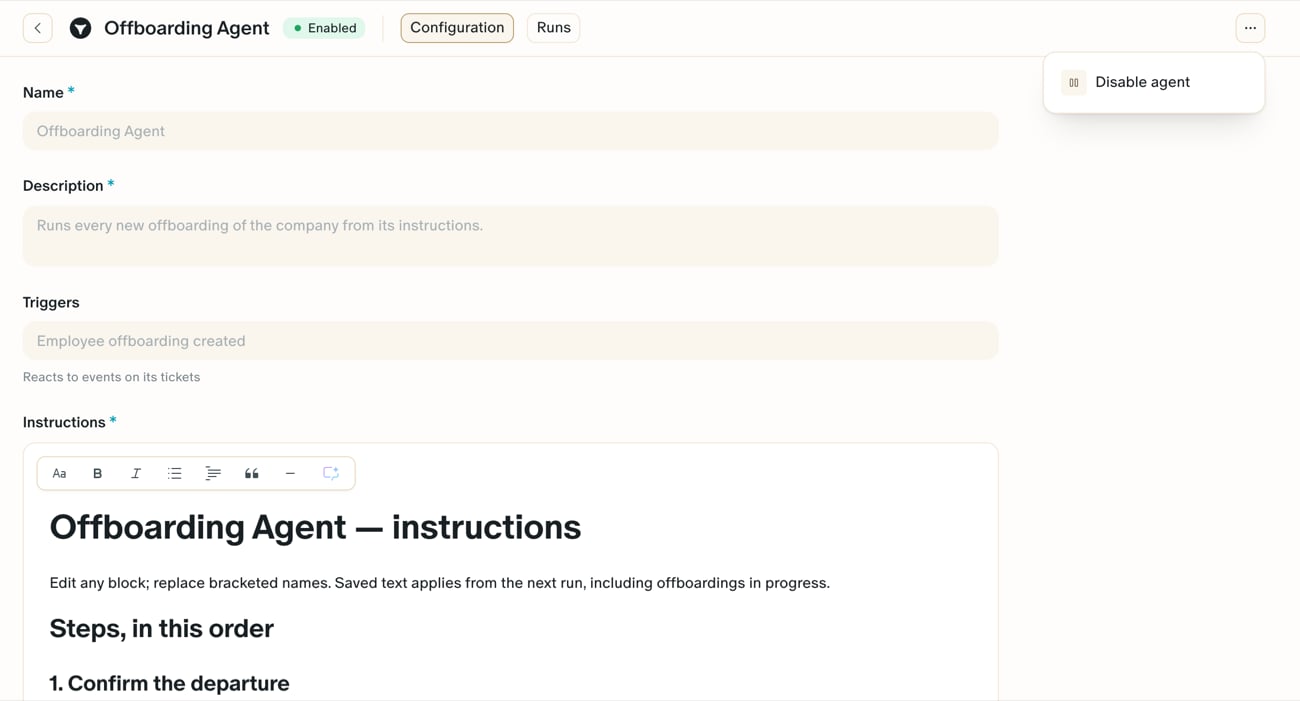
- Locked, set by Primo: the Name (Offboarding Agent), the Description, the Model tier, and the trigger Employee offboarding created. They show greyed out.
- Editable: the Instructions, prefilled with Primo’s template in your cockpit language (English or French), and Knowledge.
3
Adapt the instructions
Replace the bracketed names and adjust the steps to your process, or let Primo
AI write them with you from your current offboarding settings. See Write or
rework the instructions with Primo
AI.
4
Click 'Create'
The agent is created and enabled: Agent created and enabled. The agent page opens.
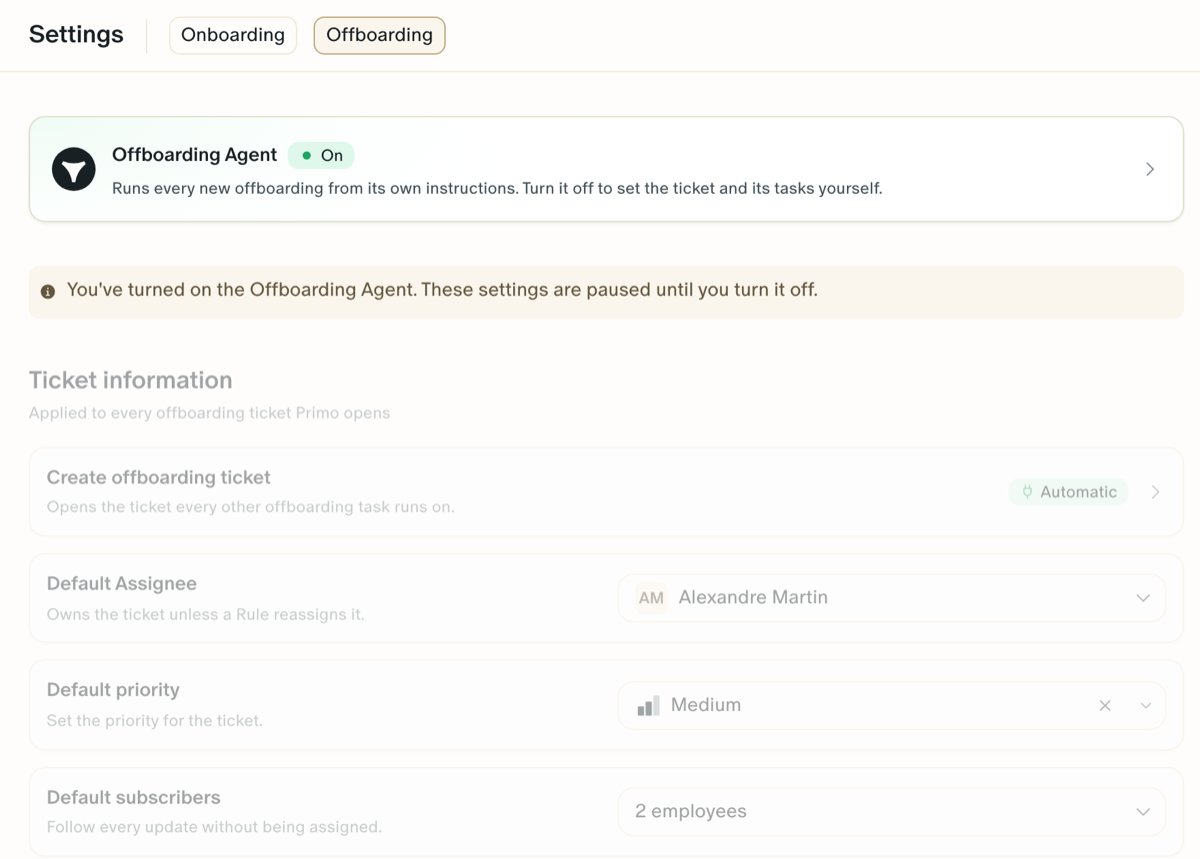
- The card reads On. Click it to open the agent page. The Offboardings page title shows Offboarding Agent: On.
- The Ticket information and Offboarding tasks sections are greyed out under the banner You’ve turned on the Offboarding Agent. These settings are paused until you turn it off. They apply again, with their saved values, when you turn the agent off.
- The agent runs every offboarding created from then on: from your HR system, from Offboard an employee, or from the public API.
- An offboarding created before you enabled the agent stays on the classic settings until it ends. If it has no ticket yet, clicking Create ticket hands it to the agent instead: The Offboarding Agent takes the offboarding from here and opens its ticket.
Edit the instructions
Open the agent page from the Offboarding Agent card, or from Agents > AI Team. Edit the Instructions field, then click Save. Saved text applies from the agent’s next run, including the offboardings already in progress.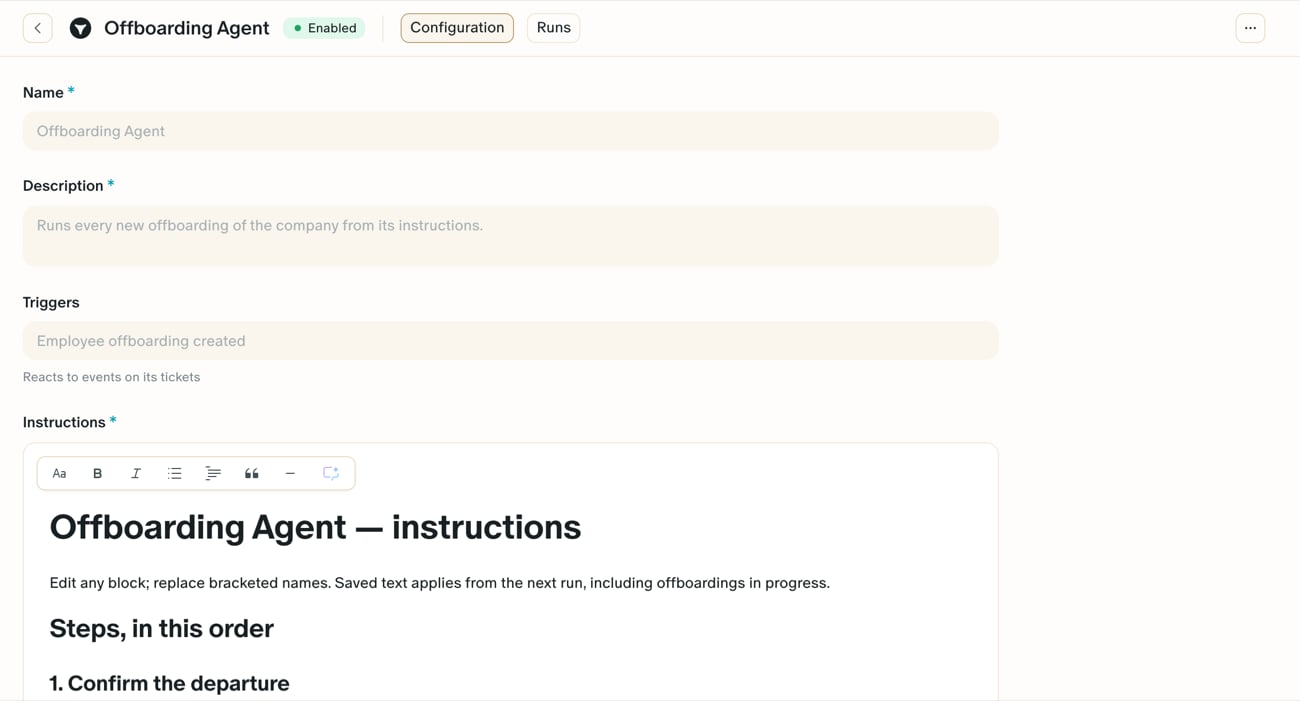
Write or rework the instructions with Primo AI
Primo AI writes the instructions with you, from an empty field or from the text you already have. Click the Primo AI button at the end of the Instructions toolbar: the chat opens next to the form. Along the way, Primo AI:- Starts from your current offboarding settings. Each question proposes the answer your settings give, such as the steps you run, their owners and dates, the mailbox action and transfer targets per identity provider, the MDM action per platform, and your return shipment policy.
- Asks, for a lock, a wipe, a mailbox deletion, an app account deletion and a return label, whether the IT owner validates it first or the agent runs it directly. It writes your answer into the instructions in words that name the action.
- Asks what your company does when the last day has already passed.
- Checks the text you already have against what the instructions need, such as Primo’s eight sections and an owner and a date for every step, and lists what is missing.
Know the sections of the template
Primo’s template has these sections. Keep the headings, change the content:Decide what runs without asking
By default, the IT owner validates each of these before it runs: a lock, a wipe, a mailbox deletion, an app account deletion, and a return label. Everything else in the steps runs on its date without asking: suspending the mailbox, removing the accounts an access policy removes, putting devices back in stock. To let the agent run one of these actions directly, name it on the Run directly, without asking line, for example:Set owners and timing
- Name one person per role, an employee in Primo. A role left empty falls back to the IT owner.
- The IT owner is the ticket’s assignee and receives every validation and every hand-over. Without one, the agent asks for it, keeps running the steps it owns, and hands only what waits for the IT owner to the leaver’s manager.
- The HR contact fixes a wrong last day in your HR system. A fix made only in Primo is overwritten by the next HR sync.
- Every date counts from the last day. The offboarding is due on the last day.
- By default, the agent sends two reminders 48 hours apart on the same request, then gives the IT owner a task. For the return address, it reminds the leaver 7, 3 and 1 days before the last day.
Understand what the agent does
The offboarding ticket
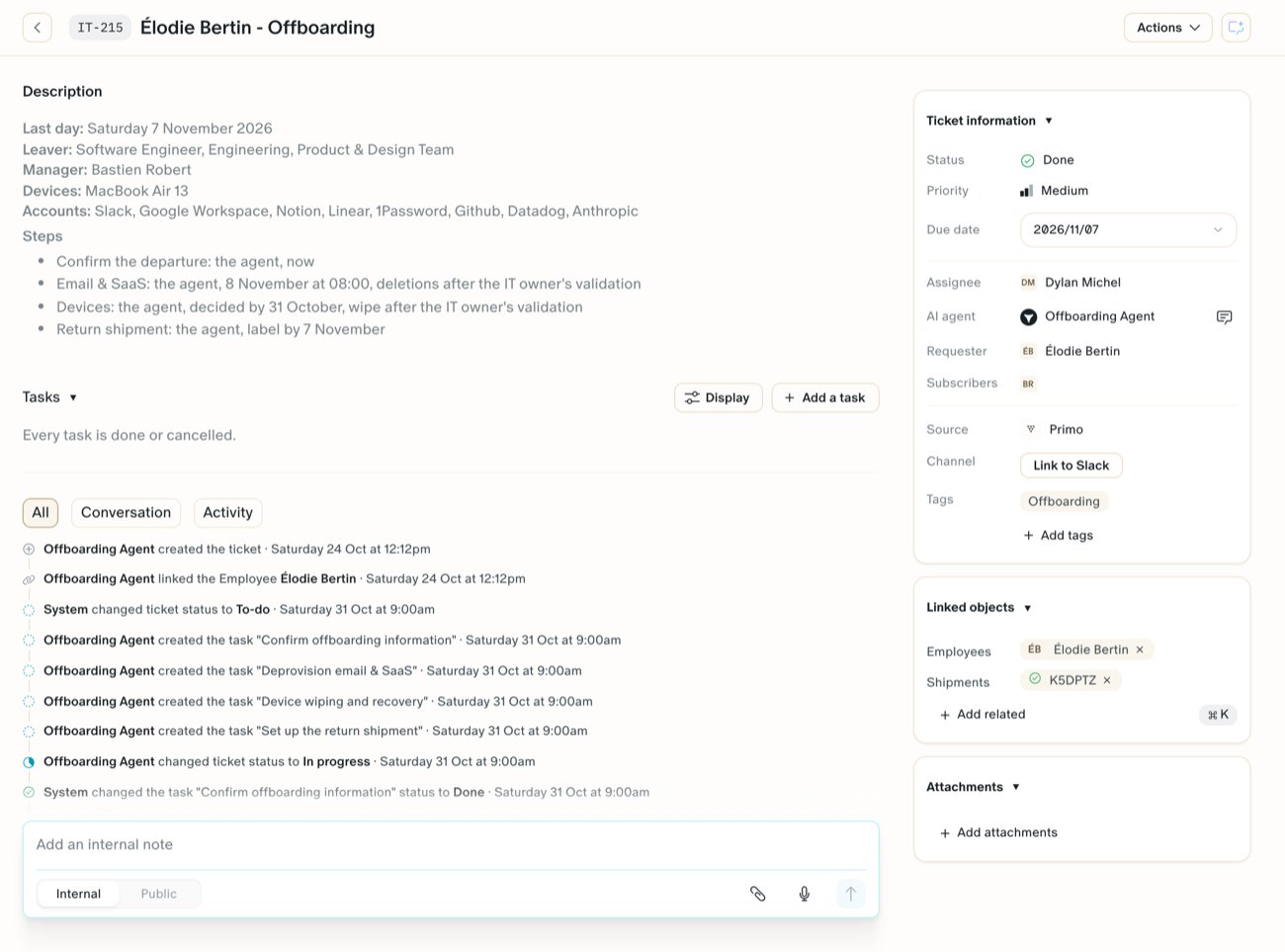
For each offboarding, the agent opens one ticket, First Last - Offboarding, with the Offboarding tag. It is assigned to the IT owner, due on the last day, with the leaver as requester, their manager subscribed, and the agent on it. Until the offboarding starts, the ticket sleeps: nothing happens on it. In People > Offboardings, the Ticket column reads Ticket being prepared while the agent opens the ticket, then Starts on a date until it wakes. From that date, the agent:- Creates one task per step of your instructions, assigned to itself for what it executes and to the named person otherwise.
- Ends each run with one internal comment: what it did, what is waiting and on whom, each person who has to act mentioned, and when it comes back.
- Asks for each validation in its comment, one question per step, listing everything concerned, with the date it must be decided by. Some questions come with choices you answer in one click.
- Closes the offboarding with a short summary once the last task is done.
What the agent does on its own, and what it hands over
With Primo’s template:
A validation with no answer by its date: what needs none runs, and the rest becomes a task for the IT owner. For example, the devices go back in stock with no lock, and the lock becomes a task.
There is no approve button. To unblock the agent, answer in a comment on the ticket or complete the task. The agent picks the ticket back up from there.
What the leaver receives
- Emails are sent by Primo AI to the leaver’s work address until the last day, and to their personal address after it.
- By default, the first email to each leaver waits for the IT owner’s approval: a departure may not be announced yet. Reminders then follow on the same email.
- The agent asks the leaver to confirm where the equipment is picked up, even when an address is on file.
- The emails are in the language and with the signature your instructions set. They hold no prices, no internal notes, no other employees, and no link that requires an account.
- The leaver’s reply lands on the ticket as a comment, and the agent picks it up.
Departures already past
When the last day has already passed as the offboarding appears, the accesses go at once and the agent takes no device action: it asks the IT owner what to do with the devices. You can set a stricter rule in Departures already past.When your HR system changes the last day
Primo posts an internal comment on the agent’s ticket, and the agent acts on it:Offboard an employee by hand
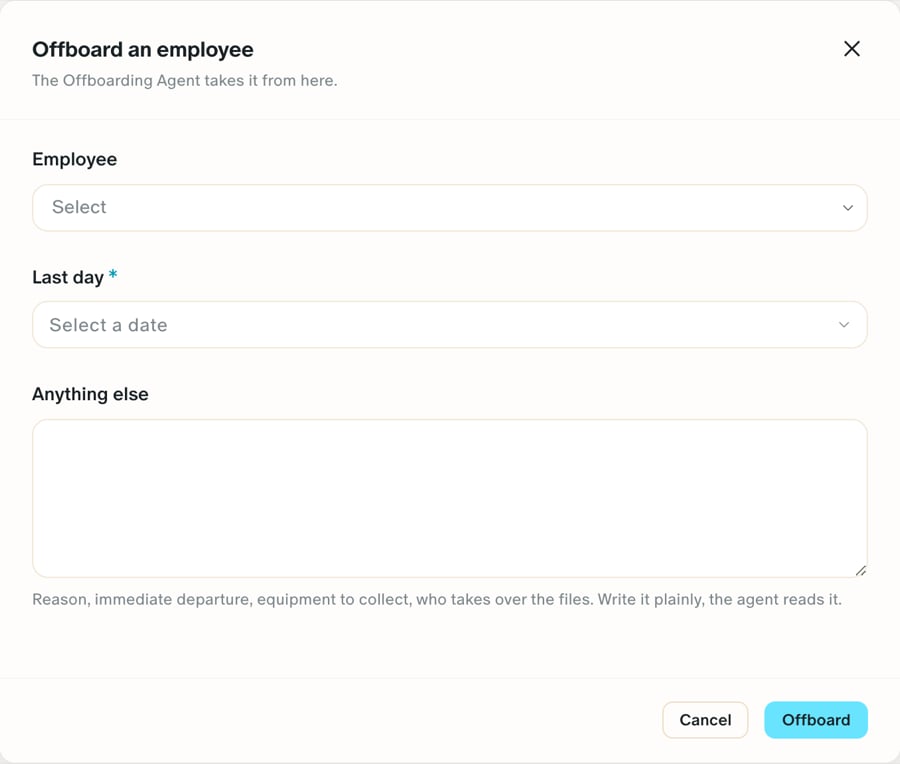
While the agent is enabled, Offboard in the left menu, Offboard an employee on the Offboardings page, Create offboarding in the command menu, and Offboard in the employee drawer open Offboard an employee:- Employee, when you didn’t open it from an employee.
- Last day.
- Anything else: the reason, an immediate departure, the equipment to collect, who takes over the files, in plain words. The agent reads it.
Stop an offboarding
- Before the ticket starts: open the employee drawer. The offboarding card reads Starts on a date or Ticket being prepared. Click Ignore offboarding if the person is not leaving.
- Once the ticket exists: click Cancel offboarding on the ticket or on the drawer card. It is available while the offboarding is To Do. The agent is told on its ticket.
Handle a run the agent could not finish
There is no fallback to the classic settings: an offboarding the agent runs stays with the agent, on its one ticket. Each new offboarding starts one run, listed in Agents > Runs and in the agent page’s Runs tab, where its Subject reads Offboarding, then the ticket title once the ticket exists.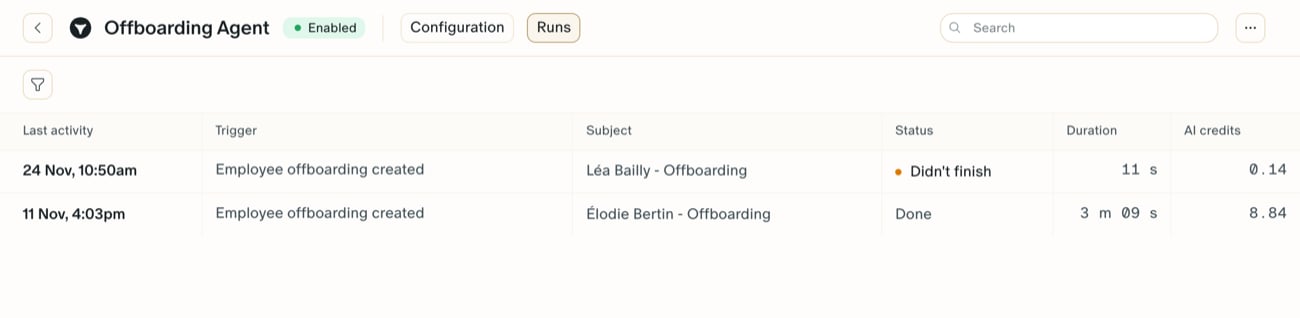
Runs of the Offboarding Agent have no Re-run: the agent always resumes through its ticket.
Turn the agent off
- Open the agent page from the Offboarding Agent card or from Agents > AI Team.
- Click ⋯ > Disable agent.
Follow what the agent does
- The ticket is the full record: every comment, task, email, and action the agent took, each authored by the agent.
- The Runs page (Agents > Runs, or the agent’s Runs tab) lists one run per offboarding.
- AI credits: each run shows the AI credits it used in the AI credits column. AI credits track usage and aren’t billed for now. The Primo AI chat that helps you write the instructions counts credits too.
Limits
- The agent never acts on a device that is not assigned to the leaver, never wipes a personal device, and locks only an enrolled device. This holds even against your instructions.
- The agent never restores an access it removed.
- The agent doesn’t create offboardings: your HR system, Offboard an employee, or the public API does.
- There is no approval step inside Primo: a validation is a question on the ticket, an escalation is a task for a person.
- The agent can’t be started by hand, its runs can’t be re-run, and it can’t be deleted.
- Primo sets the name, description, model tier, and trigger.
FAQ
Does the agent lock or wipe devices without my approval?
Not by default. The IT owner validates every lock and wipe first. Your instructions can let the agent run one directly by naming it on the Run directly, without asking line. A personal device is never wiped.Does the agent delete the leaver’s mailbox?
No, by default it suspends the mailbox and hands the files and emails to the leaver’s manager. A deletion waits for the IT owner’s validation unless your instructions name it.I changed the instructions. Do offboardings in progress follow the new version?
Yes. Saved text applies from the agent’s next run, on every offboarding it runs, including those already in progress.Can I go back to the classic offboarding settings?
Yes. Click ⋯ > Disable agent on the agent page. New offboardings follow the classic settings again. The ones the agent already runs stay with it.Why don’t I see the offboarding ticket yet?
The ticket sleeps until the offboarding starts: 7 days before the last day by default, set in Timing. Until then, People > Offboardings reads Ticket being prepared, then Starts on a date.The person is staying after all. What do I do?
Click Ignore offboarding in the employee drawer before the ticket starts, or Cancel offboarding once it exists. If your HR system withdraws the departure, the agent cancels the offboarding itself when nothing was done yet.Contact
If an offboarding is stuck and a comment on its ticket doesn’t restart the agent, or a run Didn’t finish before any ticket was created, contact support@getprimo.com with:- The leaver’s name and last day
- The link to the offboarding ticket, if there is one
- The link to the run (Actions > Copy link to run in the run details)
- What you expected the agent to do