

Device Management
Distribute your private Android apps
Deploy an internal app that isn’t on the public Google Play Store. In MDM > Software, click Add app, then Google Play, to find your Enterprise ID. Publish the app privately in the Google Play Console with that ID as the organization ID. Then enter its package name in the Add Android app window. Until the next sync, the preview shows the package name, not the app’s name, so check it: a typo makes adding the app fail. Employees install it from the managed Google Play store on their device.See Add a private app.Device Management
Resend a control’s profile to a device
When a control showsERROR on a device, check the control, then resend its profile from the cockpit. Until now, it took the API, the MCP server or Primo AI. Open the device drawer and, in its MDM Controls section, click Resend profile on the control’s row. The device installs the profile at its next check-in, and an iPhone or iPad once it’s unlocked. You can’t resend a declaration, a control that isn’t delivered by a profile or isn’t assigned to this device, or a profile still being delivered.See Why a configuration fails to apply.HelpdeskAI
Dictate instead of typing in Primo AI and ticket comments
Click the microphone next to the send button and speak. Your words appear in the message as you talk. While you dictate, you can’t edit or send the message: stop dictating, check the text, then send it. It works in the Primo AI chat, in the side panel and full screen, and in a ticket’s comment box. The microphone doesn’t show when your browser can’t record audio.Onboarding
Hires who started over 7 days ago now skip onboarding by default
Onboardings for past start dates now defaults to Within 7 days, instead of Always, for every company. When your HR system adds someone whose start date passed more than 7 days before the sync, Primo creates them as an active employee. They get no onboarding. Onboardings already created stay: narrowing the window never removes one. To get an onboarding for everyone your HR system adds, as before, pick Always in Settings > HR System > Settings. Primo saves it and syncs right away.See Handle past start and leave dates.Onboarding
See why an HR connection is stuck, and reconnect it
When a connection under Connections in Settings > HR System needs attention, its status now says why. Reconnection needed means your HR system no longer accepts the connection’s credentials. Click Reconnect and follow the authentication steps. If someone else manages your HR system, send them the link from Copy the reconnection link in the connection’s … menu. They don’t need a Primo account. The status updates after the next sync. For Setup to finish, click Finish setup.See Manage a connection.Device Management
Connect your own ThreatDown tenant
If your company already runs ThreatDown on its own Nebula tenant, connect it to Primo yourself. Go to MDM > Settings, click Add integration, then Connect on the Threatdown card. Enter your Account ID, Client ID and Client secret. Primo checks them before it saves anything, and shows the reason when a check fails. Then deploy the agent with the EDR - ThreatDown control in MDM > Controls.See Connect your ThreatDown tenant.Onboarding
Choose how far back HR sync opens onboardings and offboardings
Your HR system can add a hire after their start date, or report a departure after the leave date. Two settings in Settings > HR System > Settings decide what Primo does: Onboardings for past start dates and Offboardings for past leave dates. Each takes a window from Within 7 days to Within a year, plus Always for onboardings and Never for offboardings. Hires who started before the window become active employees, without an onboarding. With Never, the default, Primo only offboards employees whose leave date hasn’t passed yet.See Handle past start and leave dates.Onboarding
Send a setup link to whoever manages your HR system
When someone else manages your HR system, let them connect it to Primo. Go to Settings > HR System, click Connect an HRIS, then click the copy icon on your provider’s tile and send them the setup link. They don’t need a Primo account, and the link stays valid for one year. Each connection under Connections shows its last sync, its number of employees and its status.See Connect your HR system.Global Purchasing
Change the billing profile of an order
If an order went to the wrong billing profile, you can now change it until the order is invoiced. Open the order, click Change the billing profile in the Billing profile card, select another profile, then click Save. The invoice is issued to the new profile. You can’t select a profile that has no payment method able to pay an order.See Change the billing profile.AIHighlight
Custom AI dashboards
The Dashboard page now holds AI dashboards next to Classic, the dashboard you know. Each one opens on a digest of what needs you first, then links you to the devices, tickets or apps concerned. Start with Today, or click + next to the tabs, name a dashboard and describe what it should show, for example “Security first: compliance issues, unencrypted devices and late updates.” Primo composes it from your company’s data and keeps it up to date.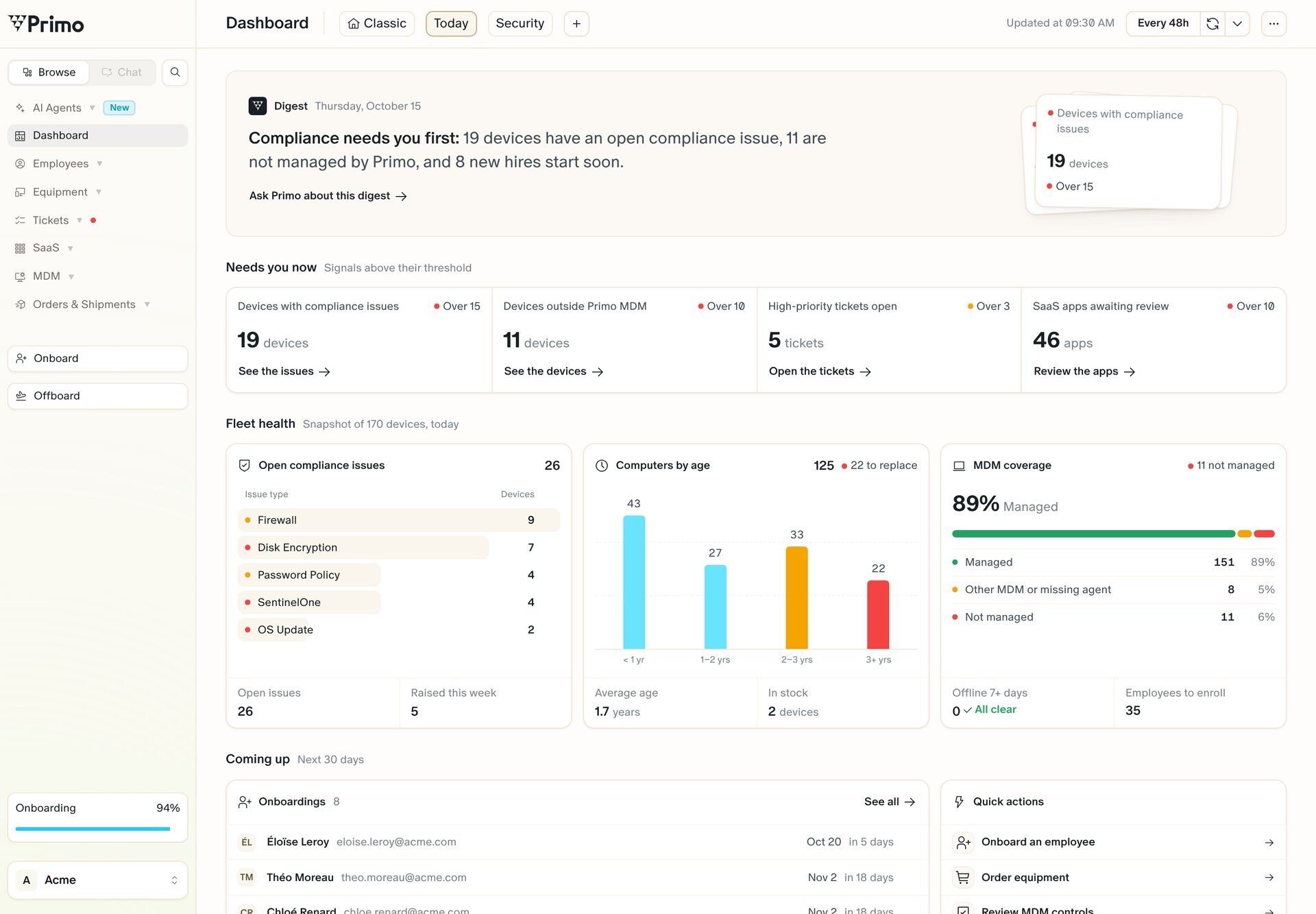
OnboardingAI
Onboarding Agent
Hand each new hire’s onboarding to Primo AI. Describe your onboarding in your own words: steps, owners, timing, reminders. For every new hire, the agent opens one ticket and creates its tasks. By default, it orders within your published Equipment and Purchasing policies without waiting for approval, stock first. It emails a remote new hire to confirm their home address, and they need no Primo account. With a connected email provider, it creates the mailbox and the SaaS accounts your published provisioning rules cover. Anything else, like an order outside a policy, becomes a task for a person you named. It doesn’t configure devices.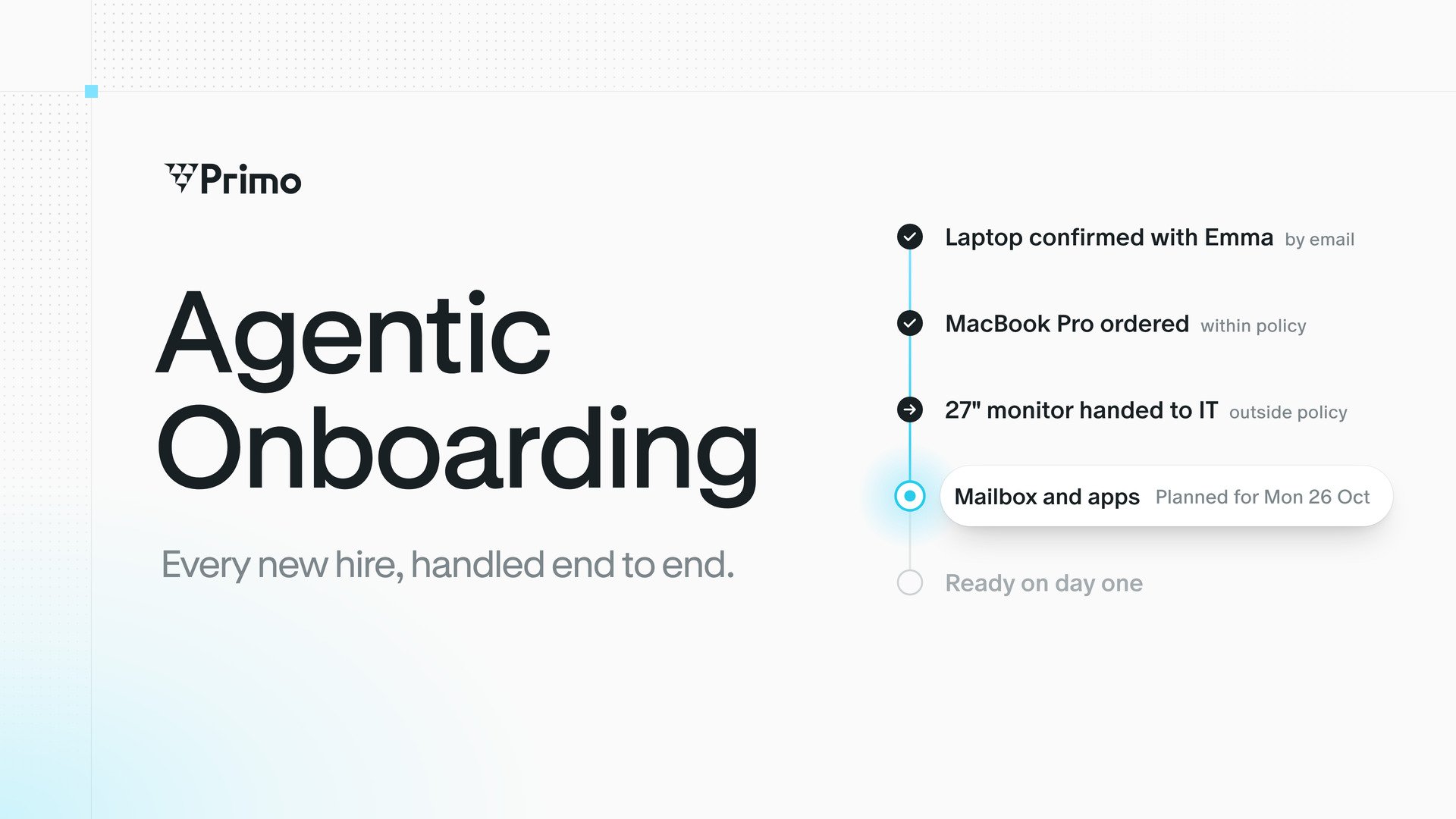
SaaS ManagementAI
One provisioning rule per SaaS
Each SaaS now has its own provisioning rule in plain words: who gets an account, with which groups, roles, licences, and organizational units. Primo moved your previous rules for you, and each SaaS kept the part that covered it. Open a rule from the Settings tab of the SaaS, preview its effect, then publish. Primo AI can write a first rule from the accounts already in place. Accounts that don’t match the published rule show in SaaS > Issues.See Set up provisioning rules.Platform
Pin a view on any page
Choose the view a page opens on for your whole company. Open a view on Devices, Employees, Tickets or any other page with table views, then click Pin in its view menu. The pinned view moves to the leftmost tab, and the page opens on it for everyone in your company. Each page has one pinned view. Only cockpit admins can pin a view.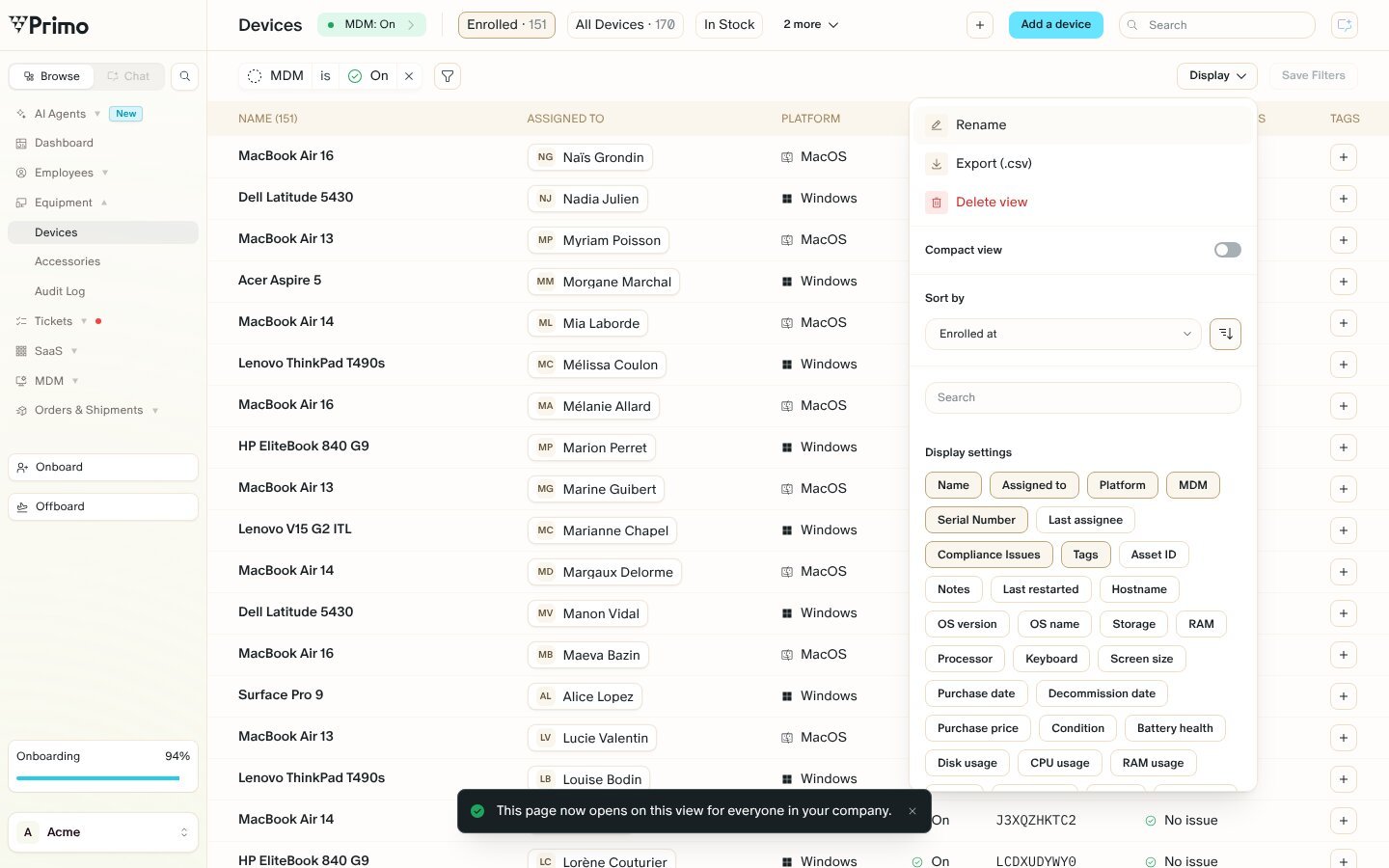
Device Management
Release a Mac from Apple Business before you sell or return it
Once released, a Mac no longer enrolls in Primo automatically after a wipe or a reinstall. On a Mac enrolled through zero-touch deployment, click Actions > Release from ABM, then Release. You can also check I want Primo to release this device from my ABM when you unenroll it. If Apple Business refuses the release, the Mac stays enrolled. In Apple Business, turn on Allow this MDM server to release devices for Primo. Only Apple or your reseller can add a released Mac back to Apple Business.See Release a Mac from Apple Business.OnboardingSaaS Management
Create new hires’ addresses on several email providers
You can now set several SaaS instances as email providers, such as one Google Workspace or Microsoft Entra tenant per entity. Turn it on from the Settings tab of each instance. With Provision email set to Automatic, under Create addresses automatically on, select the providers where Primo creates each new hire’s address. An admin creates the others from the onboarding. In an onboarding’s email step, Select email provider lists each provider with its domain. Each one opens on the new hire’s address there, or on a suggested one. Each provider you check needs an address before the step can continue.See Provision email and Connect several instances of the same SaaS.OnboardingHelpdesk
Get reminded when an onboarding step is due
The morning reminder email now lists onboarding steps that are coming due or overdue, so a late step reaches its assignee. A step gets reminders when it has a Due date, which you set on steps in Manual. The schedule is also shorter, for every ticket and task. An item shows up 2 days before its due date and on the due date. Once overdue, it shows up on each of the next 3 days, then stops. You can’t turn these reminders off yet.See Get reminders for due tickets and tasks and Understand onboarding settings.AI
Test a custom agent before it runs on its own
Open a custom agent and click Dry run to try it on your real data without changing anything. Every email, ticket, comment or device action it would make is recorded instead, and the run shows What it would have done. When the result looks right, click Run now to run it for real, after you confirm. Agents that only run on events can’t be started this way.See Test an agent with Dry run or Run now.AI
Primo AI offers an agent for the work you repeat
Ask Primo AI for something you check every week, such as the devices that stopped checking in, and it answers first. Then it offers a custom agent for the job, with its name, what it does and when it runs. Click Set it up and Primo AI drafts the agent in the chat. Nothing is created until you confirm.See What you can ask.AI
Your workflows are now custom agents
The workflows you set up in Primo now run as custom agents in AI Agents > Agents, with the same instructions and the same schedule. Their reports are now HTML run reports instead of PDF or CSV files. Some came over disabled and wait for you to click Enable agent. Check each agent’s tools first: moved agents can use Primo’s tools without asking.See Find your former workflows.Global Purchasing
Get an email when a delivery date moves
When the estimated delivery date of a purchase moves to another day, Primo now emails the people who get your order’s shipping email. The email gives the order number, the products, who they’re assigned to, the new date and a tracking link, so you can warn the employee who’s waiting for it.See Get notified when a delivery date changes.Device Management
Connect Microsoft Entra without leaving the Autopilot setup
Step 1 of the Windows Autopilot setup now connects Microsoft Entra in place, with a Connect Microsoft Entra button. Sign in with a Global Administrator account, accept the permissions Microsoft lists, and continue with step 2. You no longer go through the Entra settings in SaaS, which Autopilot doesn’t need.See Zero-touch for Windows.Onboarding
Start onboarding from the new hire’s panel
When Create onboarding ticket is set to Manual, you open each new hire’s onboarding ticket yourself. The panel of a new hire whose onboarding hasn’t started now opens on the Tickets tab, with a Start onboarding button that creates the ticket.See Create onboarding ticket.AIHighlight
Custom agents
Give Primo AI a recurring job of your own, like a Monday briefing on who arrives and who leaves, or a monthly check for SaaS seats that belong to nobody. An agent runs on a schedule or when an event happens in Primo, follows your instructions, and uses only the knowledge and connectors you give it. Set each tool to Always allow, Require approval or Always refuse, then follow each run and its report in the agent’s Runs tab.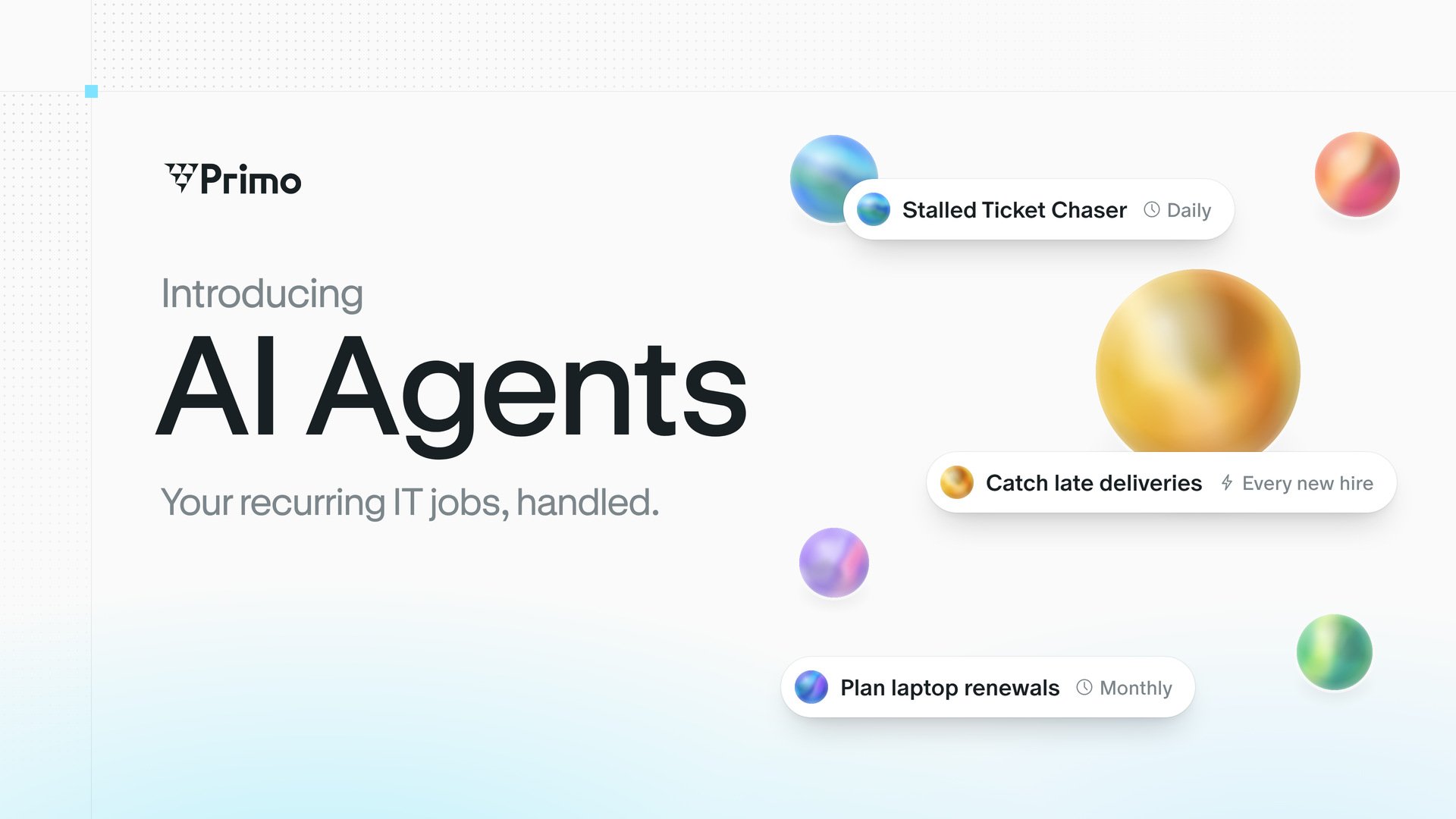
Device Management
Remove the Primo agent from a Mac whose MDM is off
A Mac whose enrollment profile was removed can keep running the Primo agent and reporting to Primo. Open the device and click Actions > Advanced > Remove Primo Agent. The removal waits until the Mac is on and connected. At its next check-in, the agent is removed and the device is no longer managed.See Remove the agent from a Mac whose MDM is off.Device Management
Rotate passwords of admin accounts Primo didn’t create
Admin password rotation now also covers local admin accounts that already existed on your devices, when their username matches the control. Primo overwrites their current password at the next sync, then rotates it on your schedule. On a Mac, this needs another admin with a SecureToken whose password is stored in Primo. When Primo can’t change a password, the compliance status says why. Read the new one from the device’s Users tab, with Actions > Display password.See Admin password rotation.Helpdesk
Daily reminders for due tickets and tasks
Each morning, Primo emails each assignee one list of their open tickets and tasks that are coming due or overdue. An item shows up 7 days before it’s due, again 2 days before, then every day once it’s overdue, until it’s done. Pending tasks come with a Mark as done button. Onboarding tickets and their tasks aren’t included.See Get reminders for due tickets and tasks.SaaS Management
Connect the same SaaS more than once
If your entities each run their own Google Workspace or Microsoft Entra tenant, connect each one to Primo as a separate instance. Add it again from the catalog in SaaS > Directory > Add a SaaS, then rename it after the entity it covers. Each instance keeps its own accounts, licences and rules, and offboarding lists each instance where the leaver has an account.See Connect several instances of the same SaaS.HelpdeskAIDevice Management
Grant temporary admin rights from a ticket or the chat
An employee who needs admin rights for a printer driver or a VPN client asks in a ticket. With Primo AI on the ticket, they become an administrator of their Mac or Windows device for 1 to 24 hours. An IT admin approves, not their manager, and nobody approves their own rights. The device removes the rights at the deadline, even offline. An Admin management control that demotes extra admins can end them sooner. Admins can also ask Primo AI in the chat.See Grant temporary admin rights.Helpdesk
Raise and follow IT tickets from Microsoft Teams
Employees raise a ticket by posting in a subscribed Teams channel, or by mentioning the Primo app in a channel where it’s added. Messages in a personal chat with the app go to their latest open ticket, or open a new one. Primo confirms in the thread, and replies there become comments on the ticket. Public replies you send with Also send to Teams go back to the thread; internal notes never do. A Microsoft 365 administrator connects your tenant in Tickets > Settings > Microsoft Teams. Then add the Primo app to your teams and choose the channels.See Microsoft Teams.Device Management
Block USB file transfer on Android
The USB storage blocking control now covers company-owned Android devices. By default, it stops file transfer over USB while a mouse or keyboard keeps working. You can block all USB data instead on devices running Android 12 or later with compatible hardware. Personal devices enrolled with a work profile aren’t affected.See USB storage blocking.Device Management
Ship several installers under one custom software
A custom software can now hold up to 10 packages, each targeting its own devices. Ship an Apple silicon and an Intel build under one name, or give a pilot group the new version first. Keep their targets apart: a device targeted by two packages gets the one added first.See Add several packages to one software.Device Management
Enroll iPhones and iPads with a QR code
Employees enroll an iPhone or iPad by scanning a QR code and signing in with their work account, and the device is assigned to them. Turn on Require IdP authentication in MDM > Settings first, or the devices enroll without an owner.See Employee enrollment.HelpdeskAI
Helpdesk Agent
Add Primo AI to a ticket and it works the request your employee raised by email, from Slack, from Microsoft Teams or from their employee space, replying in the same thread. It handles the common requests: where’s my order, access to a SaaS, a forgotten email password, a hardware renewal. Ordering a device or provisioning a SaaS seat waits for approval from the employee’s manager, or the ticket’s assignee when there’s no manager. When it can’t help, it leaves an internal note with what it checked and creates a task for your team on the same ticket.Letting Primo AI pick up every ticket your employees raise is rolling out to accounts. See Helpdesk Agent.Onboarding
Every onboarding gets its own ticket
Each onboarding now opens one ticket with a task per included step: information, mailbox, SaaS accounts and equipment. Each task has an owner, so you can see who still has to act. Set a step to Automatic and Primo runs it for you. It creates the mailbox when a new address is needed, provisions your connected SaaS and gives owners of manually tracked SaaS a task.Automating onboardings requires a connected HR system. See The onboarding ticket and Automate your onboardings.OnboardingAI
Equipment Agent
Publish your Equipment policy and Purchasing policy, written in plain language, then set the Purchase equipment step to Automatic. Primo AI runs that step on each onboarding. It checks your stock first, then the catalog, emails the new hire one proposal, and asks the step owner to approve before anything is ordered or assigned. Your policies set the rest: who signs off, where it ships, which billing profile pays and when equipment work starts.The Automatic option is rolling out to accounts. See Equipment Agent.Device ManagementAI
MDM Remediation Agent
For the compliance statuses you set to Create Issue and Ticket (FileVault or BitLocker off, an OS update past its deadline, the EDR agent not running), each drifting device gets a ticket that Primo AI works. It re-applies the fix, checks on the device that it worked, and the ticket closes once the device reports compliant. When only your team can go further, an offline device for example, it hands the ticket back with its diagnosis. If the employee has to act, a restart for example, Primo AI tells them once, in their language. It never locks, wipes, retires or unenrolls a device on its own: your policy has to explicitly allow it, and an admin has to ask in an internal note. Every action it takes on a device is recorded in the audit logs.Turn it on by publishing your AI Remediation policy in Compliance > Compliance issue settings. See MDM Remediation Agent.Device Management
Enter your Windows zero-touch values yourself
Paste your Entra Tenant ID, Entra application (client) ID and Domain into the cockpit yourself instead of sending them to support. If you set up Windows zero-touch before, a banner reminds you: until the three values are saved, Windows zero-touch isn’t fully operational. Only the domain verification code still goes through support.See Zero-touch for Windows.PlatformAI
Custom fields that fill themselves
Write a one-sentence instruction on a custom field, like “Return the cost center matching the owner’s team”, turn on Enable AI auto-fill, and Primo AI fills it on each new record the field applies to. Run it once on existing records to fill the gaps. Each value shows whether it came from AI or was typed by hand. Values are written once: when your data changes, run Refresh values with AI with Replace values that already exist on, which also overwrites values typed by hand.Custom fields are in beta and rolling out to accounts. See Custom fields.Device Management
Fewer compliance issues that don’t need you
Exempt unassigned and in-stock devices, so the spare laptops in your cupboard stop raising issues and tickets. You can also set a grace period of 1, 3, 7, 14, 21 or 30 days for statuses that are still being applied, like a configuration on its way to the device. Real violations, such as an unencrypted disk, still raise their issue as configured.See Configure compliance issue settings.Platform
A new look, with dark mode
Primo has a new theme across the app, with clearer type and contrast. Pick System, Light or Dark from your menu; System follows your computer’s setting.Device Management
See where each app is installed, device by device
For every app you deploy through Primo, you now see its state on each targeted device (Installed, In progress, Failed or Ready to install) and the installed version next to the one your package offers. When the VPN client fails on three laptops, open the app’s Devices tab, find them and click Install again. You can also update an app on a single device, or uninstall one you deployed as a package, without leaving Primo.See Software installation status.Device Management
Run scripts on your devices from Primo
Add your shell, Python and PowerShell scripts to the Script library once, then run them on your Mac, Windows and Linux devices: all of them, a device group or a single device. Each device reports its output and exit code after its next check-in, so you can see which laptops took the fix and which need a second look.See Script library.SaaS Management
Sync employee custom fields to Microsoft Entra ID
Map your employee custom fields to the 15 Entra extension attributes,extensionAttribute1 to extensionAttribute15, then use them in dynamic group rules and other Entra automations. Go to SaaS > Directory, select Microsoft Entra ID, and on its Settings tab click Configure on Customize Data Mapping.Primo writes each value as text: the option label for a select field, the labels separated by , for a multi-select field, and true or false for a checkbox. An empty value clears the attribute, and so does archiving a mapped field, at the employee’s next sync. Primo leaves unmapped attributes as they are.For users synced from on-premises Active Directory, Entra refuses the update, because on-premises AD owns these attributes. Each refusal shows as a failed User updated event on the SaaS’s Logs tab.Google Workspace and Slack also accept custom fields in their data mapping.Device Management
Lock or wipe Android devices remotely
You can now lock an Android phone from Primo when it goes missing, clear its passcode when an employee forgets their PIN, or factory-reset it before handing it to someone else. Lock and clear passcode work on company-owned and personal (BYOD) devices; wipe only on company-owned (fully managed) ones, and a wiped device is unenrolled from Primo.See Lock, Clear passcode and Wipe.Helpdesk
Turn Slack messages into tickets
Connect Slack and your employees’ requests become tickets without anyone copying them over: a message in a channel you subscribe to, a direct message to the Primo app, the Create ticket shortcut on any message, or the/primo ticket command. Replies in the thread land on the ticket, and public replies you send with Also send to Slack go back to the thread. Internal notes stay in Primo.See Slack.AI
Primo AI, on every page
Click the Chat icon in the top bar, on any page, and Primo AI opens in a chat panel. On the Devices page, ask “Which devices are non-compliant?” and get the list without building a filter. Conversations are saved, you can attach files, and Primo AI asks you to Accept before any action that changes data.See Primo AI.Global PurchasingAI
Equipment policy
Describe in plain language who gets which hardware, like “Sales get a MacBook Air; Engineering get a MacBook Pro with at least 16 GB of RAM”, and when you publish, Primo AI turns it into a curated selection for each country you ship to. When you order for someone or set up their onboarding, the catalog shows an In policy for this employee section with the right hardware for their profile. It replaces catalog favorites.Set it up in Orders & Shipments > Settings. See Equipment policy.Helpdesk
Edit tasks directly from the ticket list
You can now manage a task without opening it. Every task row on a ticket is a compact action bar:- Manual tasks — change status, priority, tags, and assignee inline. Tag edits batch into a single save when you close the menu. Mark tasks as done in one click, or open the ⋯ menu for more actions.
- Onboarding and offboarding steps — set priority inline and use → to jump to the matching stepper step. Status stays read-only so the stepper remains the source of truth.
Device Management
Track your own data on every device
Create custom fields for what Primo doesn’t track out of the box, like an asset tag, a cost center or a criticality level, and fill them from the device panel. Select, multi-select and checkbox fields also filter your device lists and power Device Group rules, so devices whose Criticality field is set to High can land in a stricter Device Group.Custom fields are in beta and rolling out to accounts. See Custom fields.Larger custom software uploads
You can now upload custom software packages up to 10 GB. Previously, large installers could time out or fail during upload. This makes it easier to deploy enterprise applications, large creative suites, and other sizable packages to your fleet.Device compliance tracking
Device compliance status is now computed and tracked automatically. Configure compliance issue settings to decide which device statuses raise an issue and maintain security posture across your fleet.Fleet log collection
You can now collect and download Fleet logs directly from a device’s detail panel. This makes troubleshooting MDM issues faster without needing to access the device or a separate tool.MAC address randomization for macOS
A new Wi-Fi control option lets you enable MAC address randomization on macOS devices. This improves employee privacy on wireless networks. Configure it alongside your existing Wi-Fi settings.Procurement improvements
The procurement workflow has been enhanced with several updates:- Purchase splitting — Split purchases across multiple cost centers or budgets
- Serial number tracking — Assign and manage serial numbers directly within orders
- Product variations and stock — See product variants, stock levels, and references when placing orders
- Zero-Touch enrollment IDs — View enrollment IDs directly in order details
- Home/work address types — Specify whether shipping addresses are home or work locations
Lock and unlock iOS and iPadOS devices
You can now remotely lock and unlock iOS and iPadOS devices from the cockpit, extending device management capabilities beyond macOS and Windows.Android device unenrollment
Admins can now unenroll Android devices directly from the cockpit, making it easier to manage the full lifecycle of Android devices in your fleet.AirDrop restriction
A new macOS control lets you restrict AirDrop on managed devices, preventing unauthorized file sharing.Screen capture blocking
You can now block screen capture on macOS devices, adding another layer of data protection for sensitive work environments.Bootstrap token status in device panel
The device detail panel now displays the bootstrap token escrow status for macOS devices, along with a warning when the token is missing. This gives you quick visibility into whether the device is ready for admin operations.Script execution status on devices
When viewing a device, you can now see the status of scripts that have been run on it. This makes it easier to track whether configuration scripts completed successfully.SaaS licence provisioning improvements
You can now send credentials to an employee’s manager with a new “Send to manager” option in licence provisioning. This is useful when onboarding employees who may not have access to their email yet.Device filtering improvements
The device list now supports filtering by RAM and processor, making it easier to find specific hardware configurations across your fleet.Ticketing updates
- @mentions — Mention team members in ticket comments to notify them and automatically subscribe them to the thread
- Email notifications — Comment notifications are now sent via email, so your team stays informed without needing to check the cockpit
- Subscriber management — Control who receives updates on each ticket
Delete secondary billing profiles
You can now remove secondary billing profiles from your SaaS application settings when they are no longer needed.Workspaces
You can now organize multiple companies under a single workspace. This lets managed service providers and multi-entity organizations manage all their companies from one place, with the ability to rename workspaces and switch between them easily.Bootstrap token management
Bootstrap token status now syncs and is tracked from your devices. You can see whether a token has been escrowed, and a warning appears when an admin action requires a valid token — helping you avoid blocked operations during device management.IdP end-user authentication for MDM
A new toggle in MDM settings lets you enable identity provider-based authentication for end users during enrollment. This connects your IdP to the enrollment flow so employees authenticate with their existing credentials.Google Workspace data mapping
You can now map employee attributes from Google Workspace, just like with other HR sources. Configure which fields sync and set the cadence for how often data is pulled in.Default SaaS deprovisioning date
A new setting lets you define a default deprovisioning date for SaaS applications during offboarding. This saves time when processing employee departures by applying your preferred timeline automatically.Multiple OS update controls per platform
You can now create more than one OS update control per platform. This means you can set different update policies for different device groups — for example, a stricter policy for engineering devices and a more relaxed one for shared devices.Windows Autopilot with Entra ID
You can now configure Windows zero-touch deployment with Microsoft Entra ID. Manage Autopilot settings directly from the cockpit for a smoother Windows enrollment experience.New API endpoints
New public API endpoints are available to create devices and employees programmatically. Use these to integrate Primo with your existing provisioning workflows. See the API reference for details.Custom OS update profiles
You can now upload custom OS update configuration profiles for more granular control over how and when updates are delivered to your fleet.Saved views on identities
The Identities page now supports saved views, so you can create and switch between filtered views tailored to your workflow.Device group label sync
Device groups now sync their labels with FleetDM, keeping your grouping consistent across the cockpit and your underlying MDM infrastructure.USB blocking mode for Windows
The USB storage blocking control now supports configurable modes on Windows, letting you choose between fully blocking or selectively allowing USB storage devices.SaaS contract management via API
You can now manage SaaS contracts through the Primo API and MCP server, enabling programmatic control over your SaaS contract data.Offboarding email reminders
Employees approaching their offboarding date now receive an email notification 30 days before departure, giving them time to prepare and wrap up access to company tools.Identity audit log
A new audit log panel is available on identity records, so you can track changes and actions taken on each identity over time.Accessories Improvements
You can now manage accessories with more flexibility, better tracking, and smoother workflows across your inventory:- Upload and export accessories via CSV
- Create custom views using filters
- More settings and display options across the Accessories section
- Improved tag management for easier organization
- A new “Other” accessory type for custom items
- Quantity tracking for shared accessories
- Condition tracking to keep your inventory accurate over time
MDM Updates: Smoother Onboarding and More Linux Controls
OS updates no longer forced during Zero-Touch Deployment
During Zero-Touch Deployment, OS updates will no longer be triggered automatically. Employees can now go through device setup without interruptions and update their computer when it suits them.More Linux MDM Controls
New Linux Controls are now available, including:- USB blocking
- Wi-Fi configuration
Software Management and App Patching
You can now manage software directly in Primo, without switching tools.App patching
Enable auto-patching per app so updates are handled automatically. From any software page, you can turn on patching to:- Keep installers up to date
- Automatically roll out new versions
- Use install scripts when needed
Install apps from Primo
Deploy new apps directly from Primo. Fleet Maintained Apps are supported on macOS and Windows, with control over:- Targeting (device groups, specific devices, or all devices)
- Self-service availability
- Install scripts
See what’s installed at a glance
The Software section now shows what’s installed and where, with versions, filtering, and custom views to track the apps that matter most.MDM Controls and Software Management
MDM policies are now Controls
MDM policies are now called Controls, with a dedicated space in Primo. The goal is to make policies easier to find, easier to understand, and easier to manage at scale. Naming has also been simplified:- Profiles are now Device Groups
- Installed Apps is now Software
Target devices directly
Instead of relying on MDM Profiles, you can now assign Controls directly to devices.Create a Control based on the platform, configure it once, then choose where it applies:- a device group
- specific devices
- or your entire fleet
One place to see every policy deployed
You now get a single view of all Controls applied across your fleet, so you can quickly answer: what is deployed, where, and to whom?Duplicate policies with confidence
Duplicating a policy is now more obvious and frictionless — the fastest way to reuse a setup and adapt it for another group or exception case.Profiles become Device Groups
Device Groups are now what they should have always been: a clean way to organize your fleet, not a requirement for deploying policies.Installed Apps becomes Software
Installed Apps is now Software, with a clearer experience and a dedicated section. This is the first step in bringing more of Fleet’s software management capabilities into Primo.Tags for SaaS
Tags are now available on all SaaS apps Primo discovers through SaaS Mapping and the Chrome extension. Add and edit tags manually to group tools by team, owner, sensitivity, risk level, and more.To have Primo handle this automatically, enable AI auto-tagging under Settings > SaaS. Primo will review your existing and newly discovered apps and apply the most relevant tags.Once your apps are tagged, you can filter by tag, create focused views for audits or renewals, and spot security risks more quickly.SaaS Mapping and Chrome Extension
SaaS Mapping is now available. It shows every SaaS app accessed with a company email through Google Workspace. For broader coverage, you can add the new Chrome extension, which maps all work identities used with a company email — even when users are not signing in with Google.SaaS Mapping is enabled by default if you have connected Google Workspace. Deploy the Chrome extension through an MDM profile using the Chrome MDM Policy.This feature is available for all organizations with an active SaaS Management subscription.Primo only focuses on work-related SaaS usage. No personal accounts, no browsing data, and no content are collected.Onboarding Autopilot
Define recurring settings once — including email creation, default apps, and access groups. For each hire, pick the date and Primo generates a run you can review and adjust. On the scheduled day, Primo provisions accounts, creates mailboxes, applies access, then records outcomes.Equipment shipment remains manual, with automated procurement coming soon.Remote Assistance via RustDesk
Enable RustDesk in a profile to auto-install the agent on targeted devices. Start secure sessions directly from a device page without asking users for codes or passwords. Sessions inherit your access controls and are logged for audit.Use this to diagnose issues in real time and reduce back-and-forth with users. It is especially useful for onboarding, remote staff, and incidents that need quick hands-on help.MDM Audit Trail
Get a chronological timeline of MDM actions across all devices. Filter by device, action type, or date to confirm policy changes, debug issues, and satisfy audits. Each entry shows what happened, who triggered it, and the result, with links back to the device or policy.Use exports to share evidence with auditors or vendors.SentinelOne Integration
Connect your SentinelOne tenant in Primo and auto-deploy SentinelOne to every managed device. New machines get protected on enrollment, reducing gaps from ad hoc installs. Device status and coverage appear in one view so you can spot stragglers quickly.Policies remain in SentinelOne while deployment and tracking live in Primo, keeping responsibilities clean.AI Automations: Smooth, Effortless Management
AI Automations handle your routine processes in the background, with no intervention needed from you. While Uno reacts to specific requests, Automations handle ongoing tasks automatically based on your defined rules.For instance, in addition to having Uno send a reminder to a user who’s late on updates, you can set up an Automation to send reminders to all relevant users on a regular basis. Likewise, once Uno configures an MDM setting for you, Automations can apply the new settings across all devices in your organization automatically.Here’s how you can start using them:- Regular audits: “Generate a monthly report of all non-compliant devices.”
- Automated alerts: “Email me every time a device falls out of compliance with our MDM policies.” / “Send reminder emails to employees who haven’t registered their devices after 7 days.”
- Device tracking: “Email me monthly with a list of devices that have exceeded 80% CPU usage over the last 7 days, or whose batteries have passed 10,000 cycles.”
Uno: Your Conversational IT Assistant
Uno is your personal IT assistant. From the menu bar, start a chat and tell it exactly what you need — whether it’s creating a custom MDM configuration, sending automatic reminder emails to employees who are behind on updates, or generating PDF reports on security or inventory.Uno executes actions in seconds, without complex menus or manual steps.Here’s how you can start using it:- Quick audit: “Show me all non-compliant devices” and receive the report instantly.
- Executive report: “Generate a PDF combining inventory, compliance, and fleet health status.”
- MDM configuration: “Install this app on my iOS devices.”
- Automated reminders: “Send an email to all employees who haven’t enrolled yet or are overdue on updates.”
- Help: “How do I change the names of computers in my fleet?”
Smart Device Assignment
Primo automatically assigns each computer to the right employee using accurate, real-time data. The AI examines open sessions, connection history, previous owners, and other key data points to determine which device belongs to whom — while ensuring data privacy is maintained.This reduces the risk of misassignment, streamlines inventory management, and saves time. Activate this option directly from Primo’s MDM settings.AI Agents: Natural Language Automations
You can now create automations in natural language directly from Primo. AI interprets your requests and transforms them into concrete actions.Here are some use cases to try today:- Send regular emails to users who haven’t performed updates or who don’t comply with certain security policies.
- Automatically install VPP applications on your employees’ iPhones.
- Generate customized weekly reports.
- Receive email notifications for each new enrollment.
Employee Panel Redesign
The employee panel has been redesigned to offer better readability and more intuitive navigation:- Unified view centered on each employee’s identities.
- Simplified access to equipment, applications, identities, and statuses.
- Overall improved ergonomics.
Other Improvements
- Data mapping: Match Primo data with your SaaS tools, either when creating an employee or during each automatic synchronization. Configure mappings under Identities, then select Entra, Slack, or Front.
- Provisioning error visualization: Each application clearly indicates any provisioning errors for quick diagnosis.
- Custom SAML connections: Primo now supports SAML connections outside the native catalog.
Smarter Workflows with AI
Prompt-based device management
Manage device fleets using natural language:- Standardize device naming using your preferred format.
- Generate filtered device views with simple prompts — for example, “Show all marketing team laptops from the Paris office.”
- Create any macOS MDM settings using AI.
Smarter email setup during onboarding
When adding a new employee, Primo now automatically suggests the correct email address based on your company’s naming conventions.Recommended SaaS provisioning
Primo now recommends the right apps, groups, roles, and licences when onboarding new teammates — tailored to their role, team, and manager. Set up new team members with a single click.Device Health Check
With Primo Health Check, monitor the overall health of your devices at a glance and stay ahead of issues before they become problems.From any device panel, you can now view:- Average CPU load (last 7 days)
- RAM usage trends
- Disk usage
Other Improvements
- Configure onboarding and offboarding actions once in the settings tab to maximize automation.
- Set up Chrome preferences across your fleet by configuring bookmarks and startup URLs.
Custom Views and Filters
Create custom views of your devices using customizable filters and save them for quick access. Display devices based on a single criterion, combine multiple filters, or use the “is not” option to exclude specific items.Customize your view by showing or hiding columns. For example, create views of devices by entity, search for unenrolled devices or those with MDM issues, and monitor their status over time.This feature will soon be available on other pages throughout the application.More MDM Settings
- Multiple Wi-Fi networks per profile: Add multiple Wi-Fi networks in a single profile — ideal for organizations with multiple offices, so employees connect automatically to all your networks.
- Admin account management: Control admin rights on each machine, generate and store admin passwords in Primo, and downgrade user permissions when needed. Learn more.
- Password-protected recoveryOS on macOS: Secure access to recoveryOS with passwords safely stored in Primo.
- Custom configuration file uploads: Import custom configuration files for macOS, iOS, iPadOS, and Windows.
- Chrome extension management: Manage Chrome extensions directly from Primo.
Purchasing for the United States
Order hardware in the United States with Zero-Touch Deployment by connecting a second ABM in settings. Pay in dollars, euros, or pounds — Primo handles multi-currency billing automatically.Other Improvements
- SSO through Primo to connect to your applications.
- Improved interface and behavior for onboarding and offboarding checklists.
- New Vanta integration to automate risk management and compliance.
- Windows applications are now managed by FleetDM, with a maintained catalog of applications.
Smart Profiles and Global Profile
You can now apply multiple profiles to the same device, combining different configurations based on your specific needs — for example, a Design profile (with team-specific applications), a macOS profile (with macOS-specific security settings), and an office profile (with Wi-Fi credentials).A new global profile lets you target all enrolled devices in your company, making it easy to apply universal settings like encryption across your entire fleet.New Dashboard
The redesigned dashboard gives you a clear, instant overview of your fleet. Spot devices that need attention, identify unenrolled employees requiring follow-up, and navigate between product sections more easily.- Get an overview of upcoming events, including onboardings, offboardings, and expected order and shipment dates.
Connect Multiple HR Systems Simultaneously
You can now connect multiple HR systems to Primo. The platform manages employees across different HR systems in one place, enabling centralized and efficient workforce management.More Connected Apps for Provisioning
Provisioning support is now available for Datadog, Okta, Atlassian, Ringover, Zendesk, Amplitude, LastPass, and OpenAI — with more integrations on the way.Other Improvements
- New assignment logic: Clearer visibility of unassigned devices, with employee assignment in two clicks.
- Catalog available in USD and GBP: Place orders in multiple currencies across different regions. Billing will be in the currency of your selected billing profile.
- New filters: Filter employees by job or team to improve monitoring and profile targeting.
Onboarding and Offboarding Stepper Revamp
The onboarding and offboarding processes have been redesigned for more flexibility. Each step can now be completed independently and scheduled in advance. For example, you can create an email address immediately while scheduling account provisioning for a later date.Migration to FleetDM for App Installation
The application installation process has migrated to FleetDM, offering improved robustness and reliability for both macOS and Windows. You now have better visibility into application versions installed on each device. Learn more in our help center.Resale and Repair Process Update
Primo now connects you directly with partners Greendid and Furb for device resale and repair, giving you greater autonomy and transparency. Learn more about these services.Other Improvements
- Email transfer during offboarding: Choose to archive or transfer the email address of a departing employee.
- Entra login: Log in to Primo with your Microsoft account in one click — no separate credentials needed.
- Order and shipment improvements: Serial number association with invoices, more keyboard options at order, and more.
Smart Profiles
Previously, Primo users could assign only one profile per employee, which made it difficult to apply multiple configurations to the same device.Devices can now be targeted by multiple profiles simultaneously. You can apply specific configurations from different profiles — such as a password policy from one and Wi-Fi settings from another — to tailor setups to your organization’s needs.For example, a designer would have three profiles: a Design profile (with team-specific applications), a MacBook profile (with Mac-specific security settings), and an office profile (with Wi-Fi credentials).Key benefits
- Enhanced flexibility: Assign multiple profiles to a single device for more granular configurations.
- Simplified management: Use filters to apply various settings seamlessly, reducing complexity.
- Profile deletion: Delete profiles directly from Primo for greater control over your configurations.
How to use Smart Profiles
- Combine configurations: Pair profiles to apply diverse settings simultaneously — for example, a “Security Compliance” profile with a “Remote Access” profile.
- Use filters: Target devices based on specific criteria to ensure automatic deployment of the right configurations.
- Streamline onboarding: Create role-specific profiles. When onboarding new employees, assign relevant profiles to instantly equip their devices.
- Maintain compliance: Apply regulatory compliance settings through dedicated profiles to simplify audits.
FAQ
Revamped Orders, Deliveries, and Stock Management
The order, delivery, and stock tracking experience has been completely overhauled. Here’s what’s new:- New catalog: A redesigned product catalog for easier browsing.
- Redesigned order flow: A cleaner, step-by-step process.
- Express delivery: Prioritize urgent orders to save time.
- Add insurance when placing an order: Protect devices against the unexpected.
- Multiple tracking links in a single order
- “Open a claim” button in device details: Easily report incidents or delivery issues.
Create and Track Shipments from the Cockpit
All shipments can now be managed without leaving Primo:- Generate shipping labels: Create labels in a few clicks.
- Real-time tracking: View delivery statuses without switching between tools.
Weekly Summary Email
Get a weekly rundown of your fleet status and the next steps to take.Other Improvements
- Centralized onboarding and offboarding list: All arrivals and departures detected from your HR system are now centralized and filterable.
- Generic MDM enrollment installer: A generic MDM installer is now accessible to all administrators under Settings > MDM. It works on any device and is ideal for enrolling or configuring devices after initial setup.